
How to build a GoHighLevel multi-step form (2026 guide)
If a GoHighLevel funnel has a form that looks unusually good, it is probably a Growform form. Here is why agencies build their forms this way, and how to set it up in a few minutes.
 Harvey Carpenter Updated 11 min read
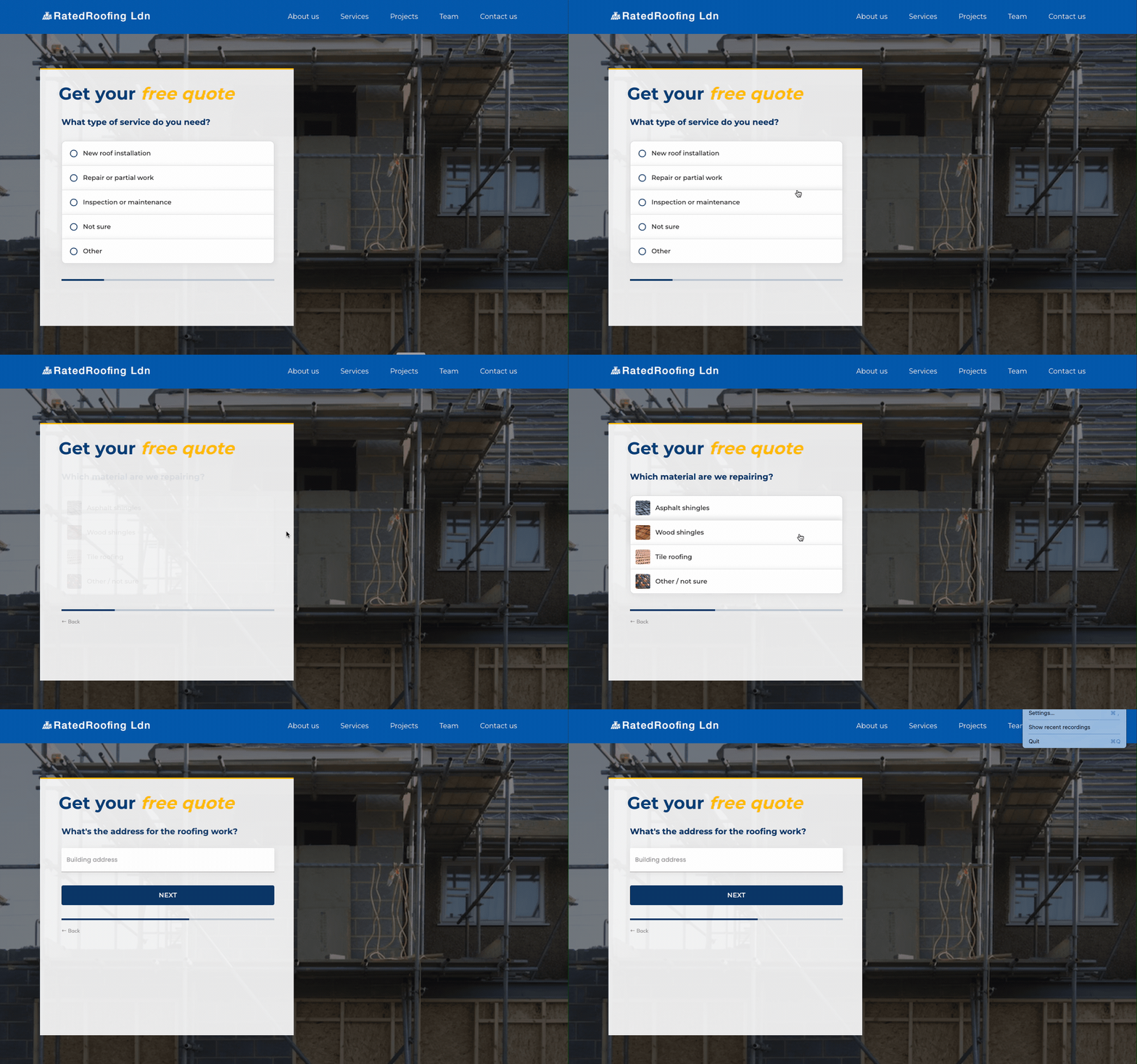
 If you've seen a GoHighLevel funnel with a form that looked unusually modern, complete with picture buttons and a progress bar - there is a good chance it wasn't built in GoHighLevel.
It was probably a Growform form.
This embedded form setup has become something of a best-practice among agencies that run paid traffic: HighLevel provides the workflows and CRM and Growform brings the form.
This guide shows you how to build your version in just a few minutes. If you already know what you're looking for, skip straight to the guide.
Why not use GoHighLevel’s own form builder?
HighLevel (the company’s name - though most of us still say GoHighLevel or GHL) is an excellent CRM, but its forms are the weakest part.
We say that with respect. The form builder is included in every plan, it writes straight to the CRM and it is perfectly good for a contact form.
But a form that has to turn paid clicks into qualified leads is a different beast.
Here's why:
- Their form builder makes single-page forms. Multi-page forms have been an open request on HighLevel’s ideas board since August 2023, with hundreds of votes, and people were still asking in August 2026.
- Answers cannot be pictures. Image answer options are still a request on the ideas board. Picture buttons are the easiest way to make a first question feel effortless on a phone.
- The progress bar is documented for mobile only. HighLevel’s progress bar article covers surveys and quizzes on mobile devices.
- A survey cannot end in a calendar. It redirects to a separate booking page, and every redirect loses people. This has been requested since October 2023.
- The forms lack modern components and UX. You will not find loading screens, animated step changes or fine control over the design without writing custom CSS. Validation adds friction, because phone and email checks work by sending the visitor a code to type in. Even TrustedForm is a manual job in HighLevel, with a custom field to create and a script to paste in.
HighLevel also has a quiz builder, which adds scoring and results pages to a survey. It suits “which plan is right for you” funnels more than quote requests, and it shares most of the same limits.
Here's the difference between HighLevel forms, HighLevel surveys and Growform:
| HighLevel form | HighLevel survey | Growform | |
|---|---|---|---|
| Multiple steps | ❌ | ✅ | ✅ |
| One question at a time | ❌ | ✅ | ✅ |
| Picture buttons as answers | ❌ | ❌ | ✅ |
| Progress bar | ❌ | ⚠️ Mobile only | ✅ Every device |
| Logic that hides whole steps | ❌ | ⚠️ Jump logic only | ✅ |
| Phone and email verified before submission | ✅ | ✅ | ✅ |
Everything above comes from HighLevel’s own documentation and ideas board, as they stood in September 2026.
Why agencies use Growform on GoHighLevel
Growform is a form builder made for one job, which is turning paid traffic into qualified leads. It serves more than 5 million form loads a month.
The reason is the conversion rate. Malcolm Haag runs Förnybarlead, a solar lead business. His landing pages converted at 5–6% with HighLevel’s own form, and at 15–20% after he switched the form to Growform.
Here is what you get:
- Forms that look like the expensive ones. Picture buttons, smooth step changes and a progress bar on every device, styled to match your page.
- Better leads as well as more of them. Conditional logic shows or hides fields and whole steps, so you can qualify and disqualify before anyone reaches your sales team.
- Real-time phone and email validation. Growform checks every phone number with Twilio and every email address with ZeroBounce while the visitor is still on the form. Fake numbers and mistyped emails are caught before the lead ever reaches HighLevel.
- Attribution on every lead. Hidden fields capture UTMs and click IDs and send them to HighLevel with the contact.
- One-click tracking. Fire Meta, Google Ads and pixels from the other leading ad networks with one click. Google Tag Manager and Meta’s Conversions API are supported too.
- Cleaner signals for your ad platforms. Growform can stop your pixels firing on disqualified leads, so the ad networks learn from the leads you actually want.
- Compliance for teams that sell leads. TrustedForm certificates are captured with one click, and Jornaya is supported too.
- Templates for most lead generation verticals, so you are not starting from a blank page.
You keep everything you like about HighLevel: the contact record, the pipeline, the workflows and the calendar all work exactly as before - only the form changes.
There is a 14-day free trial with no credit card required. Start your trial, then follow the steps below.
How to build a GoHighLevel multi-step form with Growform
You will create the form in Growform, paste one snippet into your HighLevel page and connect the two with a webhook. This guide is also available as a video. It was recorded in 2023, so some HighLevel screens look different today, but the steps are the same.
Here are the steps at a glance:
- Create a form in Growform.
- Set the form’s background, width and padding to suit HighLevel.
- Copy the embed code from Growform.
- Paste it into a code element in the HighLevel page builder.
- Preview the page.
- Send leads to HighLevel with an inbound webhook.
- Add hidden fields for attribution (optional).
1 – Create a form in Growform
Sign up for Growform and create a form. Start from a template that matches your industry, or choose “None – start with a blank slate” to keep things simple.
Our getting started guide covers the editor if you need it.
2 – Set up Growform for GoHighLevel
A few settings make the form sit naturally on a HighLevel page.
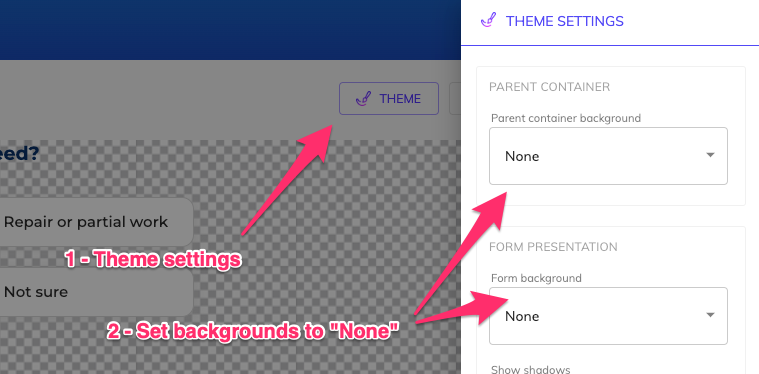
Under “Theme settings”, set the form’s container background to “None”, so it blends in with the background behind it:
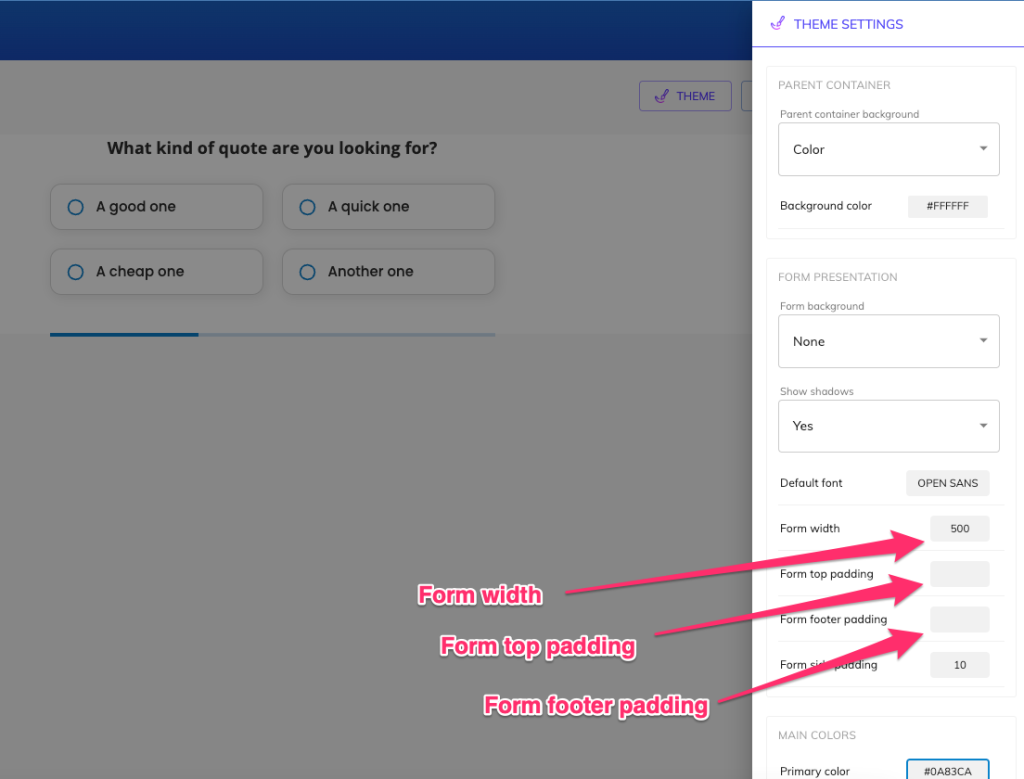
Also under “Theme settings”, set the form width to 520, the top padding to 15 and the form footer padding to 15:
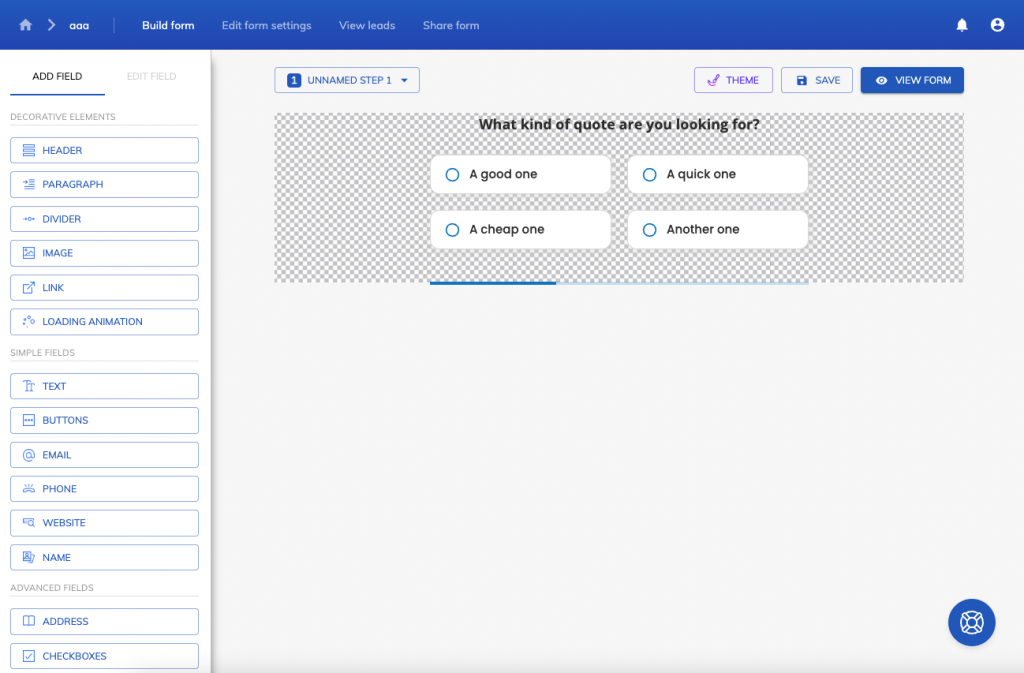
Change the form’s primary color and font to match your landing page. You should now have a simple, working form:
3 – Copy your embed code from Growform
Hit “Share form” in the top blue bar, then choose the option to embed Growform on your website with an HTML snippet. Click inside the box and copy the code:
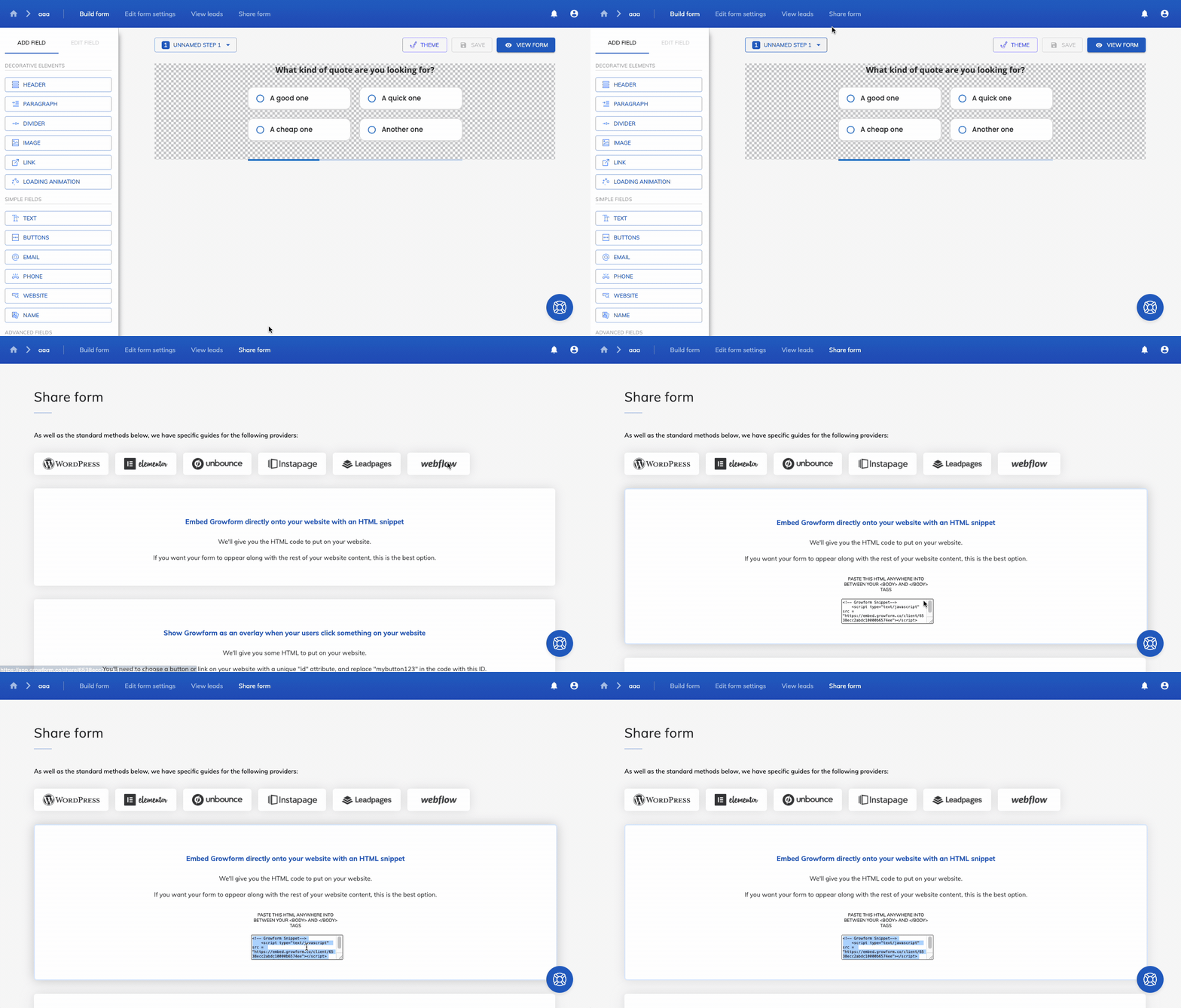
4 – Paste the embed code into the GoHighLevel page builder
In the HighLevel funnel or website builder, add a new element and search for “code”. HighLevel’s documentation calls it the code element. Older versions of the builder, and the recording below, call it the “Custom JS/HTML” widget. Add it to your page, open the code editor, paste your Growform code and save:
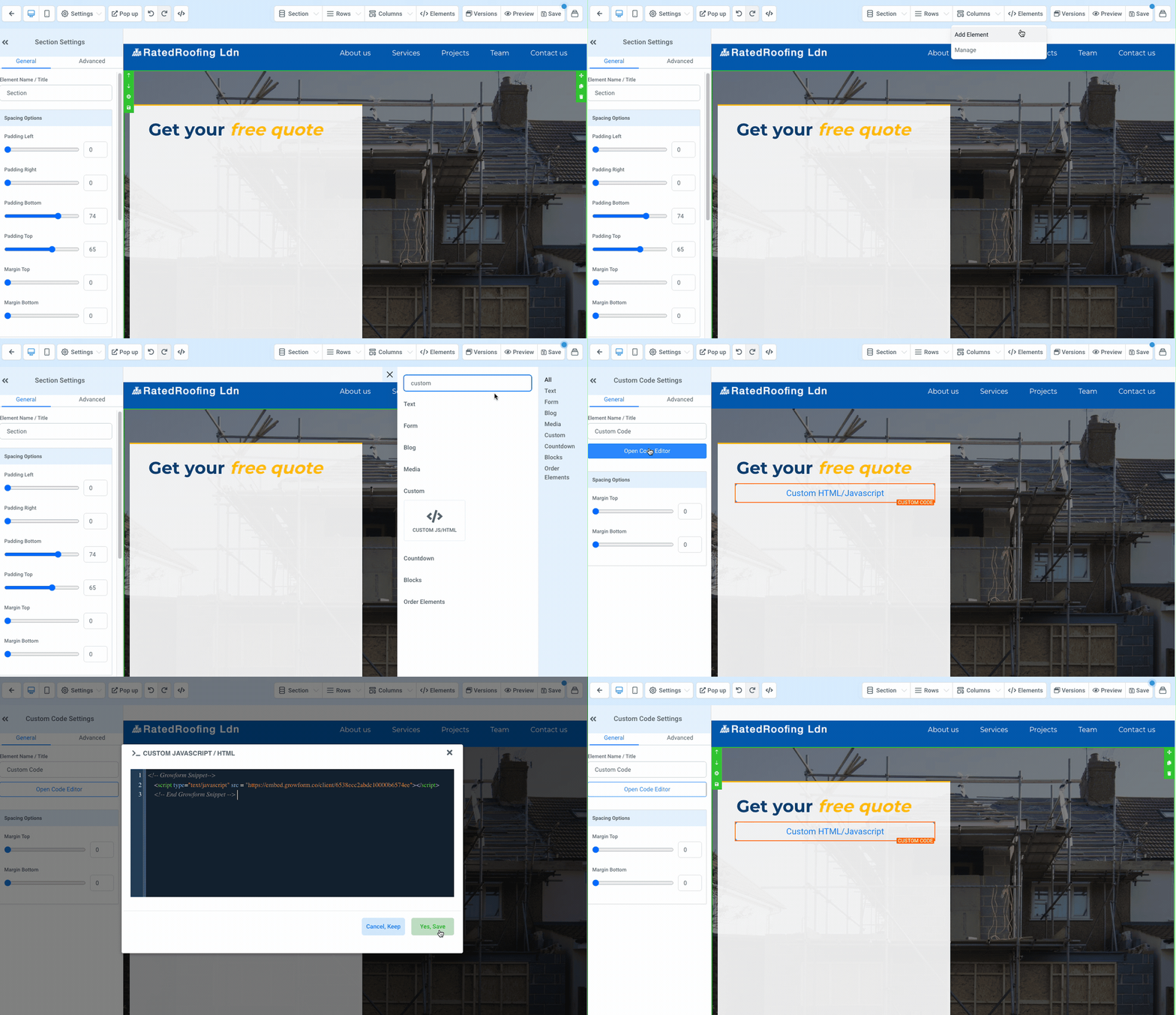
5 – Preview your new form
Custom code may not show inside the builder itself, so open the page preview. Your form should be on the page:
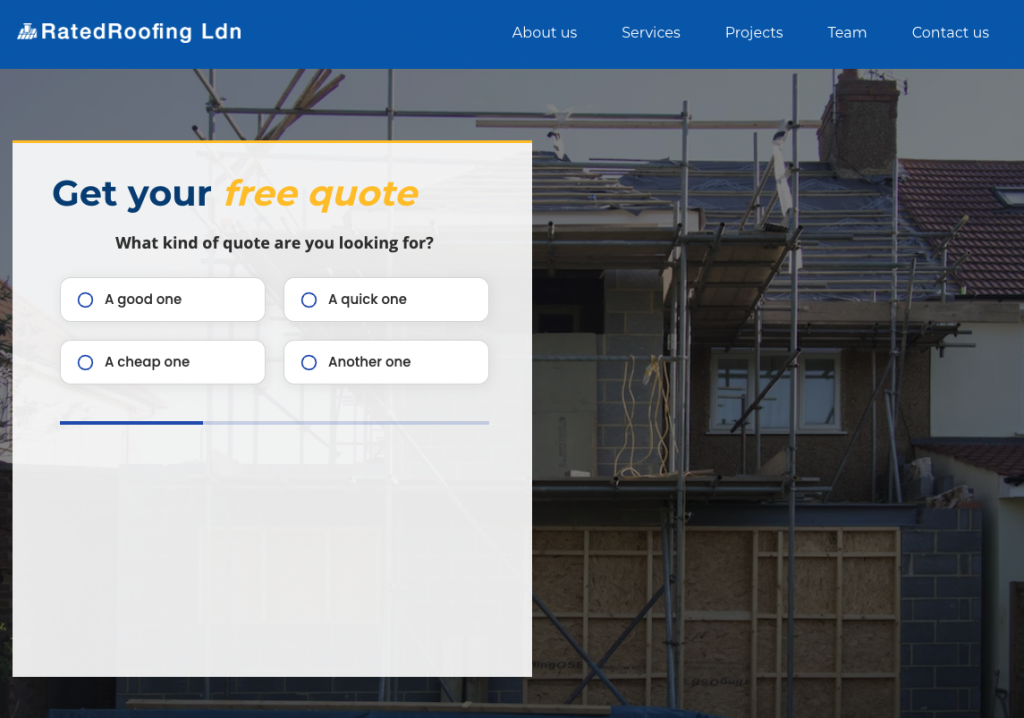
6 – Send leads to GoHighLevel with an inbound webhook
The form is on your page, but leads are arriving in Growform and not in HighLevel. An inbound webhook connects the two.
Good to know: HighLevel counts inbound webhooks as a premium feature, but it costs pennies. Your first 100 leads are free, and after that it’s $0.01 per lead - about $10 for every 1,000. An agency admin switches it on once under Settings > Company > “Workflow - Premium Features” (HighLevel’s guide has the details). Prefer to skip it? LeadConnector on Zapier does the same job.
Go to “Automation” in the relevant sub-account and hit “Create workflow”:
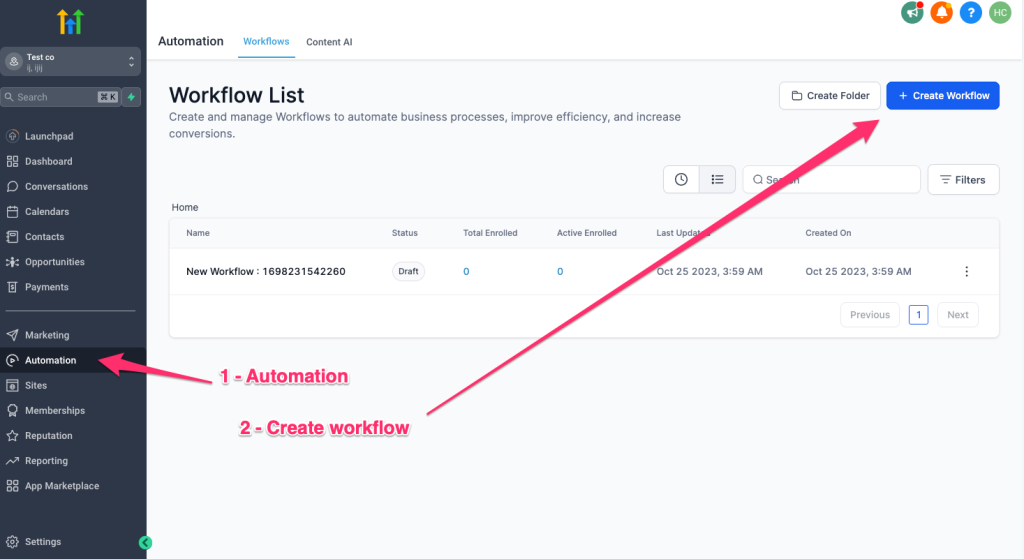
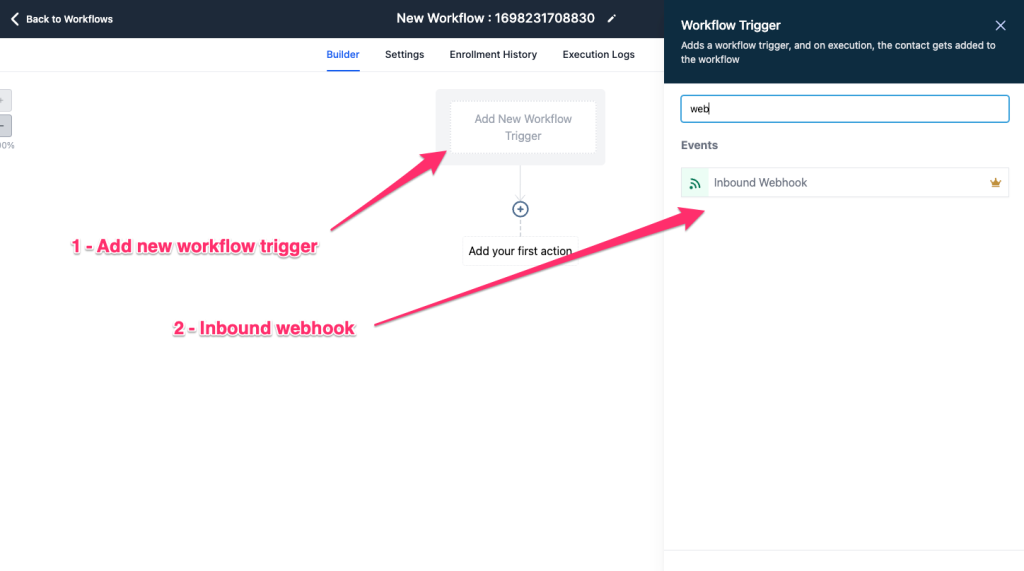
Choose “Start from scratch”, add a new workflow trigger, then find and select “Inbound Webhook”:
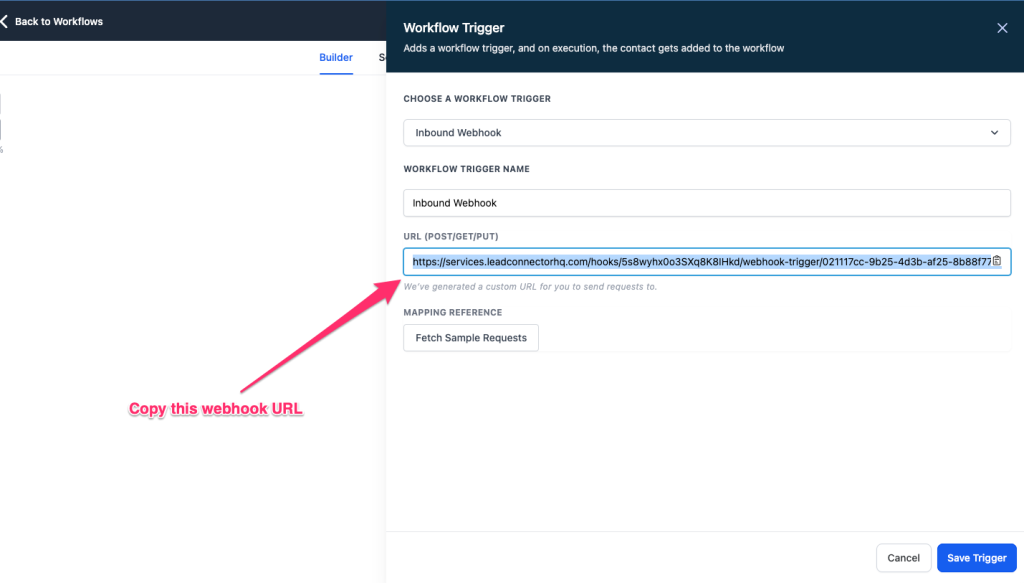
Copy the webhook URL that HighLevel gives you. It starts “https://services.leadconnectorhq…”:
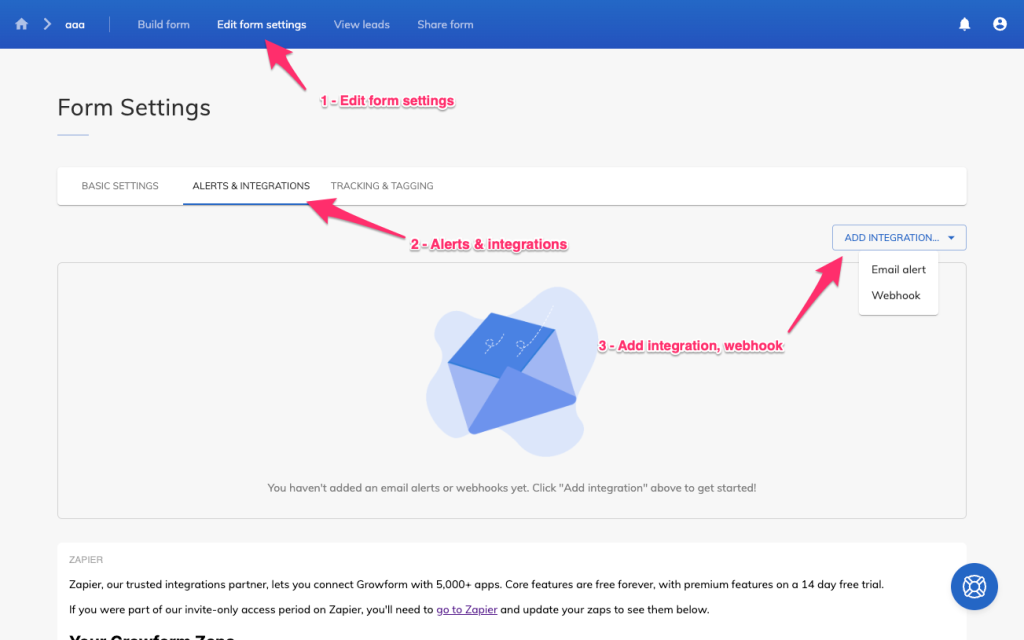
In Growform, go to “Edit form settings”, then “Alerts & integrations”, and add a webhook integration:
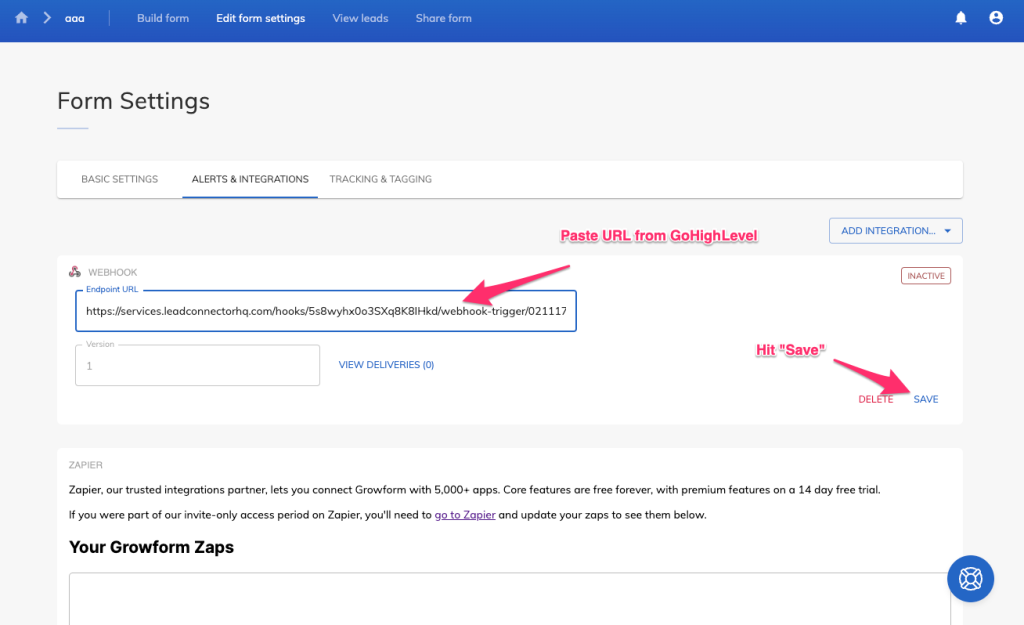
Paste the URL from HighLevel into the endpoint URL box and hit “Save”:
Now fill in your form once, so HighLevel has a sample to work with. Back in the workflow trigger, fetch the sample request, select it as the mapping reference and save the trigger:
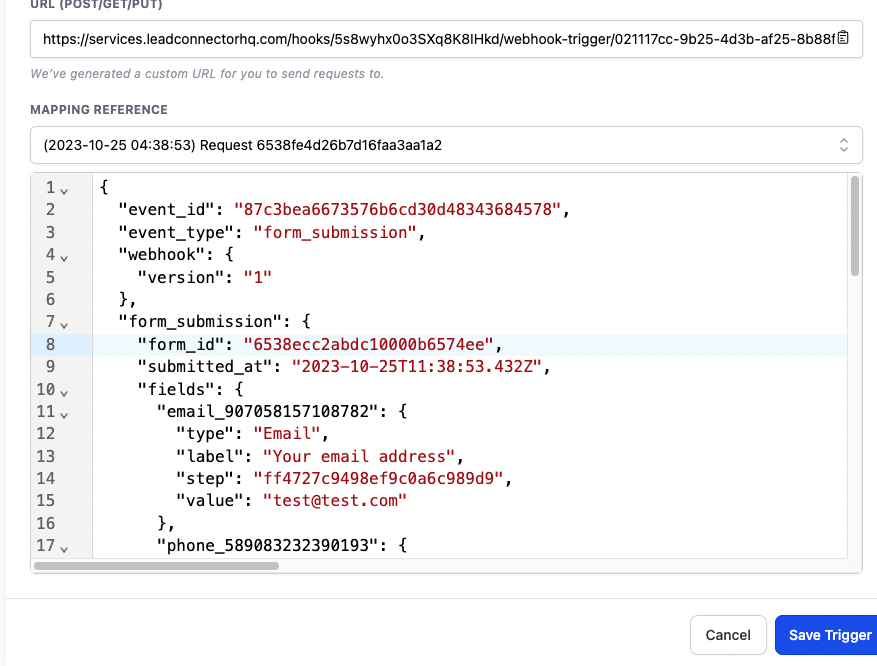
Add a “Create/Update Contact” action. For each contact field, choose the matching value from the webhook data. HighLevel needs an email address or a phone number to create the contact.
In this example, we map HighLevel’s “Email” field to the email field in our form. We choose: Inbound Webhook Trigger > Form_submission > Fields > (the email field name) > Value:
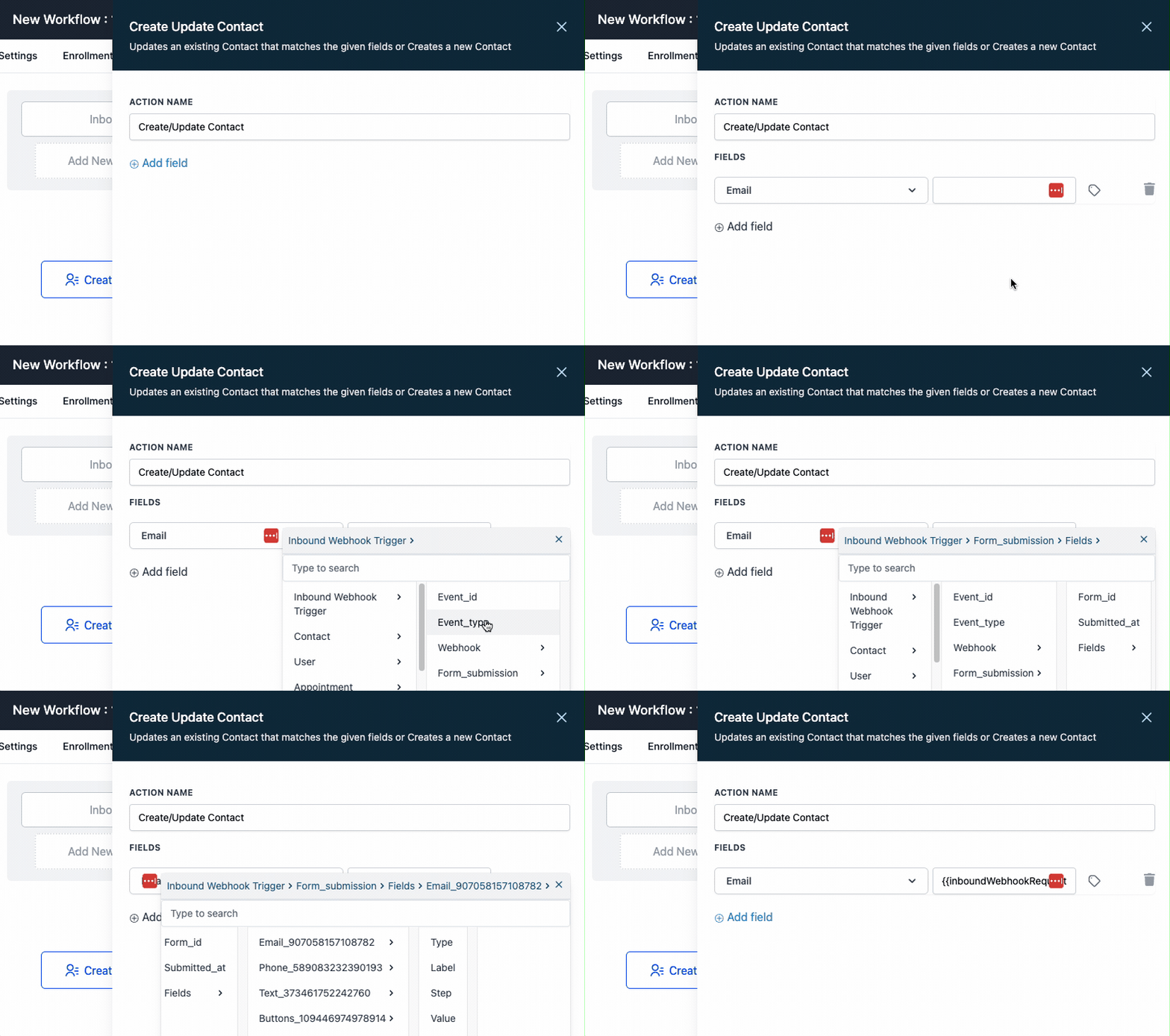
Save and publish the workflow. A contact is now created in HighLevel as soon as the lead is received in Growform, and any follow-up actions you add after this step run as usual.
If you later add or rename fields in your form, send a new test lead and select the new mapping reference.
7 – Add attribution (optional)
HighLevel records UTMs and click IDs automatically for its own forms. Contacts created by a webhook arrive without them unless you send them.
- In Growform, add a hidden field for each value you want to keep. Most teams use utm_source, utm_medium, utm_campaign, utm_content, utm_term, gclid and fbclid.
- In HighLevel, create a custom contact field for each one.
- Send another test lead from a URL that includes those parameters.
- In the “Create/Update Contact” action, map each hidden field to its custom field.
Every contact now carries its source, campaign and click ID, ready for workflows, reports and offline conversion uploads.
Styling and troubleshooting
The form does not appear on the live page
Check the page settings in HighLevel first. HighLevel has a setting that delays JavaScript until the visitor interacts with the page, and it can stop an embedded form from loading straight away. Turn it off for pages with a form near the top.
Also check that the embed code was pasted into a code element on its own, and not inside another block of HTML.
The background “jumps” between steps
Growform resizes itself to fit each step, which can make the HighLevel elements around it resize too. To stop this, apply a custom class to the box in HighLevel that contains the form. Select the box, hit “Advanced”, then add a custom class name:
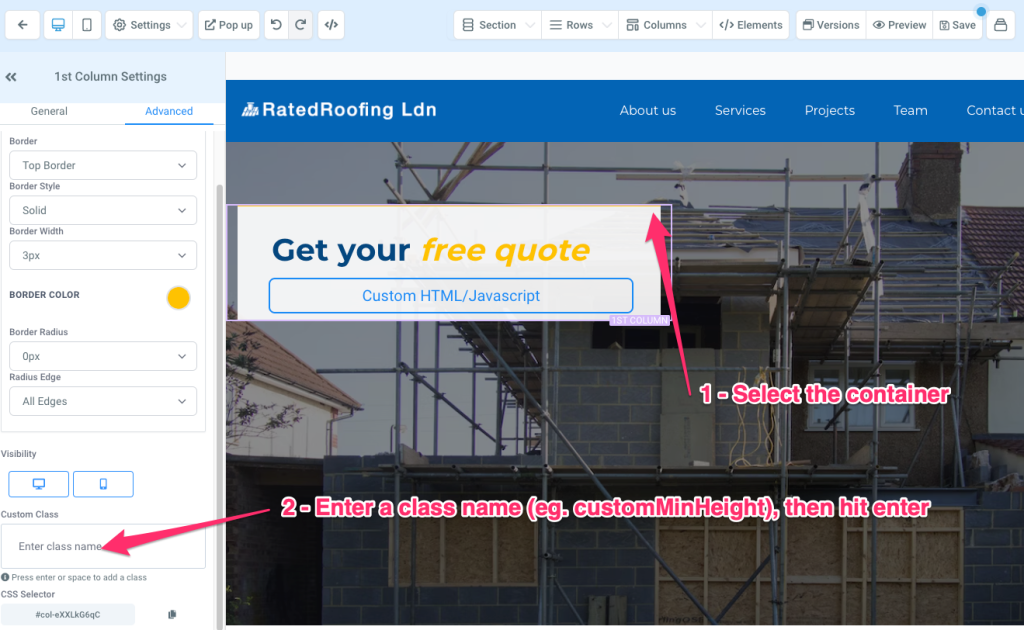
Then go to “Settings” > “Custom CSS” in the page editor and add the following CSS:
.customMinHeight {
  height: 600px !important;
  display: block !important;
}
This fixes the height of the box, so it does not resize as the form changes. It also replaces the default “display: flex”, so steps of different sizes line up from the top. Adjust the 600px value to suit your form.
The form is too narrow
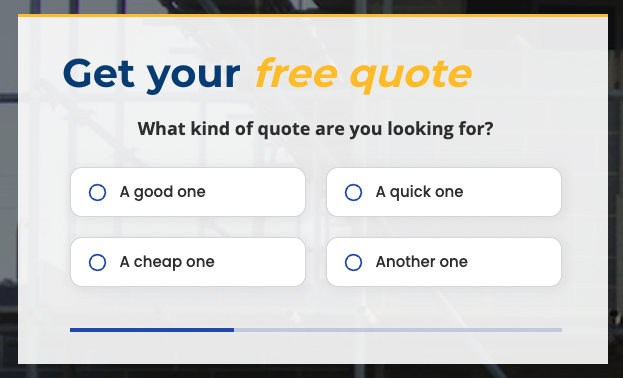
Go to “Theme settings” in Growform and increase the “Form width” a little at a time. Save the form, then refresh the preview in HighLevel:
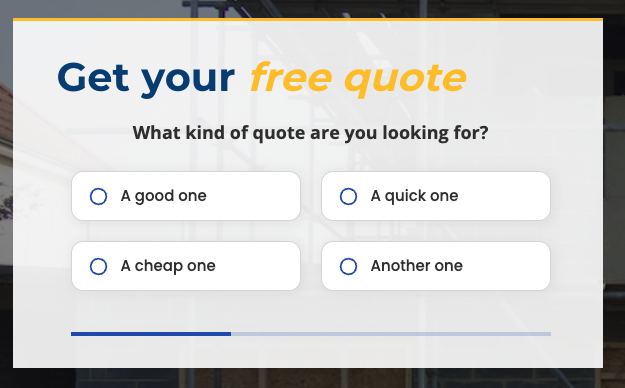
Aim for the widest form that does not cause the buttons to collapse into the mobile layout. This form is about the right size:
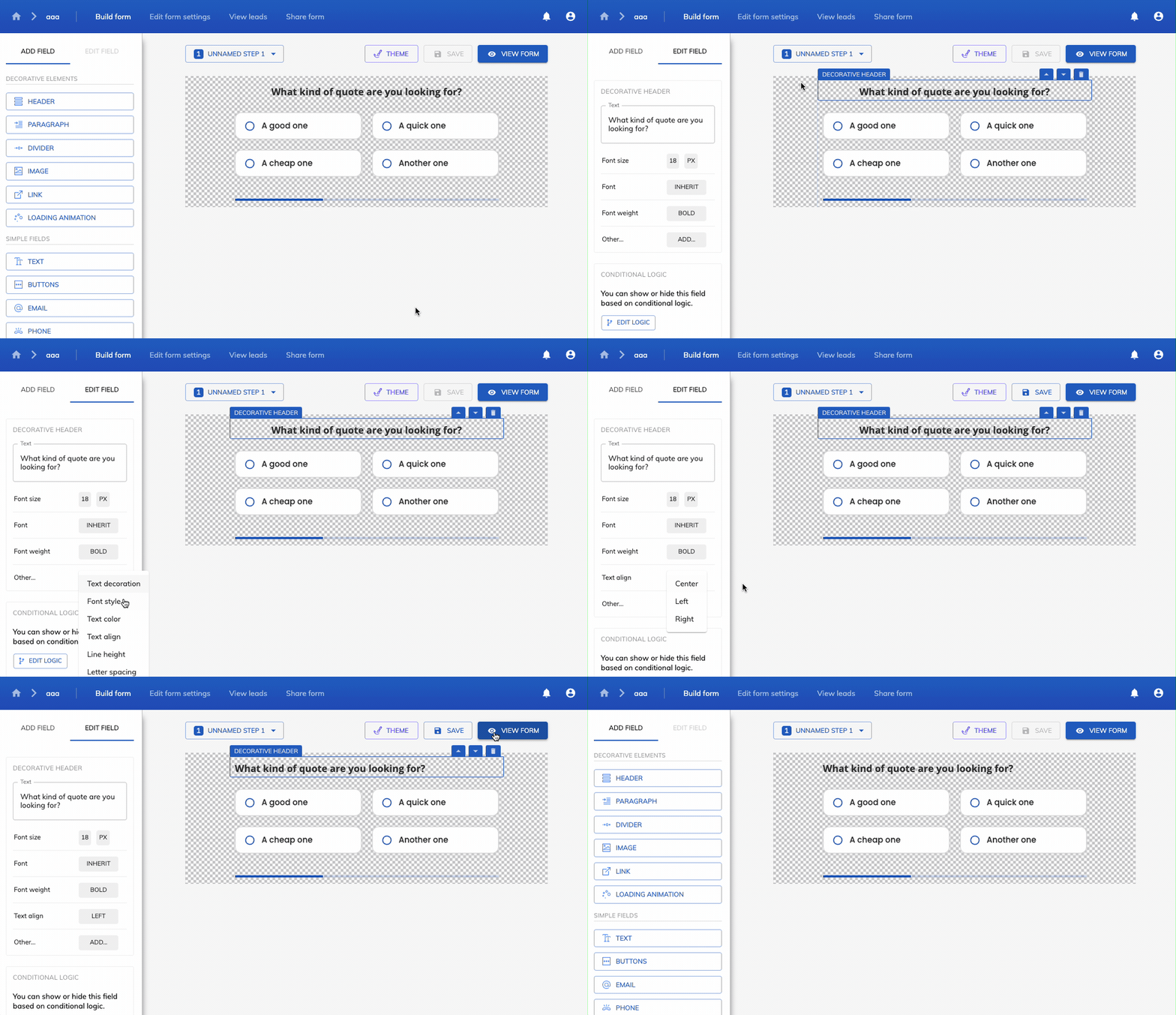
You can then align the first header to the left:
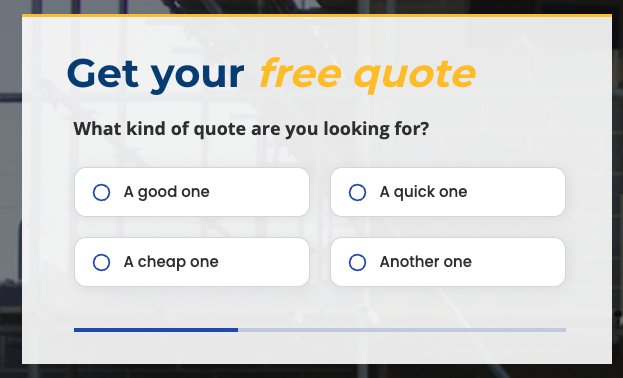
And the form fits the page:
Sending people back up to the form
Do not place the same form on a page several times. Add calls to action down the page that scroll back to the form at the top. HighLevel’s guide to scrolling to an element shows how.
Putting the form in a popup
Create the popup as normal in HighLevel, add a code element and paste the same embed code:
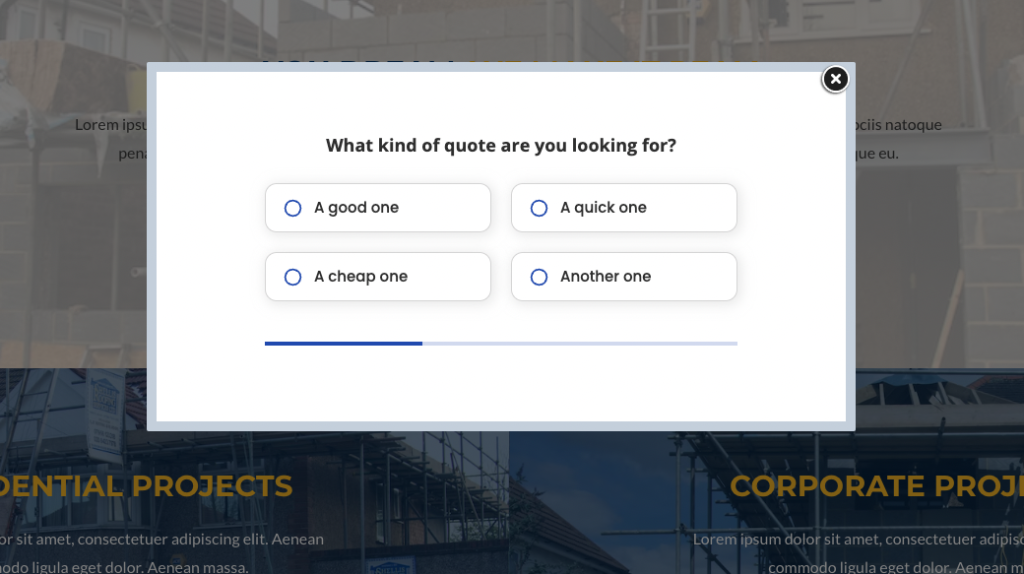
To open it, choose a button on your landing page and set “Show popup” as its action.
Frequently asked questions
How do I create a multi-step form in GoHighLevel?
Create the form in a multi-step form builder such as Growform, copy its embed code, and paste it into a code element on your HighLevel page. Then add an Inbound Webhook trigger to a HighLevel workflow, so every submission creates a contact. The whole setup takes a few minutes.
What is the best multi-step form builder for GoHighLevel?
Growform is the most widely used option among agencies that run paid traffic. It adds picture buttons, progress bars, conditional logic and lead verification to HighLevel pages, and it sends every lead to HighLevel as a contact.
Can GoHighLevel forms be multi-step?
Not in the form builder, which is documented as a single-page tool. Inside HighLevel, a multi-step form has to be built as a survey or a quiz. Most agencies that want picture buttons, a progress bar on every device and logic that hides whole steps embed a Growform form.
What is the difference between a form and a survey in GoHighLevel?
A form is a single page of fields. A survey is a series of slides with jump logic and a one-question-at-a-time setting. They are separate tools, and HighLevel does not convert one into the other.
Does the GoHighLevel inbound webhook cost extra?
Yes, but very little. It is a premium workflow trigger that costs $0.01 per lead after the first 100, which are free. That is about $10 for every 1,000 leads.
Can I send leads to GoHighLevel without the webhook?
Yes. Growform connects to HighLevel through LeadConnector on Zapier, which can create or update a contact and add it to a pipeline or a workflow.
Will my HighLevel workflows still run?
Yes. Once the contact exists in HighLevel, everything downstream works as usual.
Build yours today
HighLevel is where your leads should live. It is not where your form should be built, at least not when you are paying for the traffic.
The setup in this guide takes just a few minutes, and it is the one behind many of the best-looking forms you have seen on HighLevel pages. Start a 14-day free trial of Growform and build yours today.
Still comparing tools? See our guide to GoHighLevel multi-step form alternatives.
Related articles

Growform Mass Tort Intake Forms for Better Screening
Growform helps mass tort marketers and intake teams turn paid traffic into better-screened claimant leads.
September 30, 2026

Growform Debt Relief Forms for Qualified Lead Intake
Debt relief lead forms have to do more than convert.
September 30, 2026

Growform CRM Forms With Hidden Field Pass-Through Built In
September 30, 2026