
How To Receive Form Submissions As Text Messages With Growform Via Zapier

Updated Published 2 min read
Growform comes out the box with email notifications (sent to your account email address), but there’s much more you can do thanks to our Zapier integration.
Zapier is an integrations platform that makes it easy to hook services together (like Growform and an SMS provider, in this example).
1 – Create your form
We’ll assume you’ve already created a form in Growform and embedded it in your website. If not, head over to the getting started guide before you go much further here.
2 – Navigate to integrations
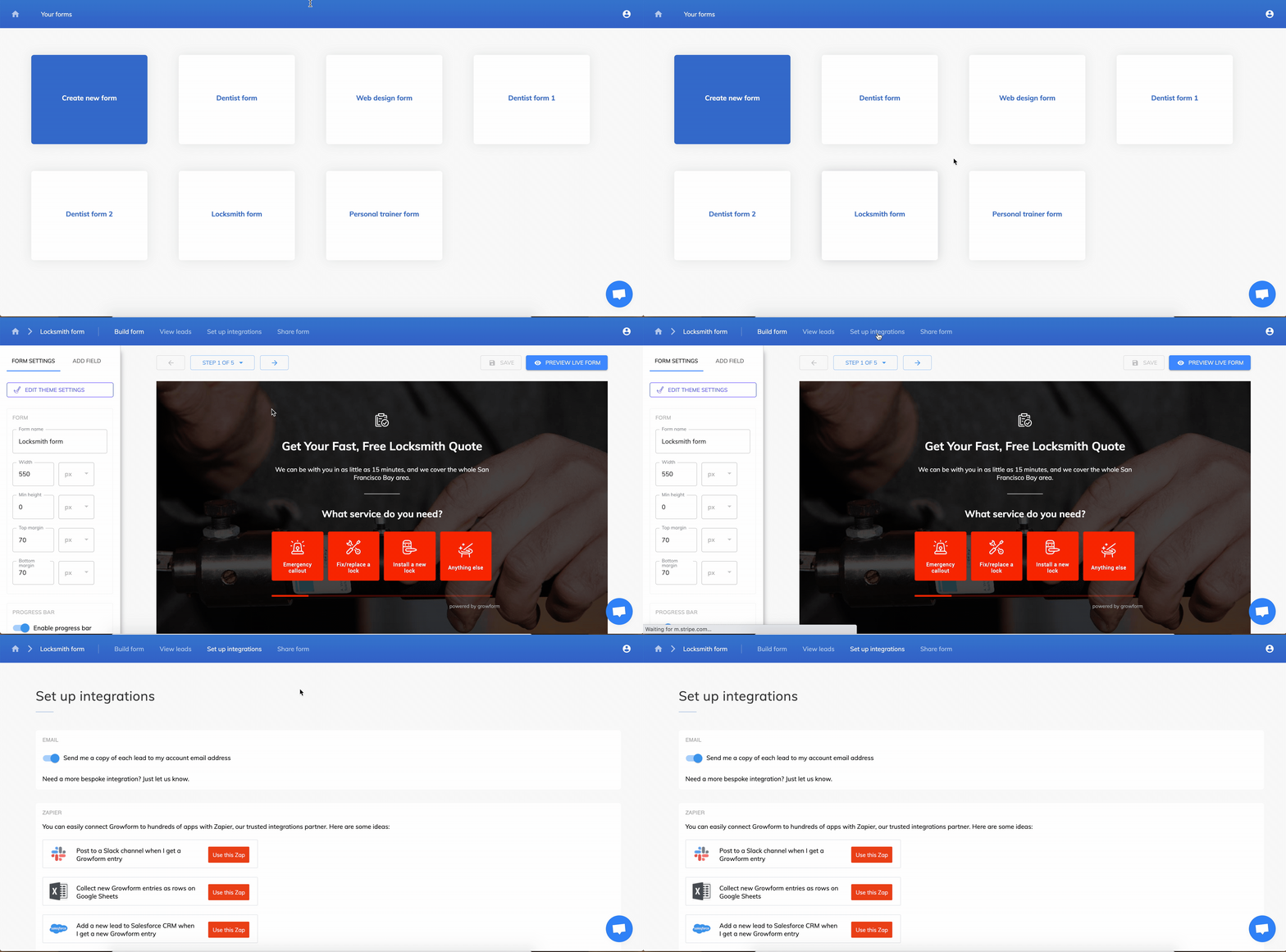
Choose your form in Growform, then navigate to “Set up integrations” in the top bar:
3 – Follow the link to Zapier
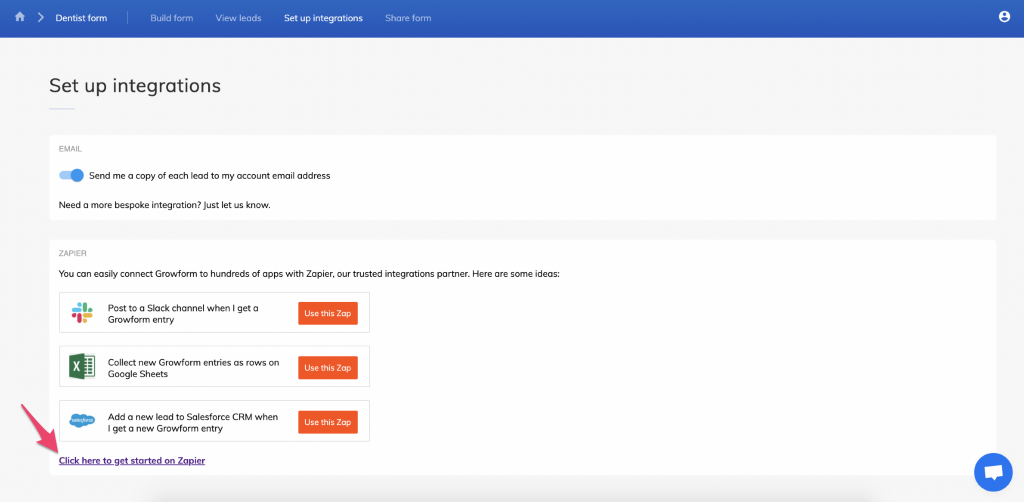
Click one of the example “Zaps” listed on our integrations page, or “Click here to get started with Zapier”:
4 – Sign up or sign in to Zapier
If you don’t already have a Zapier account, go ahead and create one (it’s free):
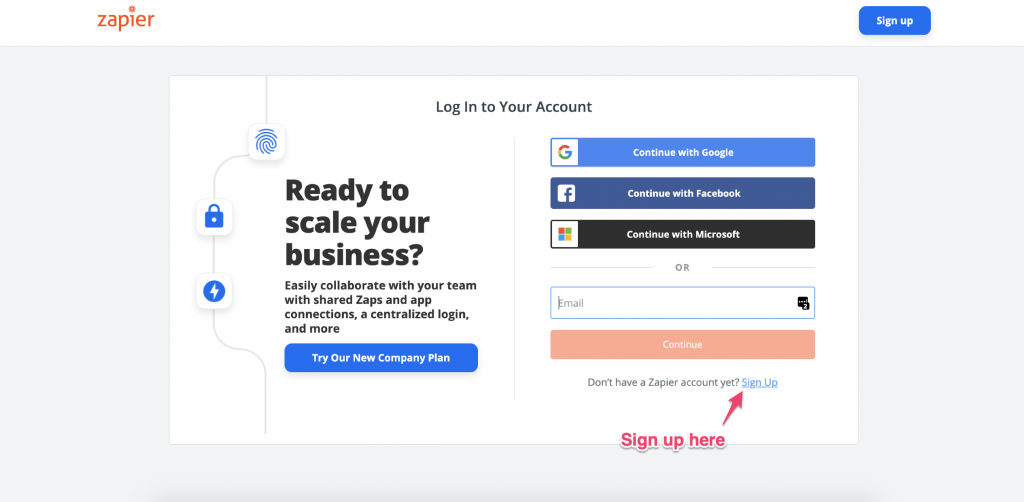
If you do have a Zapier account, sign in.
5 – Accept our invite on Zapier
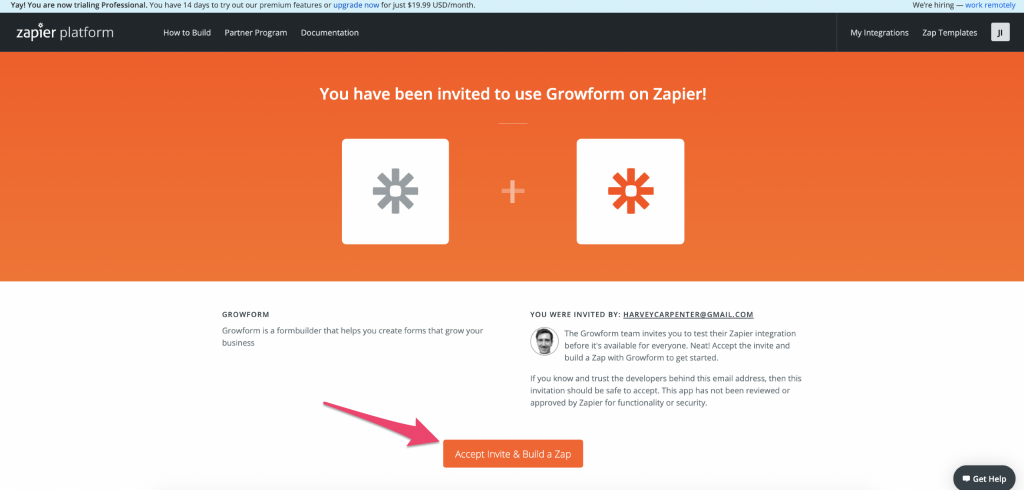
Once you’re signed up, you should be redirected to an invite page like this.
If you’re not, you can always go back and click our invite link again.
Accept our invite by pressing “Accept invite & build a zap”, which will add Growform to your list of Zapier accounts:
5 – Make a new Zap
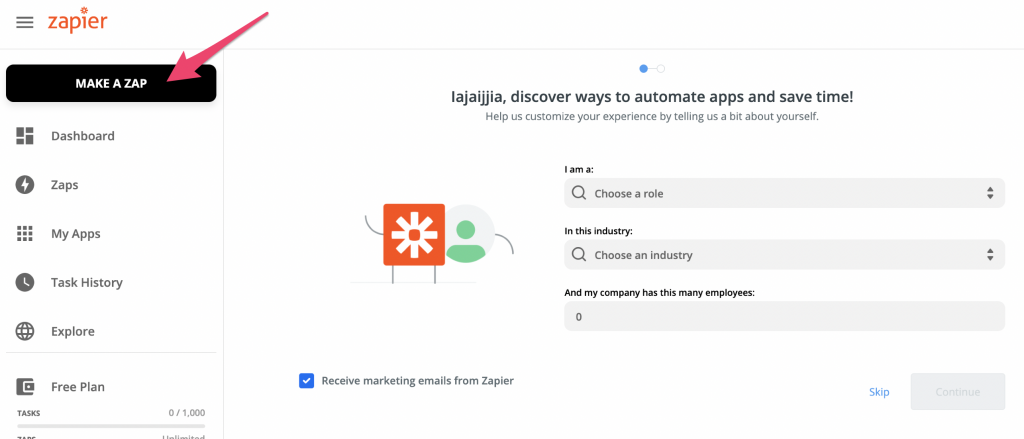
Hit “Make a Zap” or “Make a new Zap” on Zapier:
6 – Choose Growform as your trigger app in Zapier
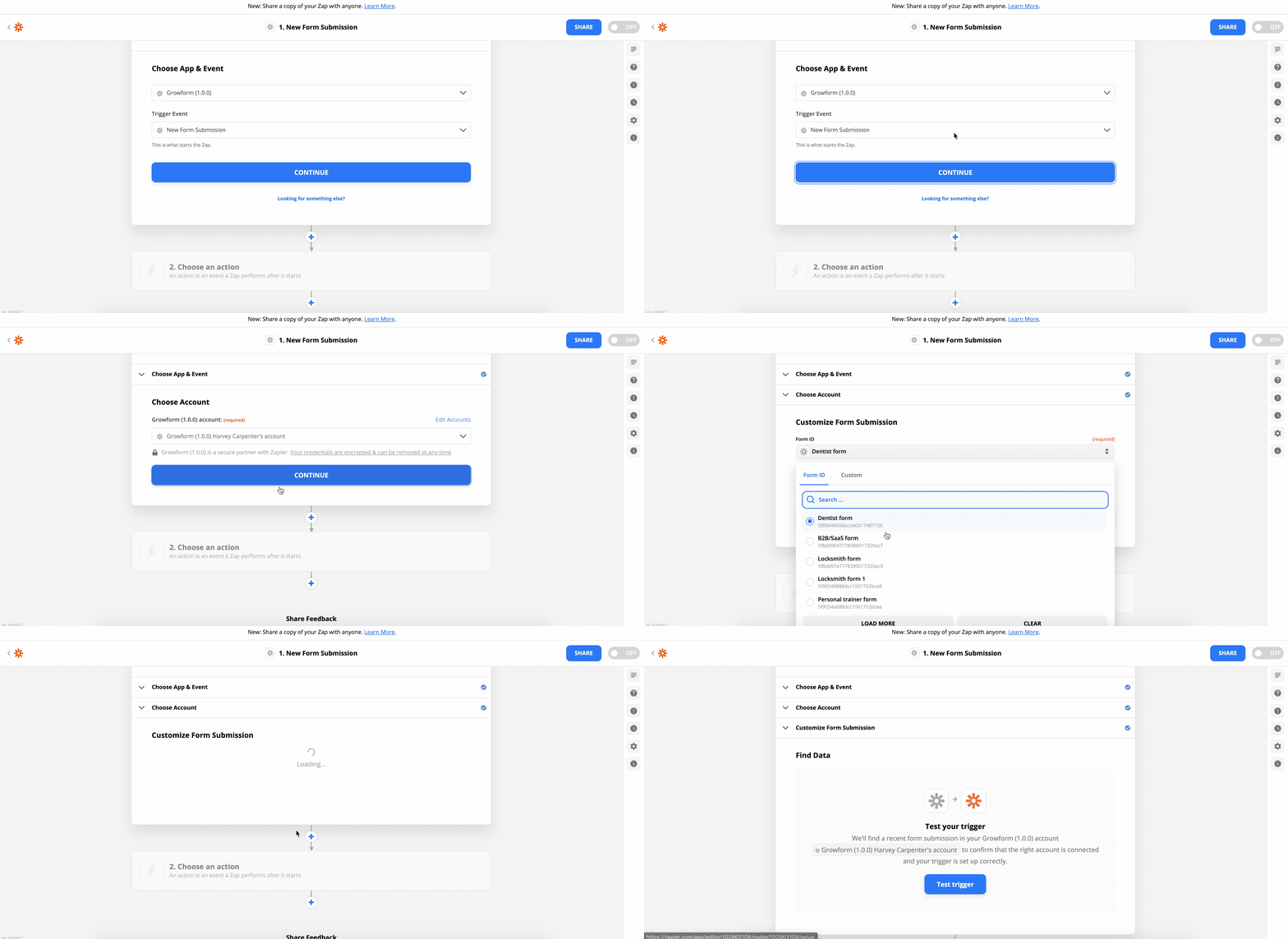
Search Growform and choose the most recent version (currently Growform (1.2.1) under “Choose App & event”.
7 – Link your Growform account to Zapier
Hit “Sign into Growform” on the next step. You can find your API key in your Growform account.
Continue through the steps and choose the form you want to act as the trigger:
8 – Make sure you have data in your form
At this point, Zapier will ask Growform if there are any entries to display.
If your form doesn’t have any leads yet, we recommend submitting a test lead (you can do this by navigating to your form in Growform and hitting “Preview form”.
Once you’ve submitted a test lead, hit “Test trigger”in Zapier and you’ll see your most recent lead details appear:

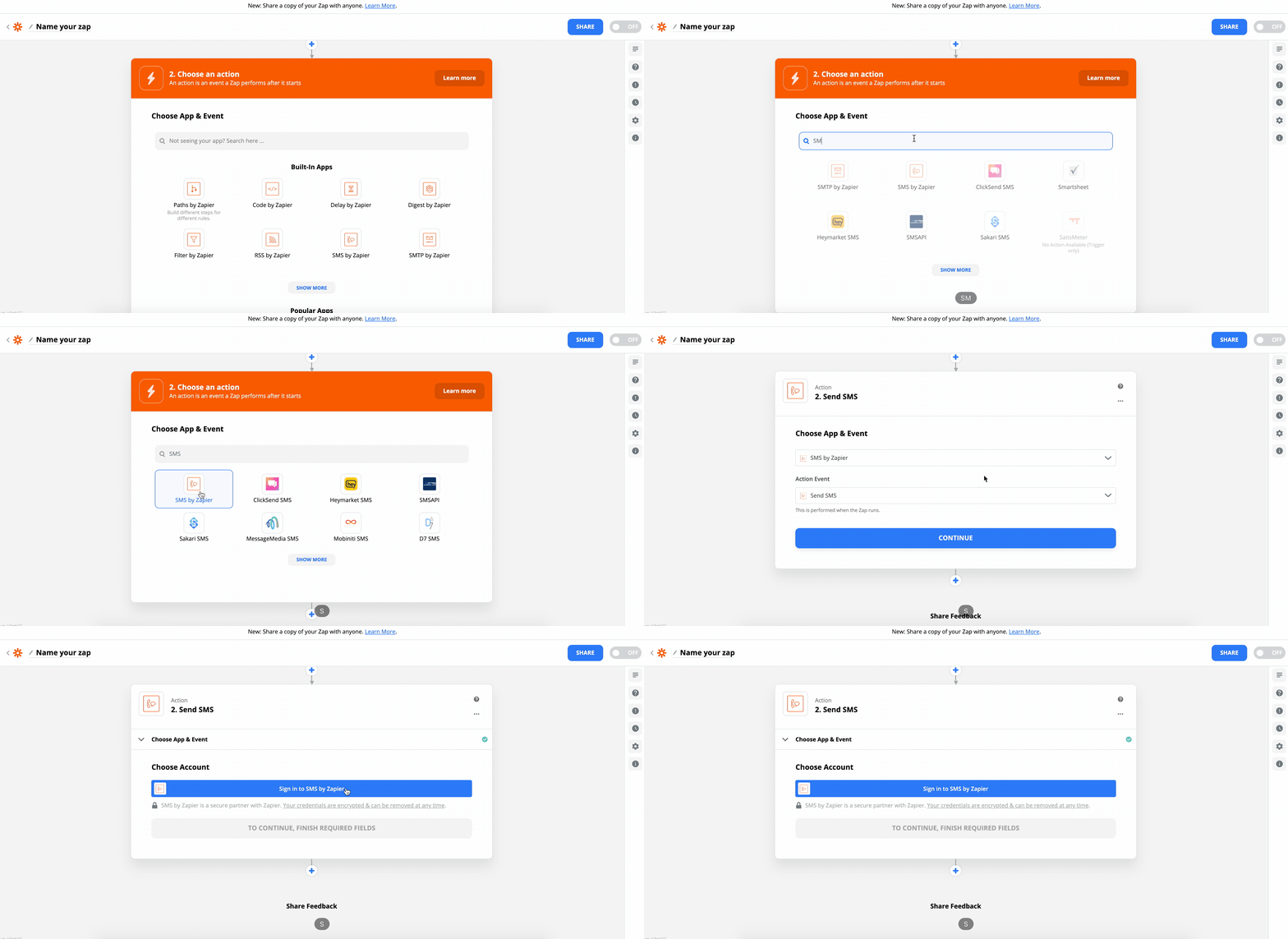
9 – Choose “SMS by Zapier”
Now, choose an action to happen when you receive a Growform submission.
In this example, we’ll choose “Send SMS” to receive a text message when somebody fills in your form – but there are hundreds of actions you can map:
10 – Follow the steps and map your fields
Follow the on-screen instructions on Zapier and be sure to set your Zap to “on” when you’re done.
Boom!- You’ll now receive text messages when your form is filled in!
Related articles
Growform Mass Tort Intake Forms for Better Screening
Growform helps mass tort marketers and intake teams turn paid traffic into better-screened claimant leads.
September 30, 2026

Growform Debt Relief Forms for Qualified Lead Intake
Debt relief lead forms have to do more than convert.
September 30, 2026
Growform CRM Forms With Hidden Field Pass-Through Built In
September 30, 2026