


Brivity integration for lead forms
Capture buyer and seller enquiries with a multi-step form and have each one arrive in Brivity as a new lead with its source and tags set. Your Auto Plans take over from the first minute.
Trusted by lead gen teams and agencies





Send new leads straight into Brivity
Brivity is a CRM for real estate agents and teams, and it describes itself as one source of truth for every lead, contact and conversation, with Auto Plans that send texts and emails and prompt calls. The Auto Plans only start once the lead is in the CRM. Connecting Growform to Brivity puts it there the moment the form is completed, with first name, last name, email, phone, address, lead type, tags and a description all filled from the answers.
That matters most for a team buying its own traffic. A home valuation form on a landing page asks for the property address, the timeframe and the reason for selling across three short screens, then creates a seller lead in Brivity tagged with the campaign. A buyer form asks for the area, the price range and whether a home needs to be sold first. Because the answers travel with the lead, the agent who gets the text alert already knows what to say.
Collect up to 2x more leads and send them straight to Brivity
Growform makes it easy to build multi-step forms that get more leads.
We’ve taken years of experience in conversion rate optimization and landing page best practice and distilled it into an easy-to-use form builder.
Every submission is sent to Brivity automatically, safely and securely.
A Brivity form that looks like your brand
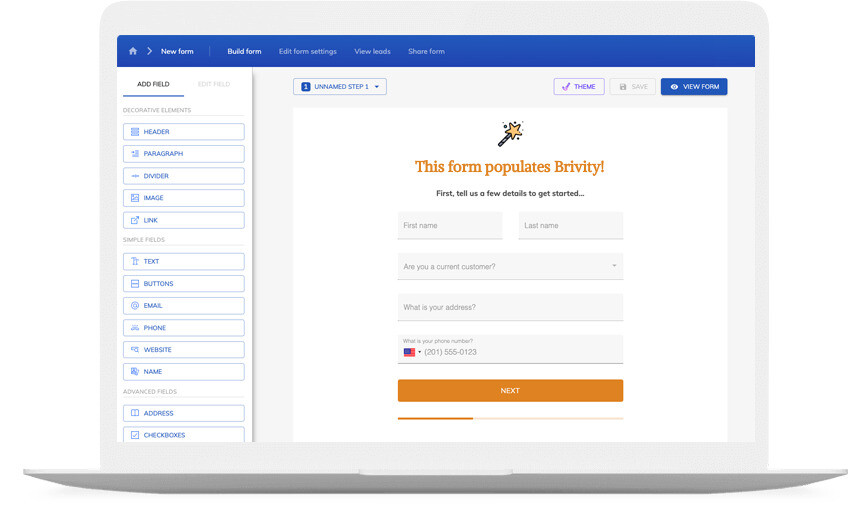
Don’t settle for “yet another Brivity form” – use advanced customization options like custom fonts, background images and color schemes to build a form that looks just like your brand.
A good form is more than just its appearance – it’s about the user experience. Growform ensures your forms are responsive, giving your customers an exceptional experience whether they’re on a desktop or on the go with their mobile device.
If you’re not sure where to start, there’s a template for pretty much every industry!
Available actions
Brivity publishes one action for incoming forms, Create Lead, and the fields below are what it can fill from a submission:
-
Create Lead
Creates a new lead in Brivity when the form is completed, with every field below mapped from the answers.
-
Lead type and primary agent
Sets whether the lead is a buyer, a seller or another type, and assigns it to a primary agent by ID.
-
Contact details
Fills first name, last name, email and phone, plus company and job title when the form asks for them.
-
Property address
Writes street address, city, state, postal code and country, which Growform's address lookup supplies as separate parts.
-
Tags
Applies tags from the submission, such as the campaign or the landing page, so Auto Plans can key off them.
-
Description
Puts the longer answers into the lead's description, for example the timeframe or the reason for moving.
How does it work?
Brivity's Create Lead action is published on Zapier, and Growform's New Form Submission trigger feeds it. You connect once, map the form's fields to Brivity's lead fields and switch the Zap on. From then on each completed form becomes a Brivity lead within a few minutes, and Brivity's own routing and Auto Plans handle what happens next.
Teams use it in three ways. A listing team runs a home valuation form and tags each lead with the ZIP code so the right agent's plan fires. A buyer's team runs a pre-qualification form that asks about financing before the contact details, and uses Growform's lead disqualification to hold back people outside the service area. A brokerage gives each agent a form with their ID in a hidden field, so the primary agent is set automatically.
-
Step 1: Find the Brivity lead type and agent IDs you will use
Decide which lead type new submissions should carry and which agent should own them. Brivity's Create Lead action takes the primary agent as an ID, so have it ready before you map. -
Step 2: Build the form in Growform
Create a free Growform account, start from the home seller or home buyer questionnaire, and use the address lookup field so Brivity receives the address in separate parts. -

Step 3: Connect through Zapier and map the lead fields
Choose Growform (Latest) as the trigger and New Form Submission as the event, sign in with the API key from your Growform account page, then add Brivity's Create Lead action and map name, email, phone, address, lead type and tags. Submit a test from Preview form, check the lead in Brivity and switch the Zap on.
- Will my Brivity Auto Plans run on leads from Growform?
Yes. A lead created by the connection is an ordinary Brivity lead, so any Auto Plan that starts on a new lead, a lead type or a tag runs as it would for a lead added by hand.
- Can I route leads to different agents?
Yes. Put the agent's ID in a hidden field on each agent's version of the form, or map a Growform question to the primary agent field in the Zap, and Brivity's own lead routing applies after that.
- Does the lead keep the ad campaign it came from?
Yes. Growform's hidden fields capture UTM parameters and click IDs from the landing page URL, and you can send them to Brivity as tags or in the description.
- Can I stop out-of-area enquiries reaching Brivity?
Yes. Growform's lead disqualification rules can hold back a submission that fails your criteria, and one setting stops disqualified leads being sent to Zapier.
Start your free trial
Build forms that hand every enquiry to Brivity with its source attached. 14-day free trial, no credit card required.