
 Harvey Carpenter
 Hidden fields let you collect and store information found in the query string of your form or landing page URL.
For example, you might have a Google Ads campaign that sends traffic to the following:

With Growform, you could create “utm_campaign”, “utm_source” and “utm_medium” as hidden fields and then store this data right alongside your form’s submission data.
Of course, the fields don’t have to start with “utm” – you could send through a unique customer ID, a CRM reference number or other information.
Let’s get started.
1 – Create a hidden field
Assuming you’ve created a form already, make sure no fields are selected.
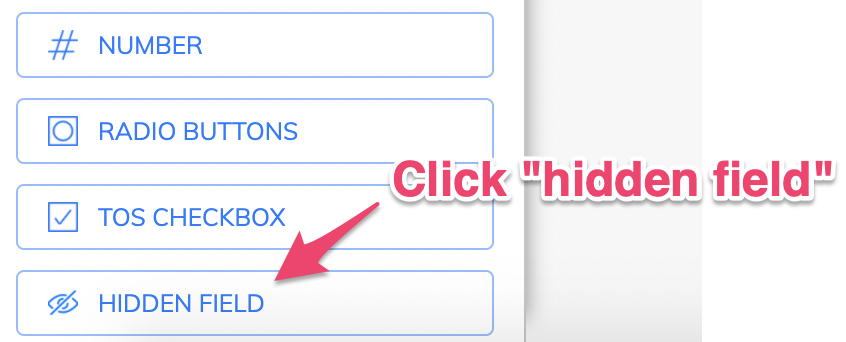
Then, find and click “Hidden field” in the list of fields, on the left-hand side of the page:
2 – Choose a name for your hidden field
Now, choose a name for your hidden field and enter it into the hidden field name box
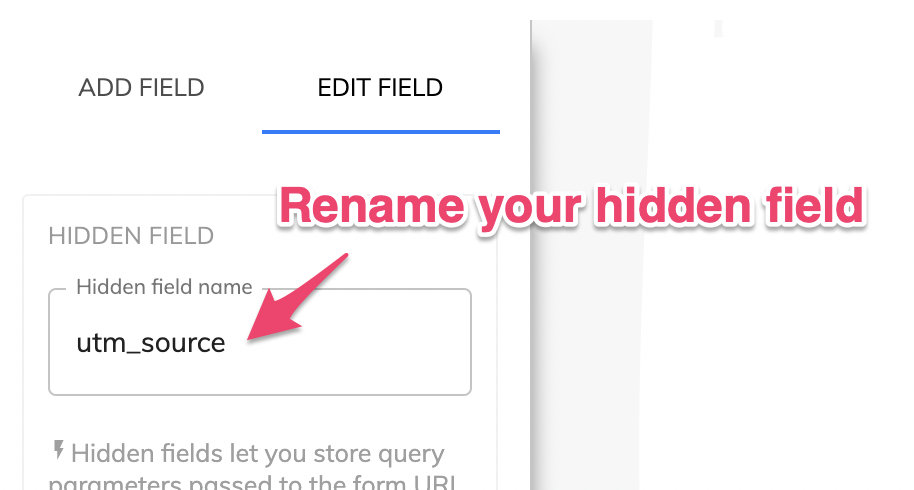
Growform will “look for” parameters matching your hidden field name – so if you wanted to collect “utm_source”, just keep it the same as our default example.
If you wanted to collect “utm_campaign”, you would enter “utm_campaign” into the box shown above.
3 – Repeat as many times as you need
If you wish to collect many hidden fields, just create as many as you need.
In the following example, we’re collecting utm_source, utm_campaign, utm_medium and utm_content –
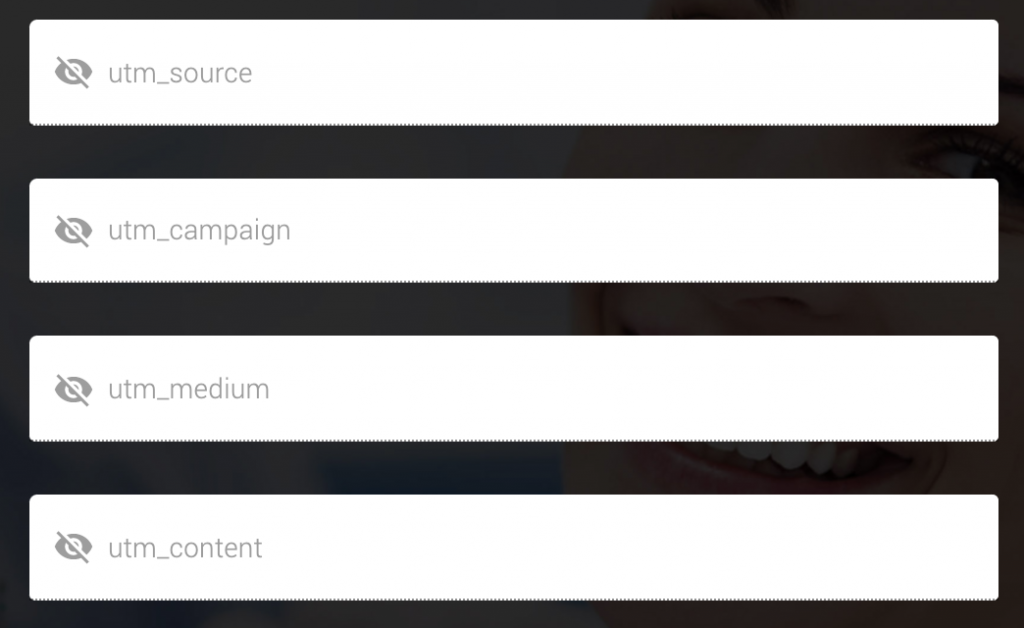
Each of these will be saved as a separate field in our leads database.
Don’t worry – they won’t be visible on your form!
4 – Save your form
Once you’ve created all of your hidden fields, save your form as usual with the blue save button:

5 – Visit your form and test it out!
It doesn’t matter how you’ve embedded your form – you may be linking directly to the form, or it may be embedded on your website. Growform will pick up the query parameters either way.
To pass query parameters, simply add a “?” to your URL and specify the query parameters in the following format:
hiddenFieldName=hiddenFieldValue
- Let’s say our form URL is https://form.growform.co/go/5f992cb76ad3870017072e1a
- … and we want to collect a “utm_campaign” hidden field
- …. and our campaign name is “myCoolCampaign”.
To capture this information, you would send your visitors here:

Once you fill in the form, you will be able to see the hidden fields represented just like any other fields in the “View leads” section, as well as viewing them in any Zapier or email integrations:

That’s it – enjoy the power of hidden fields!
Need more? We’re working on our Hidden Fields offering – please get in touch with us to provide feedback and help us shape the roadmap.
Related articles

Growform Mass Tort Intake Forms for Better Screening
Growform helps mass tort marketers and intake teams turn paid traffic into better-screened claimant leads.
September 16, 2026

Growform Med Spa Forms for Better Patient Screening
If you run paid traffic for a med spa, the form on your landing page does more than collect a name and phone number.
September 15, 2026

Growform Debt Relief Forms for Qualified Lead Intake
Debt relief lead forms have to do more than convert.
September 14, 2026