


Airtable form builder
Build a multi-step Airtable form that converts on mobile and writes each submission into your base as a record. Every field you map arrives, including the campaign and click IDs the visitor never sees.

Trusted by lead gen teams and agencies





Collect data with Growform, store it in Airtable
Airtable describes a base as the home for all the information a workflow needs, with tables for each type of item and records for the items themselves. Airtable's own form writes to one table and suits colleagues adding records. A Growform form writes to the same table through the connection, but it is multi-step, carries your brand and can show or hide questions as the person answers, which is what a lead form needs when the traffic is paid.
Lead generation teams use Airtable as a lightweight CRM, and the connection keeps it current without exports. A new submission becomes a record with one field per answer, a repeat submission from the same email updates the existing record, and hidden fields put the UTM source, medium and campaign into their own columns so the base can report cost per lead by channel. Linked records and views then do the rest of the work inside Airtable.
Collect up to 2x more leads and send them straight to Airtable
Growform makes it easy to build multi-step forms that get more leads.
We’ve taken years of experience in conversion rate optimization and landing page best practice and distilled it into an easy-to-use form builder.
Every submission is sent to Airtable automatically, safely and securely.
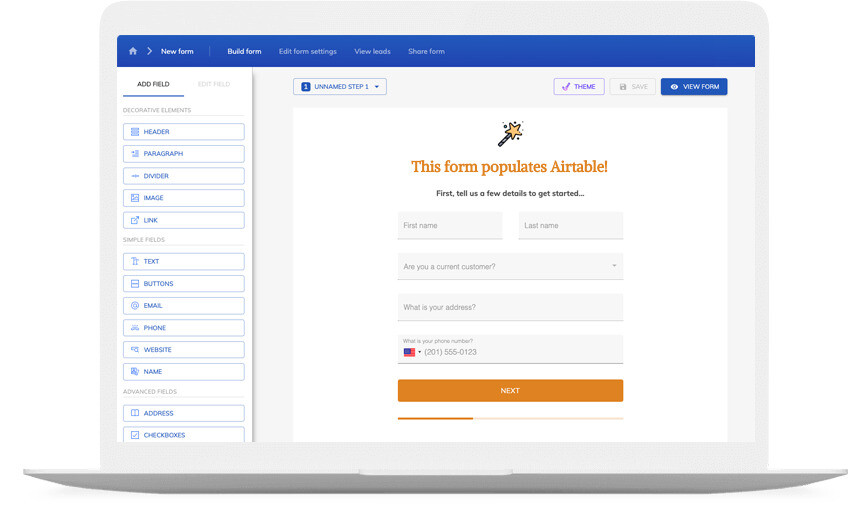
A Airtable form that looks like your brand
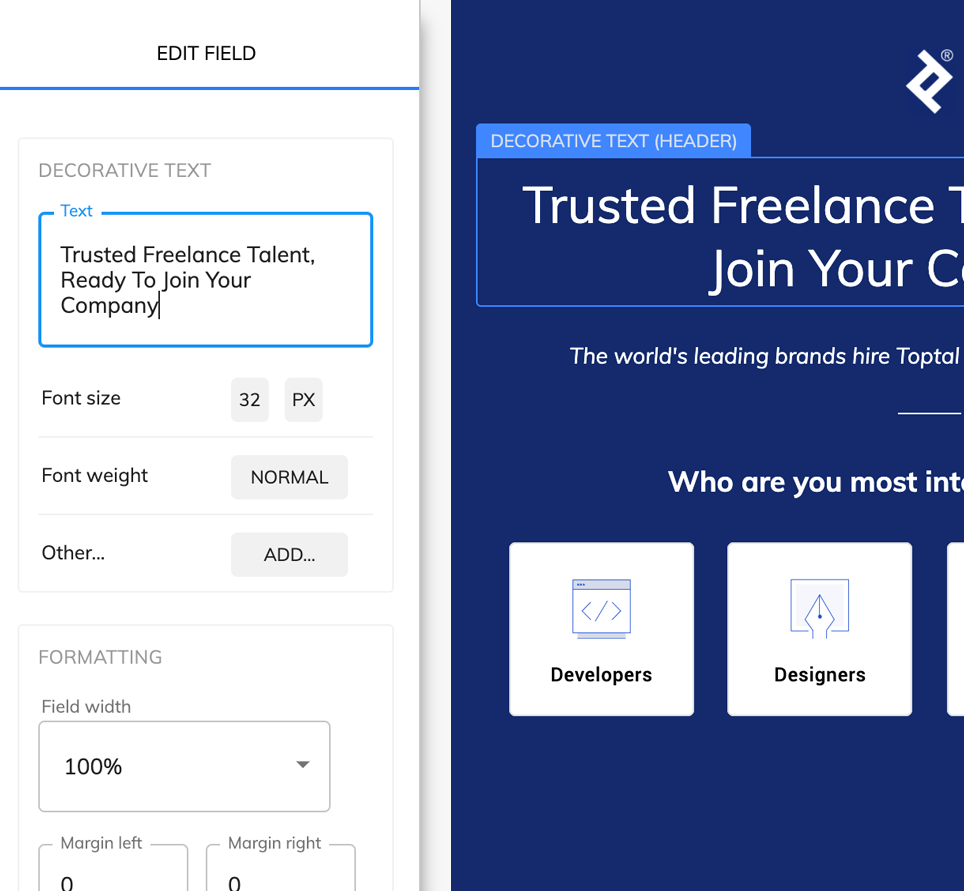
Don’t settle for “yet another Airtable form” – use advanced customization options like custom fonts, background images and color schemes to build a form that looks just like your brand.
A good form is more than just its appearance – it’s about the user experience. Growform ensures your forms are responsive, giving your customers an exceptional experience whether they’re on a desktop or on the go with their mobile device.
If you’re not sure where to start, there’s a template for pretty much every industry!
Available actions
A Growform submission can run any of these Airtable actions:
-
Create Record
Adds a record to the table you choose, with each mapped form answer in its own field.
-
Create or Update Record
Creates the record, or updates the one that matches a field such as email, so a base never holds the same lead twice.
-
Update Record
Changes fields on an existing record, for example moving a lead's status when they complete a second form.
-
Find Record
Looks a record up by a field value before a later action uses it.
-
Find or Create Record
Finds the matching record or creates it when none exists, which suits forms that returning customers fill in.
-
Add Comment to Record
Adds the submission as a comment on a record, for a running history against one contact.
How does it work?
Growform connects to Airtable through Zapier. Growform's New Form Submission trigger fires for each completed form, and Airtable's actions write the record. Field types matter here. Map a Growform date field to an Airtable date field, a single choice to a single select and a checkbox to a checkbox, and the base stays tidy without a cleanup step.
The connection earns its keep in three places. A solar installer runs a quote form on paid landing pages and stores each lead in a base with the roof type, bill size and UTM campaign in separate fields, then groups a view by campaign to see which ads produce leads that book. A lender uses a pre-qualification form that creates a record per applicant with the loan amount, property type and credit band in their own fields, so underwriters sort by band in a view. An agency gives each client a form whose submissions create records in that client's table, and shares an Airtable interface so the client sees their own leads.
-
Step 1: Prepare the table in Airtable
Create the table that will receive submissions and add one field per question, using the matching field type. Note the base and table names, since you will pick them in the mapping. -
Step 2: Build the form in Growform
Create a free Growform account and build the form from a template or from scratch. Add hidden fields for UTM parameters if you want campaign data in the base. -

Step 3: Connect through Zapier and map each field
Choose Growform (Latest) as the trigger and New Form Submission as the event, sign in with the API key from your Growform account page, then add the Airtable action, pick the base and table, and map each question to its field. Send a test from Preview form, check the record and switch the Zap on.
- Why use Growform rather than Airtable's own form?
Airtable's form is the quick way to collect records from colleagues. A Growform form is built for paid traffic, with multi-step layouts, conditional logic, real-time phone and email validation and hidden fields, and it still writes to the same table.
- Can a submission update a record instead of adding one?
Yes. The Create or Update Record action matches on a field you choose, usually email, and updates that record when it already exists.
- Will UTM parameters reach the base?
Yes. Growform's hidden fields capture UTM parameters and click IDs from the page URL and send them with the submission, so each one can be mapped to its own Airtable field.
- How quickly does the record appear?
The Zap runs when Zapier collects new submissions from Growform, so a record appears within a few minutes of the form being completed.
Start your free trial
Build forms that keep your Airtable base current without exports. 14-day free trial, no credit card required.