
3 Ways To Embed Your Form With Growform
Whether you’re optimising a client’s landing page or collecting responses for a survey, there are various ways to share Growform forms, each perfect for a different use-case.
1 – Embed directly on page [recommended for most]
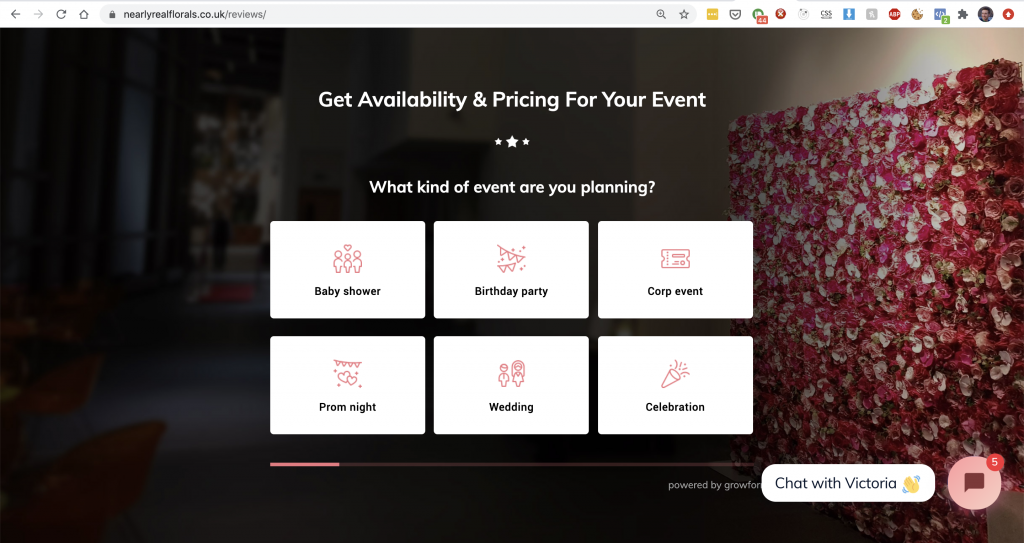
Advantages
- The easy way to get what you see on the Growform editor onto your website
- Will usually perform best (in terms of conversion rate)
Disadvantages
- You may wish to have the form show on button press (if so, see below)
To embed directly on page, and see your Growform form embedded on your website:
1.) Edit your form and hit “Share form” in the top bar.
2.) Choose “Embed growform on my website with an HTML snippet”.
3.) Copy and paste the code into your website’s HTML editor
2 – Embed with button/link

Advantages
- Perfect if your visitors are taking a deliberate action (eg. “Get a quote”) or you want them to read your landing page first
- Get a high converting lead form whilst maintaining the current layout/structure of your site
Disadvantages
- Requires some basic HTML/JavasScript knowledge (just ask on our live chat – we can help!)
To embed with a button/link and see a Growform modal when a user clicks something on your page:
1.) On your website, choose the element you wish to activate the Growform modal and give it a unique “id” attribute. For example, “myButton123”.
2.) Edit your form and hit “Share form” in the top bar.
3.) Choose “Embed Growform as a modal when my users click a button or link”
4.) Replace “myButton123” in our code with the name of your chosen “id” attribute
5.) Copy and paste the code into your website’s HTML editor
3 – Link to form [not recommended for most use cases]
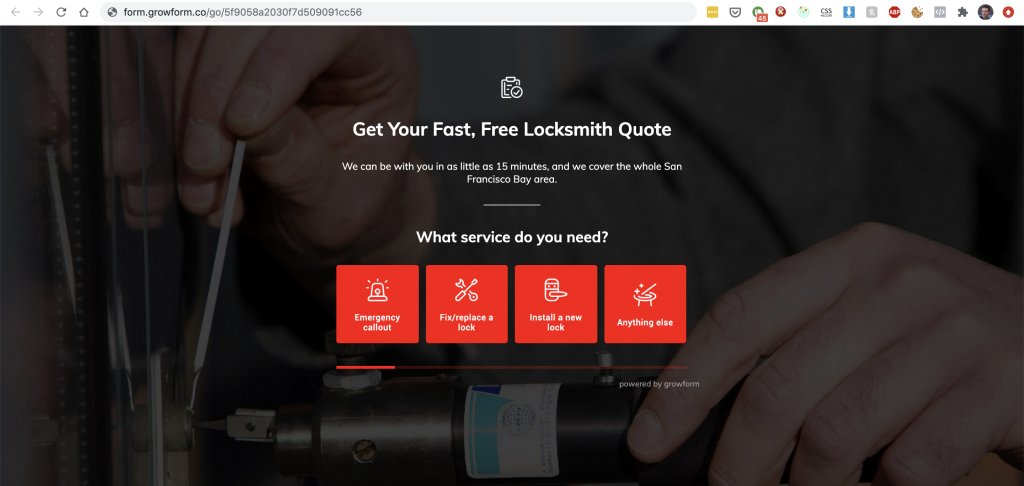
Advantages
- The easiest way of setting up a form – just point to the URL like any other link
- Useful for email or text message campaigns where you do not need the user to do anything else after filling in the form
Disadvantages
- For general use, it is recommended to use one of the other embed methods to provide a more seamless user experiencee.
To link to your form so you can share the Growform link directly with your users:
1.) Edit your form and hit “Share form” in the top bar.
2.) Choose “Link to growform from an email, social post or website”
3.) Copy the link and sent it to your recipients