
How To Track Facebook (Pixel) Conversions With Growform
 Harvey Carpenter Updated 2 min read
 Facebook provides powerful tracking capabilities. This guide will show you how to add your Pixel code to Growform, and fire a conversion when somebody submits your form – so you can retarget these users.
Let’s get started:
1 – Create a Facebook Pixel
For this guide, you’ll need to create a Facebook Pixel if you haven’t already.
You can find a guide on how to create a Facebook pixel.
2 – Add the Pixel “Base code” to Growform
Nothing will happen if you try to fire a conversion event without having added the base code. So let’s grab that first.
To get your Facebook Pixel base code, go to this page and copy the code block under “Base code”.
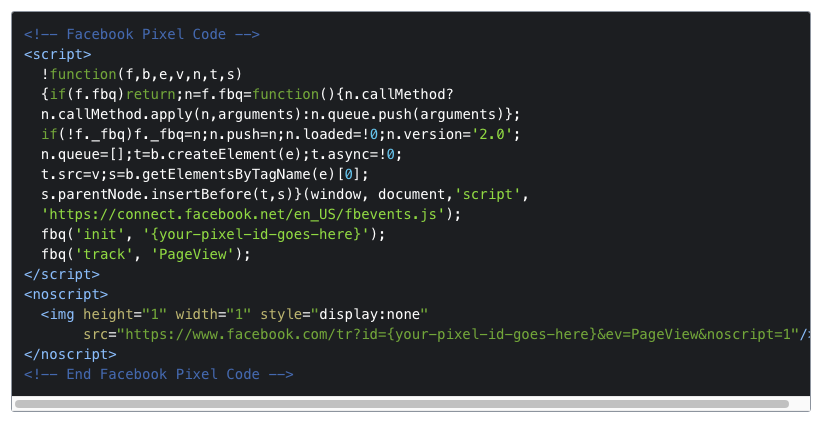
Once you’ve grabbed the code, you must replace “{your-pixel-id-goes-here}” with your pixel ID, which can be found on your pixel settings page. We don’t know why they put curly brackets in – your final code should not have these.
That’s your base pixel code all ready to be pasted into Growform.
By the way, Facebook’s base pixel code fires a pageview by default:
fbq('track', 'PageView');This means you’ll see a PageView event logged in Facebook whenever somebody submits your form. You can remove this line if you wish, but there’s no harm keeping it in.
3 – Add your conversion event to the base code
Now you have your base code, you need to choose an conversion event to fire.
Facebook provide a full list of standard events to choose from.
For the purpose of this guide, we’ll assume you’re firing the “Lead” event, because you’re collecting a lead.
To fire this event, you would add the following code:
fbq('track', 'Lead');… immediately beneath the “fbq(‘track’, ‘PageView’);” line of code mentioned above.
Need to fire a custom event, rather than standard? You can do this too. Set the event up in Facebook, and then add the following code:
fbq('trackCustom', 'YourAwesomeCustomEvent);
There is more documentation on conversion tracking.
4 – Paste your code into Growform
Now your code is ready, it’s time to paste it into Growform so it actually fires when somebody fills in your form.
This bit is easy – just navigate to “Edit form settings” when you’re editing your form in Growform.
Find the box called “Custom script to fire on form submission”, and paste your code into it. It’ll end up looking like this:
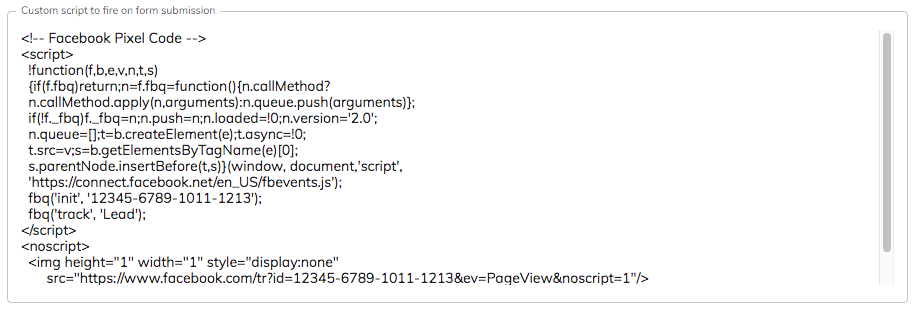
Finally, hit “Save form settings” at the bottom of the page, and that’s it!
Need to track something more clever? Our support team are more than happy to help with custom tracking enquiries – talk to us on live chat!
Related articles

Growform Mass Tort Intake Forms for Better Screening
Growform helps mass tort marketers and intake teams turn paid traffic into better-screened claimant leads.
September 30, 2026

Growform Debt Relief Forms for Qualified Lead Intake
Debt relief lead forms have to do more than convert.
September 30, 2026

Growform CRM Forms With Hidden Field Pass-Through Built In
September 30, 2026