
Growform Multi Step Form Builder
  • Use cases
    • Finance & insurance
    • Professional lead generation
    • Legal
    • Real estate
    • Solar & energy
    • Trades & construction
  • Templates
  • Integrations
  • Pricing
  • Contact us
  • Log in
  • Free trial

How To Track Google Ads Conversions With Growform

If you wish to see conversions appear within Google Ads when people submit your form, this guide is for you!

This guide assumes you have Google Tag Manager (GTM) set up. If you don’t, follow this guide first.

Table of Contents

  • 1 – Create a conversion in Google Ads
  • 2 – Copy the global site tag
  • 3 – Copy the event snippet
  • 4 – Paste both snippets into Growform

1 – Create a conversion in Google Ads

First, log into Google Ads and hit “Tools” in the top toolbar, then navigate to “Conversions.

From here, you’ll be able to create a new conversion.

Enter the conversion details (such as conversion name and value), and hit “Next”.

2 – Copy the global site tag

Once you’ve created your conversion, you’ll be navigated to the “Set up the tag” step.

Choose “Install the tag yourself”.

Then, select “The global tag isn’t installed on all your HTML pages”.

This will show the global site tag, which looks like this:
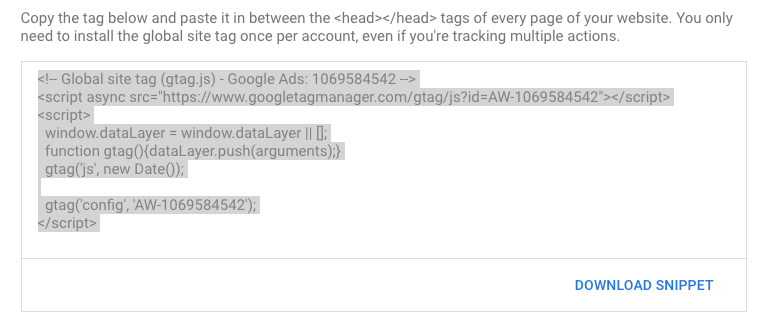
The code looks like this, but you’ll need to follow the above steps to get your own code from Google Ads!

Copy that code snippet and keep it safe. This is the “global site tag”, which enables smaller, more specific event snippets to work.

Tracking will not work without it.

3 – Copy the event snippet

The event snippet works with the above-mentioned global site tag to track the specific action that should be recorded as a conversion.

On the same Google Ads page, ensure “Page load” is selected (rather than “Click”), and then copy the event snippet code, which will look something like this:
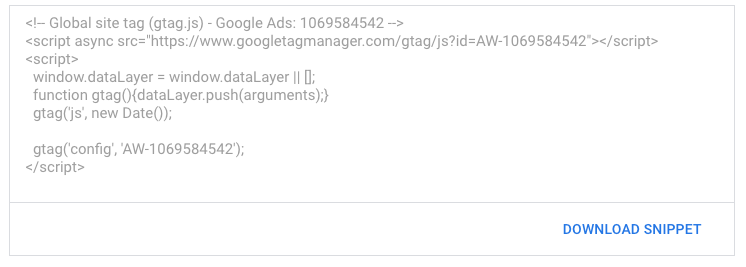
The code looks like this, but you’ll need to log into Google Ads to get your actual code!

4 – Paste both snippets into Growform

Now your code is ready, it’s time to paste it into Growform so it actually fires when somebody fills in your form.

This bit is easy – just navigate to “Edit form settings” when you’re editing your form in Growform.

Find the box called “Custom script to fire on form submission”, and both snippets of code into it (with the global site tag first).

It’ll end up looking like this:
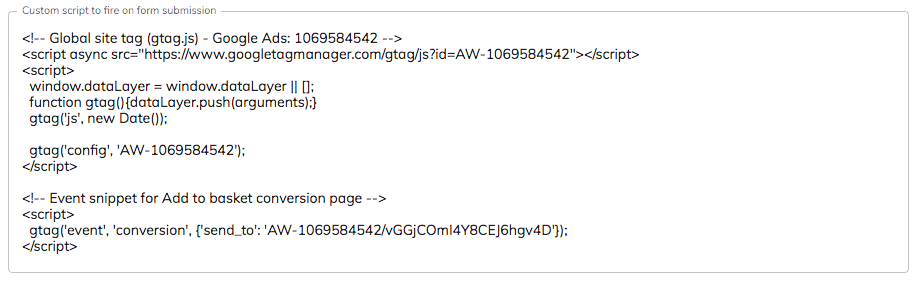
Finally, hit “Save form settings” at the bottom of the page – that’s it!

Now, when people submit your form, you will see the conversion event appear in Google!

Need to track something more clever? Our support team are more than happy to help with custom tracking enquiries – talk to us on live chat!

Post a Comment

Recent Posts

  • What is Landing Page Split Testing? (Our Definitive Guide)
  • How to Create a Local SEO Landing Page (Our Step-by-Step Guide)
  • Landing Page vs. Website: When to Use Each & What Works Best
  • What Makes a Good Landing Page: 10 Key Elements That Turn Visitors Into Leads
  • The Ultimate Guide to Conversational Form Builders for Higher Engagement

Categories

  • Compliance
  • Convertri
  • CRO
  • Form design
  • Google Tag Manager
  • Hubspot
  • Integration
  • Lead generation
  • Lead generation specials
  • Marketing
  • Multi step form design
  • Prospecting
  • Real estate
  • Tools
  • TrustedForm
  • Tutorials
  • Unbounce
  • Unbounce tutorials
  • Uncategorized
  • Using growform

Try Growform Multi Step Form Builder »

Guides

  • Asana
  • Hubspot
  • Instapage
  • Leadpages
  • Unbounce
  • Webflow
  • WordPress

Features

  • All Features
  • Conditional logic forms
  • Conversational forms
  • Embeddable forms
  • Lead capture forms
  • Lead verification
  • Logic jump forms
  • TrustedForm forms
  • Jornaya forms
  • Wizard forms
  • FCC 1-to-1 consent
  • Comparisons

More

  • Affiliate Partners
  • Terms of Service
  • Privacy & GDPR
  • Service status
  • Blog
  • Help docs
  • Climate pledge
  • Growform Glossary: Master Conversion Forms Today
© 2020 - 2024 Growform Ltd. All rights reserved. Growform is a company registered in England and Wales. Company No. 13097518. Registered office: Kemp House, 160 City Road, London, United Kingdom, EC1V 2NX , UK
  • English
  • Français
  • Español
  • Italiano
  • Deutsch