


Form builder for Google Sheets
Build a multi-step form that adds a row to a Google Sheet every time someone completes it. Every answer and hidden field gets its own column, so the sheet is ready for pivot tables and reports.

Trusted by lead gen teams and agencies





Every submission becomes a row in Google Sheets
A shared Google Sheet is still the most common place a small team keeps its leads, because everyone can open it, filter it and build a chart on it. The weak point is getting the data in. Connecting Growform to Google Sheets adds a row for each completed form, with one column per field, the submission time and any hidden fields such as the UTM source and the click ID.
That gives a marketing team a live cost per lead report without a CRM. A row arrives for each lead, a second tab counts rows by campaign, and a third divides spend by that count. Because the form is multi-step and mobile-first, the sheet also fills faster than it would from a long single-page form, and conditional logic means empty columns are empty by design rather than by abandonment.
Collect up to 2x more leads and send them straight to Google Sheets
Growform makes it easy to build multi-step forms that get more leads.
We’ve taken years of experience in conversion rate optimization and landing page best practice and distilled it into an easy-to-use form builder.
Every submission is sent to Google Sheets automatically, safely and securely.
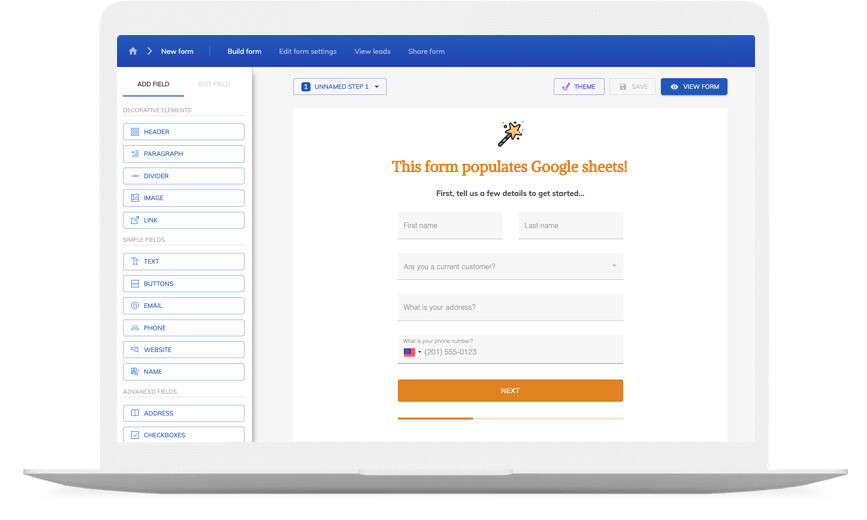
A Google Sheets form that looks like your brand
Don’t settle for “yet another Google Sheets form” – use advanced customization options like custom fonts, background images and color schemes to build a form that looks just like your brand.
A good form is more than just its appearance – it’s about the user experience. Growform ensures your forms are responsive, giving your customers an exceptional experience whether they’re on a desktop or on the go with their mobile device.
If you’re not sure where to start, there’s a template for pretty much every industry!

Available actions
These Google Sheets actions are available to a Growform submission:
-
Create Spreadsheet Row
Adds a row at the bottom of the worksheet you choose, one column per mapped field.
-
Create Spreadsheet Row at Top
Inserts the new row under the header, so the newest lead is always the first you see.
-
Update Spreadsheet Row
Changes an existing row, for example marking a lead as qualified when they complete a second form.
-
Lookup Spreadsheet Row
Finds a row by a value such as email before a later step updates it.
-
Find or Create Row
Finds the row for a returning contact or adds one when there is none, so a sheet does not fill with duplicates.
-
Create Spreadsheet Column
Adds a column to the worksheet, useful when a new question is added to the form.
How does it work?
Growform connects to Google Sheets through Zapier, where Growform's New Form Submission trigger feeds the row actions above. The sheet needs a header row first, because the mapping screen lists your columns by their headers. After that, each completed form adds its row within a few minutes.
Three uses are typical. A lead generation agency keeps a sheet per client and shares it with view access, so the client watches leads arrive during the day. A home services company runs a quote form and uses the sheet as the dispatcher's worklist, sorted by ZIP code. A marketer tests two landing pages and puts the page name in a hidden field, so the sheet shows which page produces the leads and a pivot table shows the cost of each.
-
Step 1: Set up the sheet with a header row
Create the spreadsheet and type one header per question in the first row, plus headers for the submission date and any hidden fields. The mapping screen reads these headers. -
Step 2: Build the form in Growform
Create a free Growform account, build the form from a template or from scratch, and add hidden fields for UTM parameters if the sheet should report by campaign. -

Step 3: Connect through Zapier and map the columns
Choose Growform (Latest) as the trigger and New Form Submission as the event, sign in with the API key from your Growform account page, then add the Create Spreadsheet Row action, pick the spreadsheet and worksheet, and map each field to a column. Send a test from Preview form, check the new row and switch the Zap on.
- Why use Growform instead of Google Forms to fill a sheet?
Google Forms writes to a sheet with no setup, which is why it suits internal surveys. Growform is built for lead capture on paid traffic, with multi-step layouts, your branding, conditional logic, phone and email validation and hidden fields for campaign data, and the connection puts all of that in the same sheet.
- Can I send the same lead to a sheet and a CRM?
Yes. A Zap can run more than one action, and a Growform form can carry up to 10 webhooks as well, so the sheet can be the reporting copy while the CRM receives the working record.
- What happens when I add a question to the form?
Add a matching header to the sheet and map the new field in the Zap. Rows already in the sheet are not changed.
- Can I keep spam rows out of the sheet?
Yes. Growform validates phone numbers and email addresses in real time, and lead disqualification rules can stop a submission that fails your criteria being sent on.
Start your free trial
Build forms that fill your Google Sheets as the leads arrive. 14-day free trial, no credit card required.