







Skip to content
Growform Multi Step Form Builder
Growform Help Scout logo

Help Scout form integration

Take support requests, demo bookings and sales enquiries through a multi-step form and have each one arrive in Help Scout as a conversation with the customer record already created. Your team answers from the inbox it already uses.

Help Scout form builder

Trusted by lead gen teams and agencies

  • reformact

Open Help Scout conversations from a form, not an email

Help Scout brings every customer interaction into one shared inbox, with a profile for each customer that shows their past conversations and properties. A request that arrives through a form should join that record rather than sit in a separate mailbox. With Growform connected, a completed form can create the customer, open a conversation in the inbox you choose, add an internal note with the answers and set customer properties from the form fields.

For a sales or support team the difference shows up in the first reply. The conversation already holds the plan the customer is on, the product they asked about and the urgency they chose, so the person who picks it up answers instead of asking. Multi-step forms let you ask those qualifying questions one screen at a time, and conditional logic shows the technical questions only to people who report a technical problem.

Collect up to 2x more leads and send them straight to Help Scout

Growform makes it easy to build multi-step forms that get more leads.

We’ve taken years of experience in conversion rate optimization and landing page best practice and distilled it into an easy-to-use form builder.

Every submission is sent to Help Scout automatically, safely and securely.

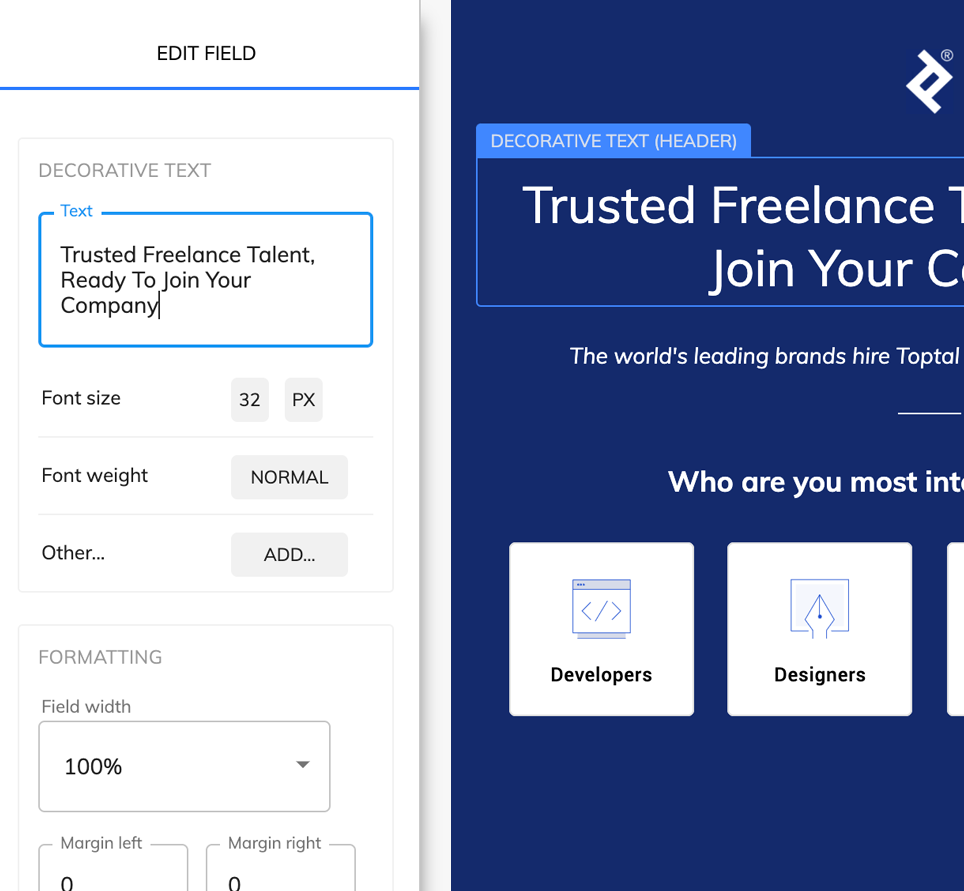
Screenshot of Help Scout and the Growform form builder

A Help Scout form that looks like your brand

Don’t settle for “yet another Help Scout form” – use advanced customization options like custom fonts, background images and color schemes to build a form that looks just like your brand.

A good form is more than just its appearance – it’s about the user experience. Growform ensures your forms are responsive, giving your customers an exceptional experience whether they’re on a desktop or on the go with their mobile device.

If you’re not sure where to start, there’s a template for pretty much every industry!

Available actions

These are the Help Scout actions a Growform submission can run:

  • Find or Create Customer

    Looks up the customer by email and creates the profile when it is new, so repeat requesters keep one record.

  • Create Conversation

    Opens a conversation in the inbox you choose, with the form answers as the first message and the status and tags you set.

  • Add Note

    Adds an internal note to the conversation, for example the lead score or the campaign the person came from.

  • Update Customer Properties

    Writes form answers into the customer's properties, such as plan, company size or region.

  • Find or Create Conversation

    Finds an open conversation for the customer and adds to it, or starts a new one when none is open.

  • Send Reply

    Sends a first reply from the inbox, for example confirming that the request has been received.

How does it work?

Help Scout has no form of its own, so the connection runs through Zapier. Growform publishes a New Form Submission trigger there, and Help Scout publishes the actions above. You map each form field to a Help Scout field once, and every completed form then runs the Zap and lands in the inbox a few minutes later.

Three uses come up often. A software company replaces its contact page with a multi-step form that asks what the visitor needs, then creates the customer and opens a conversation in Sales or Support depending on the answer. An agency runs a client request form that opens a conversation tagged with the client's name, so each account manager sees their own queue in a view. A B2B team that books demos through the form adds a note with the company size and the tools in use, so the rep reads the context before the call.

  1. Step 1: Choose the Help Scout inbox that should receive the form

    Decide which inbox new submissions belong in and which tags and status they should carry. If you plan to write answers into customer properties, create those properties in Help Scout first.
  2. Step 2: Build the form in Growform

    Create a free Growform account and build the form with an email field, so Help Scout can match or create the customer. Name each field clearly, because those names appear in the mapping.
  3. Step 3: Connect through Zapier and map the fields

    Choose Growform (Latest) as the trigger and New Form Submission as the event, sign in with the API key from your Growform account page, then add the Help Scout actions and map the fields. Send a test submission from Preview form, look for the conversation and switch the Zap on.
Does Help Scout work with Google Forms?

Only through a connector, because Google Forms has no Help Scout integration of its own. Growform follows the same route through Zapier and adds what lead capture needs, including multi-step layouts, conditional logic and hidden fields that carry the campaign source into the conversation.

Will a repeat customer get a second profile?

No, when the Zap uses Find or Create Customer. Help Scout matches the email address and adds the new conversation to the existing profile.

Can the conversation go to a different inbox depending on the answers?

Yes. Growform's conditional logic can send the person to a different form ending, and a Zap can branch on an answer, so a billing question lands in Billing and a sales enquiry in Sales.

Can I keep spam and unqualified requests out of Help Scout?

Yes. Growform validates email addresses and phone numbers in real time and lets you set lead disqualification rules, with an option to stop disqualified submissions reaching Zapier, so the inbox only receives real requests.

Start your free trial

Build forms that open the right Help Scout conversation every time. 14-day free trial, no credit card required.