
Add a date or time field
Place a “Date”, “Time”, “Date / time” or “Date of birth” field on a step of your form.

Feature
Growform has four date and time fields, which cover dates, times and dates of birth. You receive every date in one format, and your form can apply rules to a lead's age before the lead reaches you.
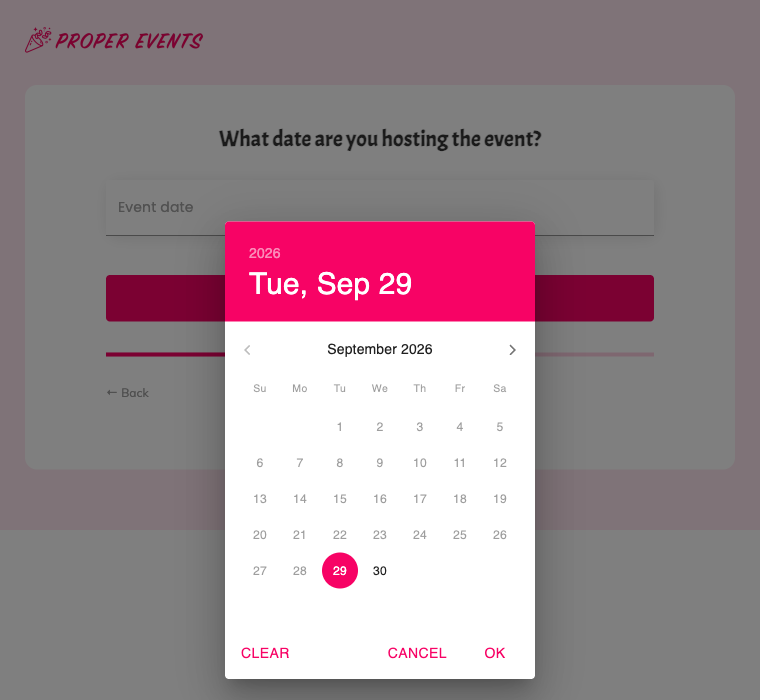
This is the event planning template, running live. The second step asks for the date of the event.
A date picker is a form field in which the customer selects a date, so the answer always arrives as a valid date in a single format. Growform has four fields for dates and times.
Yes. A date picker form in Growform can refuse past dates through the “Disable past dates” setting on the Date field. It suits any question about something that has not happened yet, such as the preferred date for a roof inspection or a planned moving date on a real estate form.
You change the date format in the settings of the form, where you choose between MM/DD/YYYY and DD/MM/YYYY. The format belongs to the form and not to the account. A form for customers in the United States and a form for customers in the United Kingdom can each show dates the way their audience writes them.
Yes. A date of birth field works with two conditional logic operators, which are “Is older than” and “Is younger than”. A life insurance form can show extra questions to applicants above a certain age. Date fields have two operators of their own, “is after” and “is before”, for rules based on the date itself.
The same rules can serve as reasons in lead disqualification. An applicant outside your age range is then marked as disqualified and can be kept out of your CRM.
Place a “Date”, “Time”, “Date / time” or “Date of birth” field on a step of your form.
On a Date field, switch on “Disable past dates” when the answer must be today or later.
Open the form's settings and select MM/DD/YYYY or DD/MM/YYYY.
Use the date operators in conditional logic to show, hide or skip parts of the form, then save.
An installation or start date arrives with the lead, so your sales team can call the soonest ones first.
The Date of birth field feeds the “Is older than” and “Is younger than” rules while the form is being filled in.
The customer selects the date in the field, so you never receive “next month” as an answer.
The Date / time field collects both in a single answer.
All four date and time fields are available whichever plan you choose.
It is chosen per form. You select MM/DD/YYYY or DD/MM/YYYY once in the form's settings.
Add a Date of birth field, then create a disqualifying reason that uses the “Is younger than” operator.
Yes. The “Date / time” field collects the date and the time together.
Create beautiful multi-step forms that convert, with a 14-day free trial. No credit card required.


