
Open Lead Disqualification
You will find it in your form's settings, alongside tracking and integrations.

Feature
Lead disqualification marks a lead as a poor fit from the answers they give, while they are still in the form. You decide whether they finish it, which ending they see and whether they reach your CRM.
Lead disqualification is the practice of ruling a lead out because of something they told you. A renter asking for a solar quote will be rejected by every installer you sell to. A claimant who already has a lawyer cannot become your client. Your sales team or your buyer would disqualify leads like these eventually, and doing it in the form costs nothing.
It is the second half of a lead qualification form. The questions find out who the lead is, and the disqualification rules act on the answers.
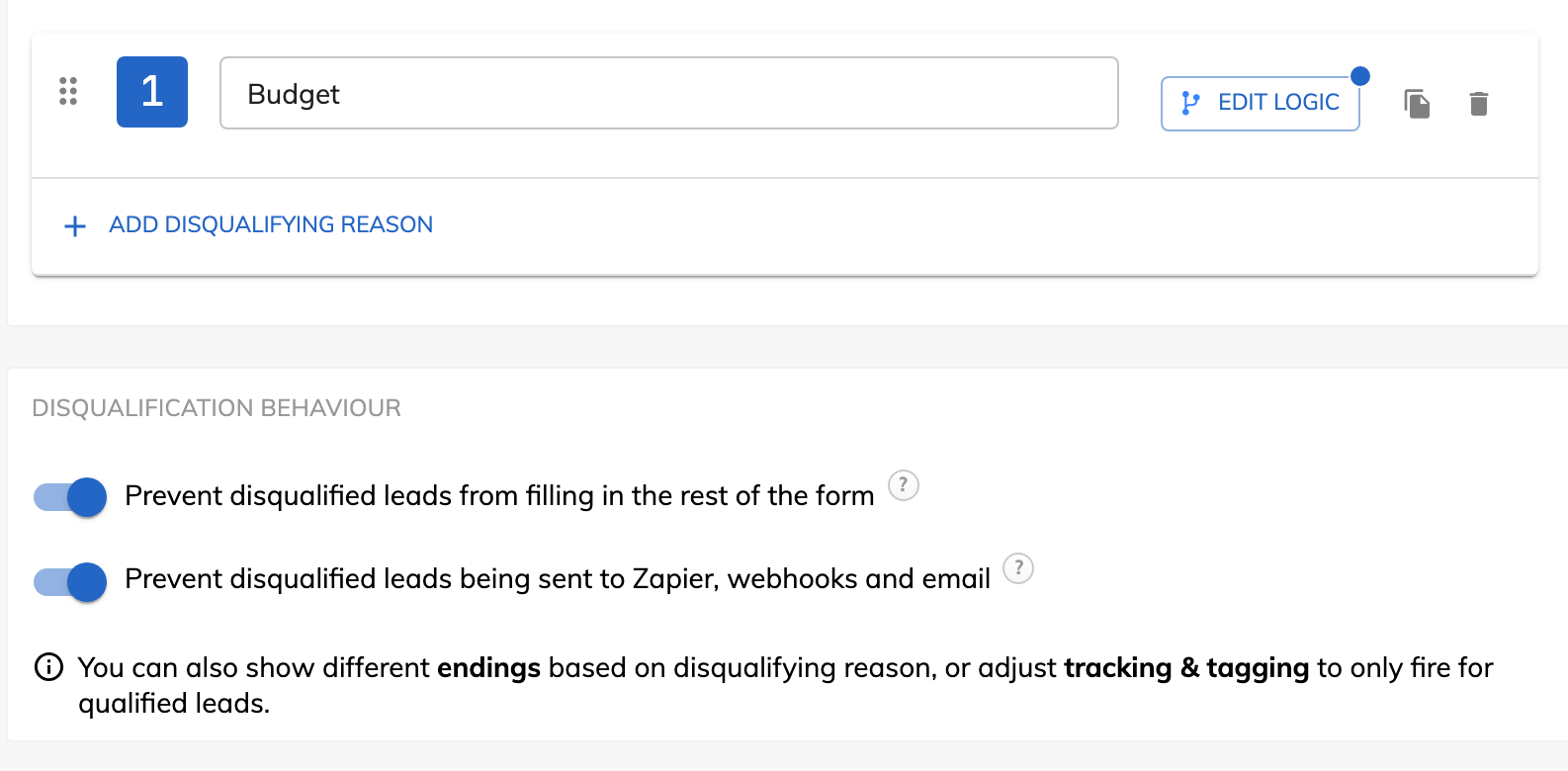
You choose, with two settings that work independently. The first stops disqualified leads from filling in the rest of the form and sends them straight to their ending. The second stops them being sent to Zapier, webhooks and email, so they never reach your CRM, your lead distribution platform or your inbox.
Disqualified leads are still saved in Growform. A “Disqualification reasons” column shows why each one was ruled out, so you can count how many people you turn away and export them with everyone else.
Yes. A form can have several endings, and each one can depend on whether the lead was disqualified or on the exact reason. The renter reads a short message explaining that you work with homeowners. Someone outside your area is redirected to a partner who covers it.
Yes. Google Ads, the Meta Pixel, Microsoft Advertising, X and your own completion script each have a “qualified leads only” setting. The ad platform then records a conversion when a lead passes your rules, and its bidding learns from the leads you want. If you run your own Google Tag Manager container, the form sends separate events for qualified and disqualified completions.
You will find it in your form's settings, alongside tracking and integrations.
Call it what your team calls it, such as “Renter” or “Outside service area”. The name appears next to every lead it applies to.
Rules work like conditional logic. They can test a button choice, a number, an age, or how far an address is from a location.
Switch on “Prevent disqualified leads from filling in the rest of the form”, “Prevent disqualified leads being sent to Zapier, webhooks and email”, or both.
A lead that fails the buyer's criteria is never delivered, so it cannot be returned.
Conversions are counted for qualified leads, which is the signal automated bidding learns from.
Nobody on your team phones a person who ruled themselves out on the second step.
They find out in seconds that you cannot help, and you can point them to someone who can.
Lead disqualification is part of every plan, with no limit on the number of reasons.
No. They are kept in Growform with their disqualification reasons, and you can view or export them. Sending them on to Zapier, webhooks and email is a separate choice.
Yes. Each reason has its own rule, and a lead is tagged with every reason it matches. All of them appear in your results, email alerts, webhooks and Zapier.
Yes. A rule can check whether an address or ZIP code is within a set distance of a location, which rules out leads beyond your service area. See location-based logic.
No. You can let disqualified leads complete every step and only hold them back from your integrations. Some teams prefer this because the lead never learns which answer ruled them out.
Create beautiful multi-step forms that convert, with a 14-day free trial. No credit card required.


