
Select the progress bar
Open your form in the editor and click the progress bar. Its settings open in the side panel.

Feature
A form progress bar shows the lead how much of your form they have completed. It gives them a reason to keep going, because they can see how little is left.
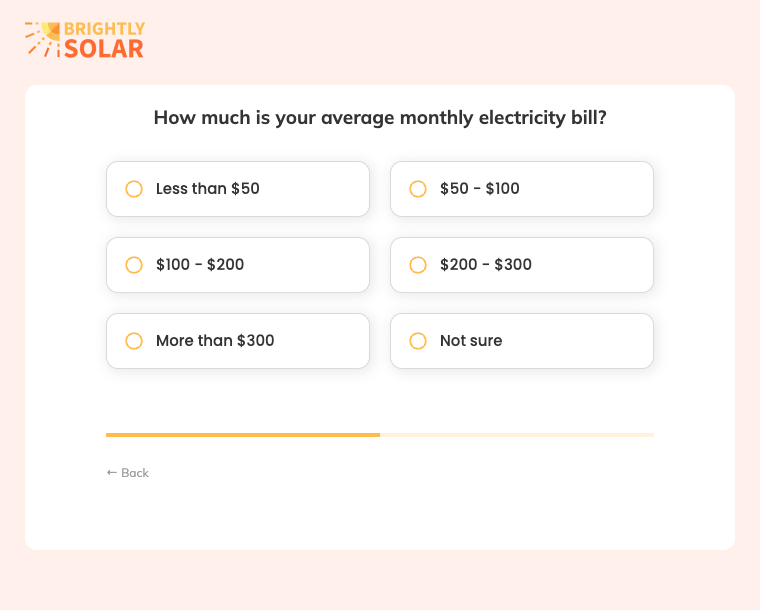
A form progress bar is a progress indicator that shows the lead how far through your form they are. A multi-step form progress bar fills as each step is completed, so the remaining effort is visible from the first question to the last.
In Growform the bar is part of the form itself. It updates as the lead moves between the steps of a multi-step form.
Growform has three progress bar types, and each one has its own settings.
The progress bar sits in one of three positions, which are “Window top”, “Form top” and “Form bottom”. A bar at the top shows progress before the lead reads the question. A bar at the bottom leaves the question as the first thing on the screen.
You change it in the theme settings, where the progress bar has a color of its own next to your primary, text and error colors. The bar can match your brand color or stand apart from your buttons. The rest of the theme is covered under custom style and design.
If you write custom CSS for your form, the bar can be targeted with the .progressBar class.
Open your form in the editor and click the progress bar. Its settings open in the side panel.
Choose Line, Bars or Circles, then adjust the options for that type, such as the height, “Show %” or stripes.
Choose “Window top”, “Form top” or “Form bottom”.
Pick the progress bar color in the theme settings and save the form.
The bar fills with every completed step, so step five never looks the same as step one.
A nearly full bar tells the lead that the name, email and phone number are the final things you will ask for.
A mortgage inquiry with eight questions is easier to continue when “Show %” puts a number on how much is done.
Its color comes from your theme, so it matches the buttons and text around it.
All three progress bar types come with every plan.
Yes. The Line type has a “Show %” option that prints the percentage on the bar.
It is hidden. While a loading animation is on screen, the form hides the progress bar and the continue and submit buttons to prevent accidental navigation.
Yes. The bar carries the .progressBar class, which you can target from the form's custom CSS box.
No. The type, position and color are settings, and custom CSS is optional.
Create beautiful multi-step forms that convert, with a 14-day free trial. No credit card required.


