
Open the endings editor
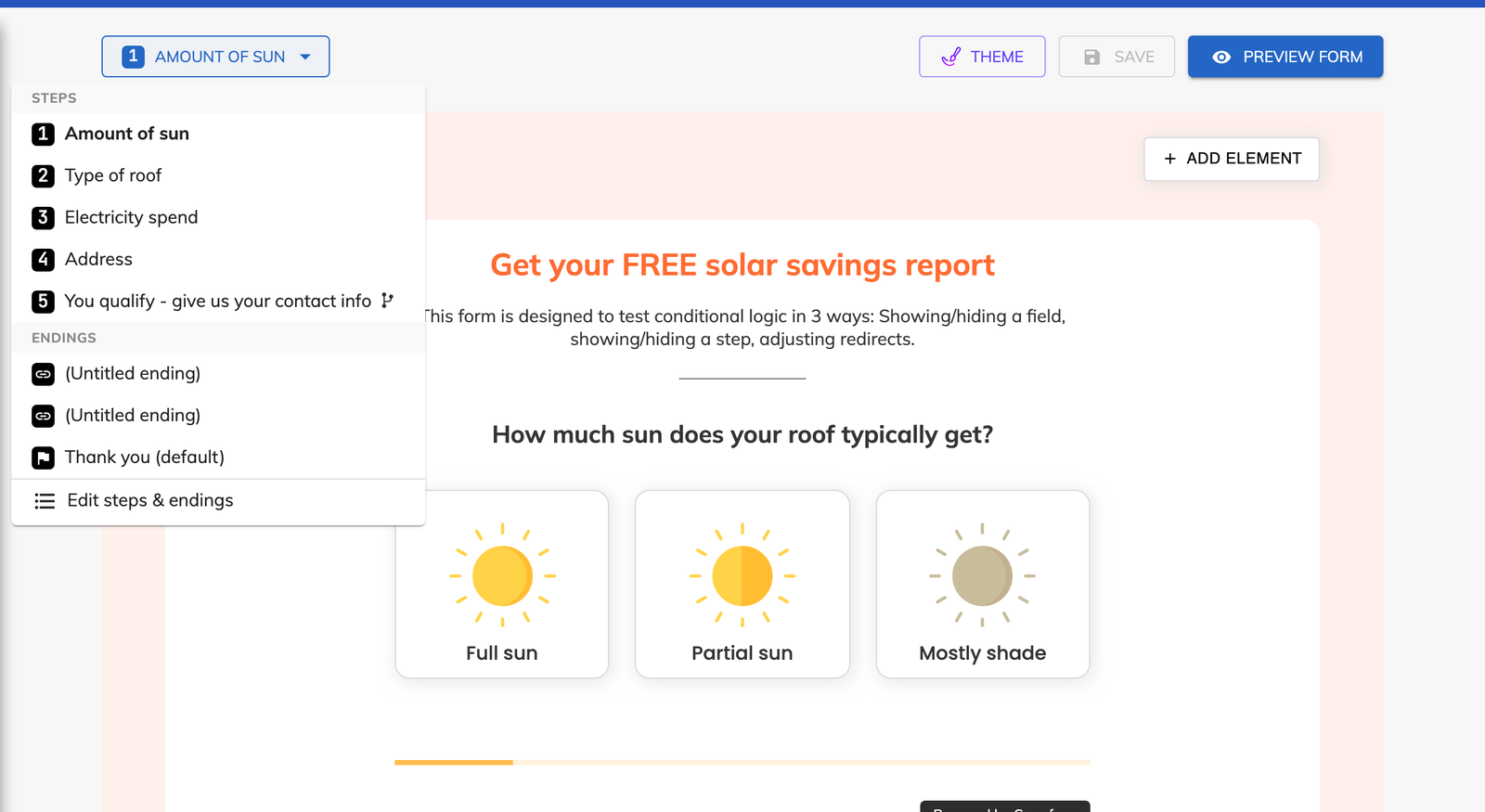
Open the step dropdown in the top bar of the form editor. Your endings are managed there, next to your steps.

Feature
An ending is the screen a lead sees after submitting, and you design it like any other step. Add several endings with their own rules, and each kind of lead reads the message written for them.
A form ending is what the lead sees after they submit the form. Growform has two kinds of form endings.
You can put any decorative element on it, which means headers, paragraphs, images, videos, dividers and links. A debt relief company can confirm that an adviser will call, show a short video about what the call covers, and add a “Link” button to a booking page.
The ending sits inside the form, so the lead stays on your landing page and the ending keeps the fonts and colors of your theme.
Yes, and each ending can have its own logic. When the lead submits, Growform checks the endings in order and shows the first one whose rules match. The last ending is the fallback, and it is shown when nothing above it matches.
This is how you build a dynamic thank-you page. An insurance agency could tell leads who asked for a callback today when the office closes, send leads with a later renewal date to a guide on its website, and show everyone else the standard confirmation.
Yes. The logic on an ending can test whether the lead was disqualified, or which disqualification reason the lead matched. A homeowner outside your service area can be told so plainly, while a lead who failed a different rule is redirected elsewhere. You set up the reasons themselves in lead disqualification.
Open the step dropdown in the top bar of the form editor. Your endings are managed there, next to your steps.
Add an ending and pick “In-form ending” or “Redirect”. Design an in-form ending with decorative elements, or enter the URL for a redirect.
Decide which leads get this ending, using the same rules as conditional logic. A rule can also test disqualification status or a specific reason.
Arrange the endings in the order they should be checked. The final one in the list is shown to every lead who matched none of the others.
The ending can say who will call and when, in your own words and design.
Endings are chosen by logic, so a callback request and a price comparison do not share one generic confirmation.
An ending tied to a disqualification reason gives the answer on screen, and your team does not spend a call delivering it.
An in-form ending appears where the steps were, so nothing else has to load.
In-form endings, redirect endings and ending logic are part of all four plans.
The last ending in the list is shown. It works as the fallback, so every lead gets an ending.
Yes. Add a “Link” element to the ending with the text and URL of your booking page, and choose whether it opens in a new tab.
Yes. Each ending is either an in-form ending or a redirect, and one form can contain both kinds.
No. You build an in-form ending from the same decorative elements you use on the steps of the form.
Create beautiful multi-step forms that convert, with a 14-day free trial. No credit card required.


