
Add the Address Lookup field
Place an “Address Lookup” field on the step where you ask for the property address.

Feature
Address autocomplete suggests real addresses as your customer types, and one tap fills in the rest. You receive the street, city, state and ZIP code as separate values, ready for your CRM or lead buyer.
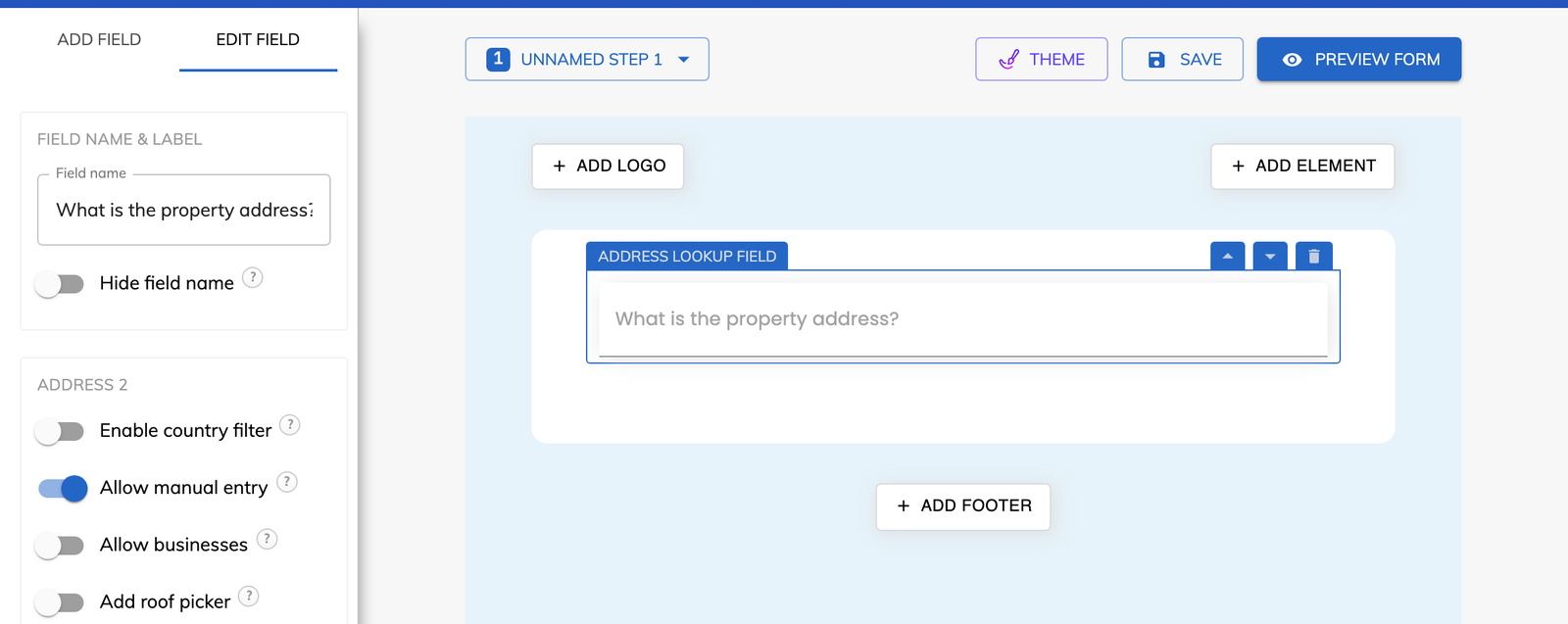
The Address Lookup field lists matching addresses while the customer is still typing. Choosing one completes the whole address, which is quicker on a phone than filling in five separate fields.
Address autocomplete is a form field that suggests real addresses as someone types, so they choose their address from a list and never type it out in full. Growform calls this field “Address Lookup”.
The lookup is built in and uses Google address autocomplete. You do not need your own Google account or API key, and the suggestions are weighted toward the customer's own area.
An address lookup form sends you the address as separate parts as well as one full line. You receive the full address, line 1, line 2, the city, the state or province, the ZIP or postal code and the country.
Each part is available individually in webhooks and Zapier. The city goes to the city field in your CRM and the ZIP code goes to the ZIP code field, with no text to split on your side.
Yes, by country and by type of property. The country filter restricts the suggestions to the countries you allow, so a US installer is not sent addresses from elsewhere. The “Allow businesses” setting decides whether commercial premises are accepted, and a residential HVAC form can leave it off to take homes only.
Location-based logic adds a third control. A conditional logic rule can check whether the address is within a set distance of a location, and show a different step or message to customers outside your service area.
It gives you the part of address validation that matters on a lead form, because an address chosen from the list is one that exists. Spelling mistakes and missing ZIP codes are removed at the source.
In the rare case that an address cannot be found, “Allow manual entry” is the fallback. The customer types the address by hand, and Growform looks up its location in the background.
Place an “Address Lookup” field on the step where you ask for the property address.
Switch on “Enable country filter” and select the countries you serve under “Allowed countries”.
Switch on “Allow manual entry” to accept addresses that are missing from the list. Leave “Allow businesses” off to accept residential addresses only.
Save the form, then use the individual address parts in your webhook destination or your Zap.
The customer picks an existing address from the list, so the street and ZIP code arrive spelled correctly.
A few characters and one tap replace five separate fields.
The city, state and ZIP code arrive as separate values, so nothing has to be split or corrected by hand.
The country filter, the “Allow businesses” setting and distance rules all run while the form is being filled in.
Address autocomplete is part of every plan, and the roof picker setting on the same field starts at Professional.
Yes. Add the field's ID and a value to the page URL as a parameter, and the address search starts with that value already entered.
Select the legacy field, choose “Upgrade to new address lookup” and save the form. The new field sends structured data, so update any Zapier mappings or webhook destinations that use the address.
Yes, on Professional plans and above. The “Add roof picker” setting shows a satellite map once the address is chosen and saves the coordinates of the pin.
Create beautiful multi-step forms that convert, with a 14-day free trial. No credit card required.


