
7 Best Zendesk Form Builder Options for Lead Capture

If Zendesk is where your team works tickets, it can also be where qualified leads land, but its native request forms are built for structured intake more than paid traffic conversion. That is why many teams pair Zendesk with a specialist front-end builder like Growform when they need lighter friction, better qualification, and a cleaner handoff into support or sales workflows.
Table of Contents
TL;DR: Summary
- The best Zendesk form builder setup for lead capture is usually a specialist front end plus Zendesk ticket forms, custom fields, and pre-filled URLs on the back end.
- Zendesk is strong at structured data collection, routing, and business rules, especially when you use multiple ticket forms for different request types.
- If you need higher conversion from paid traffic, multi-step forms often beat a plain support-style request form, and Baymard’s 2024 research says field count matters more than step count.
- Growform is relevant when you want single-step or multi-step forms that send submissions into Zendesk while preserving a more customized front end.
- Use pre-filled Zendesk forms and custom ticket fields to reduce friction, capture cleaner data, and route tickets by form, field values, or workflow.
This guide focuses on lead capture, not basic help-desk intake. It is based on Zendesk Help and Zendesk Developer Docs updated in August and September 2026, plus Baymard Institute research on form usability, so the trade-offs here are practical for operators deciding whether Zendesk should be the form itself, the back end, or both.
What should a Zendesk form builder do for lead capture?
A Zendesk form builder should capture structured intent, reduce abandonment, and hand data into Zendesk in a way that supports routing and reporting. Zendesk and Baymard point to the same practical standard: collect what matters, then remove avoidable friction.
For lead capture, the bar is higher than “can this submit a ticket?” A good setup should qualify users without making the form feel heavy, preserve campaign context, and map data into fields your team can actually use later.
A simple way to assess fit is to check four things:
- Form intent: support intake versus paid traffic lead capture
- Data structure: plain free text versus mapped fields for routing and reporting
- Friction level: every field the user must read, fill, or think about
- Handoff model: email notification only versus ticket creation, automations, and downstream workflows
One common mistake is treating lead capture like support intake. Support forms can tolerate more explicit detail because the user already wants help. Paid traffic forms usually need to earn each extra field.
Can Zendesk ticket forms handle lead capture on their own?
Yes, Zendesk ticket forms can handle lead capture, but only for narrower cases where structured intake matters more than front-end conversion design. Zendesk’s native strength is ticket routing, not multi-step funnel UX.
Zendesk lets admins create multiple ticket forms for different request types, products, or workflows. According to Zendesk Help, those forms help collect more specialized information and can route tickets based on the form used. Zendesk Developer Docs also notes that ticket forms define a subset of ticket fields shown to end users and agents, with accounts limited to 300 forms.
That is useful if your “lead form” is really an intake form. Think partner requests, service eligibility checks, claim intake, or appointment triage where the back-end workflow is the hard part.
“Growform can send new form submissions to Zendesk via Zapier, which is useful when Zendesk stays the system of record but the front-end form needs to be single-step or multi-step.”
The limitation is the front end. Zendesk request forms are not built as conversion-first landing page assets. A common misconception is that adding more ticket forms solves conversion problems. It usually solves routing problems. Those are related, but not the same.
What are the 7 best Zendesk form builder options for lead capture?
For most teams, the strongest Zendesk form builder options are Growform, Zendesk ticket forms, Typeform, Jotform, Unbounce forms, Webflow forms, and a custom form wired into the Zendesk API or Zapier. The right choice depends on whether conversion rate or native workflow control matters more.
Here is the shortlist, ordered by how often each pattern makes sense for lead capture teams using Zendesk as a destination.
-
Growform: Best when you want a lead capture front end and Zendesk as the back end. It is positioned around single-step and multi-step forms, and its Zendesk integration can send submissions into Zendesk through Zapier.
-
Zendesk ticket forms: Best when routing, field control, and internal workflows matter most. Zendesk supports multiple ticket forms, custom fields, and pre-filled form URLs.
-
Typeform: Best when conversational presentation matters more than deep ticketing logic. Teams often consider it when they want a more polished front end than a support form.
-
Jotform: Best when you need broad form flexibility and many general-purpose templates. It is often evaluated by teams that want more front-end control than Zendesk offers.
-
Unbounce native forms: Best when the landing page is already in Unbounce and you want fewer moving parts. The trade-off is that native landing page forms often hit limits as qualification logic gets more complex.
-
Webflow forms: Best when design control is a priority and your site already lives in Webflow. This route usually needs extra integration work to keep data structured in Zendesk.
-
Custom form plus Zendesk API or middleware: Best when your data model or routing rules are unusually strict. Zendesk’s API supports ticket forms directly, but this path adds build and maintenance overhead.
The shortlist is less about “which tool is best in general” and more about where the front-end experience should live. If your team buys traffic at volume, that front-end decision usually affects CPL more than the back-end ticket object does.
How do Zendesk ticket forms compare with a specialist lead capture builder?
Zendesk ticket forms win on structure and workflow control, while specialist builders win on conversion-focused UX. If your traffic is paid and mobile-heavy, the front-end trade-off usually matters fast.
Zendesk shines when you need custom ticket fields, required data, and business rules that route tickets to the right queue. Zendesk Help is explicit here: custom fields can require information before a ticket is accepted and can be used as conditions in business rules.
A specialist lead form builder usually wins when you need progressive disclosure, qualification flow, mobile-friendly pacing, and cleaner visual control. Baymard’s 2024 research is a useful guardrail: the number of fields affects usability more than the number of steps, and most sites need only 8 fields total while the observed average was 11.3. In practice, that means a multi-step form can outperform a single long form if each step reduces cognitive load.
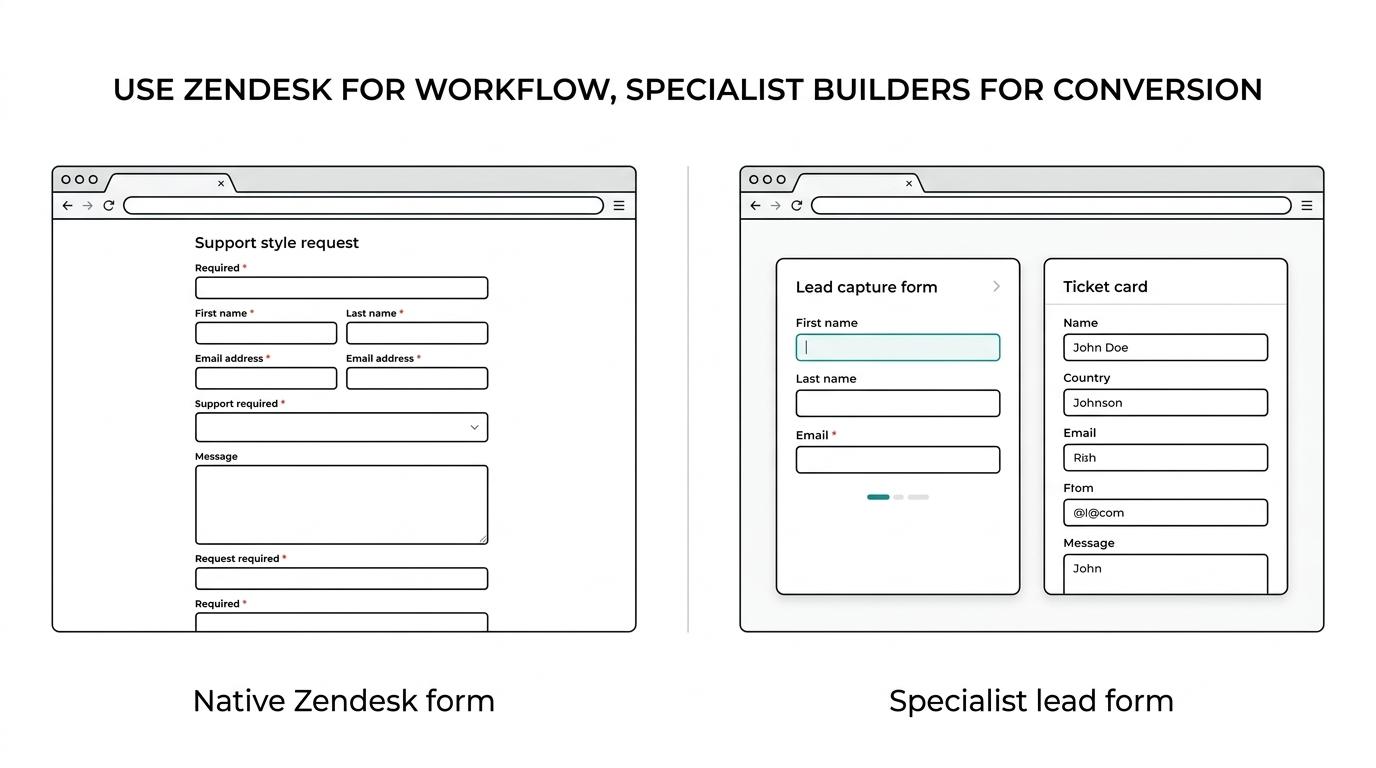
The mistake is assuming “multi-step always converts better.” If you split a weak form into more screens without reducing effort, you have not fixed the problem. You have just distributed it.
How do you map a lead capture flow into Zendesk ticket forms step by step?
Start by defining the intake outcomes, not the fields. In Zendesk, forms exist to support workflows, so you should map the ticket destination before you design the form questions.
First, decide whether you need one intake path or several. Zendesk supports multiple ticket forms for different request types, and that is often the cleanest way to separate product lines, lead sources, or eligibility paths.
Next, identify what the user must provide versus what the system can infer. If campaign, product, source, or issue type is already known from the ad click or landing page context, do not ask again unless validation is necessary.
Then map each question to a Zendesk field. Zendesk custom fields can be attached to tickets, users, organizations, and custom objects, and they support types like drop-downs, checkboxes, dates, and relationships. That structure is what later powers triggers, reports, and searches.
How do pre-filled Zendesk forms reduce friction and abandonment?
Pre-filled Zendesk forms reduce friction by removing fields the user should not have to think about twice. Zendesk supports URLs that open a specific ticket form with known values already populated.
This is especially useful when a click already carries context, like product model, service category, region, or campaign source. Zendesk Help notes that if you have multiple ticket forms, the URL can include the specific form ID. System fields use the tf_ prefix plus the field name, while custom fields use tf_ plus the field ID.
If that sounds technical, the business outcome is simple: fewer decisions on the page. And fewer decisions usually means better completion.
A good rule is to pre-fill only what you already trust. If the value came from a verified page path, product selector, or campaign parameter, pre-fill it. If the value is uncertain, collect it visibly and validate it.
How do custom ticket fields improve routing, qualification, and reporting?
Custom ticket fields turn a generic form submission into operational data. In Zendesk, those fields do more than store answers. They shape business rules, reporting, and queue logic.
Zendesk Help notes that custom fields support automations, triggers, reports, and searches. That matters because lead quality is often judged after submission, not at the page level. If you capture the right fields up front, you can answer harder questions later: Which campaign sends ineligible leads? Which form version creates slower first-response times? Which issue types require specialist handling?
One misconception is that open text fields are “more flexible.” They are, but they are also harder to route and analyze. If a field will be used in a rule, a report, or a filter, a structured field type usually wins.
How do you connect a multi-step form to Zendesk without losing structured data?
The cleanest setup is to let Growform handle the front-end experience and map each answer into Zendesk fields through Zapier or another connector. That keeps Zendesk useful for operations while the form itself stays optimized for lead capture.
The practical sequence is straightforward. Build the intake flow around qualification logic first, then match each answer to the target field in Zendesk. Send the final submission into Zendesk as a ticket, and, where needed, create or update the organization record as part of the handoff.
“Growform states that a new form submission can automatically create a Zendesk organization or ticket, which fits teams that want lead capture up front and structured intake in Zendesk.”
The technical risk is usually not the connection. It is field mapping drift. If Zendesk field IDs change, or if the front-end form adds new answers without a matching destination, reporting quality drops quietly. The fix is simple: treat field mapping as part of launch QA, not a one-time setup.
When should you keep Zendesk as the back end but replace the front end?
Keep Zendesk as the back end when your agents, support teams, or service workflows already depend on it, but replace the front end when the native request form is limiting conversion or qualification. That split is common in paid acquisition.
This approach makes sense when you need better mobile UX, more nuanced qualification, or stronger visual control, but do not want to rebuild routing, automations, and agent workflows elsewhere. It is also useful when marketing owns the form experience while operations owns the ticket lifecycle.
If your team is small and the form is mostly service intake, Zendesk alone may be enough. If your team buys traffic and measures CPL, abandon rate, and lead quality closely, the front end usually deserves its own tool.
How should you test a Zendesk lead capture form for better conversion?
Test fewer variables, map them to business outcomes, and measure both form completion and downstream ticket quality. A high submit rate is not useful if the intake becomes harder to route or qualify.
Start with field pressure. Remove or pre-fill one field at a time, especially anything that asks users to restate known context. Baymard’s field-count finding is a good reminder that visible effort matters more than many teams assume.
Then test structure. If one long page is underperforming, try breaking the form into a multi-step form flow that groups related questions. If the steps increase but the total thinking required stays the same, conversion may not move much. If the steps reduce perceived effort, it often does.
Last, review post-submit outcomes inside Zendesk. Check whether a form variant improves routing accuracy, first-response readiness, or the rate of tickets missing key fields. The best Zendesk form builder is not the one with the prettiest UI. It is the one that lowers friction without weakening the intake data your team needs.