
Jornaya setup: how to build a Jornaya form with Growform
What is Jornaya LeadiD, and what does it do? If you’re generating leads for a lead buyer, they might ask you to verify the provenance of the leads, or to verify that certain TCPA disclosures has been met. This is becoming increasingly important, with the recent FCC rules on one to one consent….

Updated Published 6 min read
What is Jornaya LeadiD, and what does it do?
If you generate leads for a lead buyer, the buyer will often ask you to prove where each lead came from and which TCPA disclosure the consumer saw. For many insurance, mortgage and solar buyers, the proof they want is a Jornaya LeadiD.
Jornaya LeadiD is a 36-character token that the Jornaya campaign script creates when a consumer loads a lead form, and that lead buyers use to look up an independent record of the lead event, including its timing, the form fields the consumer interacted with and the consent disclosure on the page.
Update (October 2026): Jornaya has changed hands. ActiveProspect, the company behind TrustedForm, completed its purchase of Verisk Marketing Solutions in December 2025 and now sells LeadiD under the InfutorData name, with Jornaya's help center at help.infutor.com. The FCC one-to-one consent rule mentioned in the first version of this guide was vacated before it took effect. The Growform setup below has not changed.
Once Jornaya is on your form, every lead is assigned a unique Jornaya LeadiD, stored alongside your existing form data:
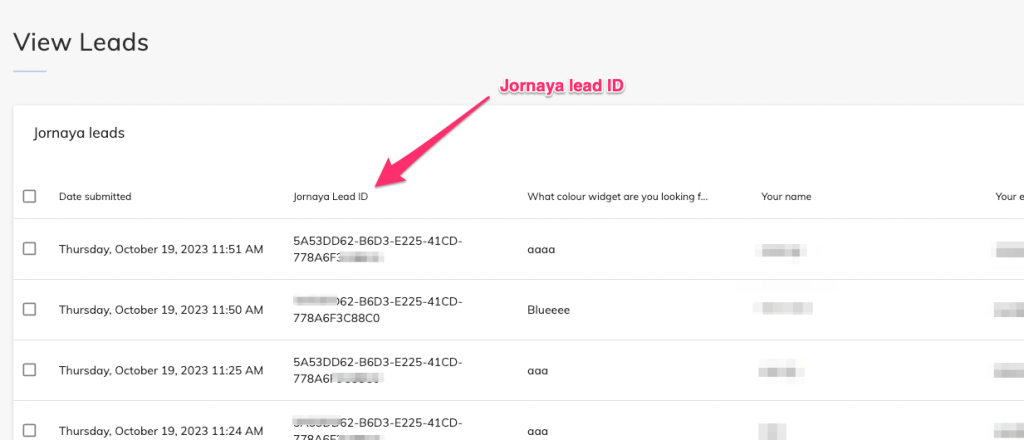
Technically, the campaign script writes the token into a hidden field called leadid_token and keeps the same token on every page of the funnel where the script runs, according to Jornaya's implementation FAQ. The script does not store the personal details a consumer types. It records which fields were on the page and which ones the consumer clicked into or filled in.
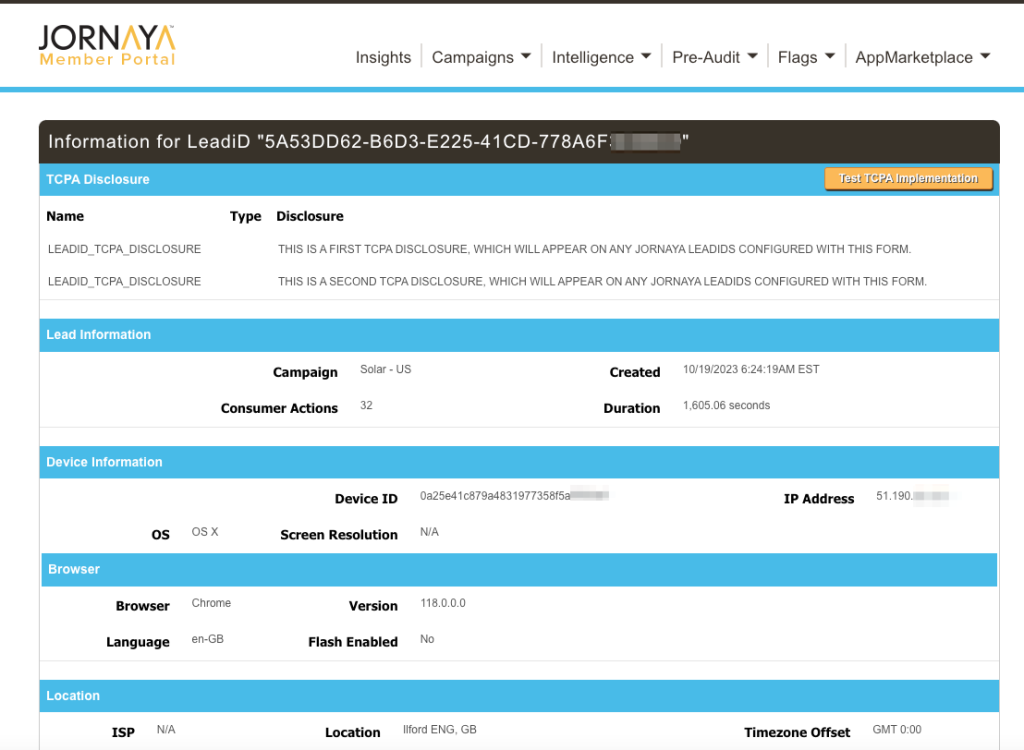
Your lead buyer can then look the LeadiD up and see details of the lead event, such as the IP address, browser information and any TCPA disclosures shown to the consumer:
The LeadiD even keeps an audit log of every interaction with the form elements:

What lead buyers do with the LeadiD
A buyer can check the token as soon as the lead arrives. On Jornaya's TCPA Guardian product, the buyer stores each incoming LeadiD, queries it through an API and compares the disclosure on your form against the wording it has approved, as described in Jornaya's TCPA Guardian guide. A disclosure that is not on the buyer's approved list comes back as a mismatch, and the buyer can flag or reject the lead. If a complaint comes in later, the same token lets the buyer request a compliance report with a Visual Playback of the lead event.
Jornaya stops treating a token as authentic once it is more than a year old or is not exactly 36 characters long. A LeadiD is evidence for the lead it was created with, so it should travel with that lead from your form to the buyer.
TrustedForm does a similar job with a certificate and a session replay of the form. Some buyers ask for one, some ask for both, and the two scripts run side by side on the same form. The Jornaya vs TrustedForm comparison sets out how they differ, and the Jornaya LeadiD explainer covers what a LeadiD can and cannot prove.
How to set up Jornaya and build a Jornaya form with Growform
Growform adds the Jornaya script to your form for you, so there is no code to paste and no hidden field to build. The Jornaya integration runs on your own Jornaya account and is included on the Professional plan and above.
If you do not have a Jornaya account yet, apply through the InfutorData LeadiD Creator Program. Jornaya asks for a live website, a privacy policy that names your registered business and a business email address on your company's domain, and says approval typically takes one to three business days.
1. Create a form on Growform
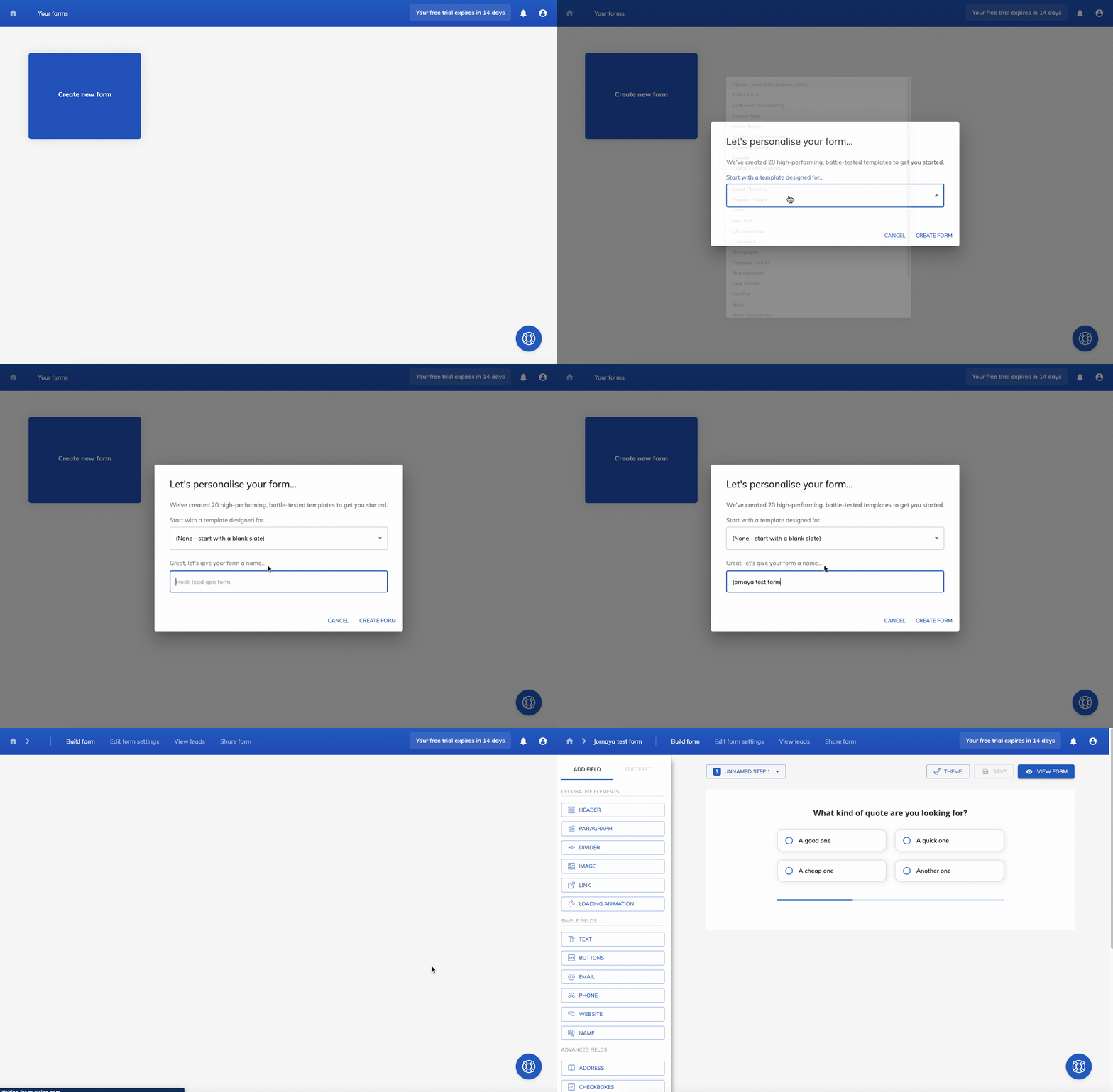
First, sign up for Growform and create a form, either from one of the 250+ templates or from a blank form, and give it a name:
2. Find your Jornaya account code and campaign key
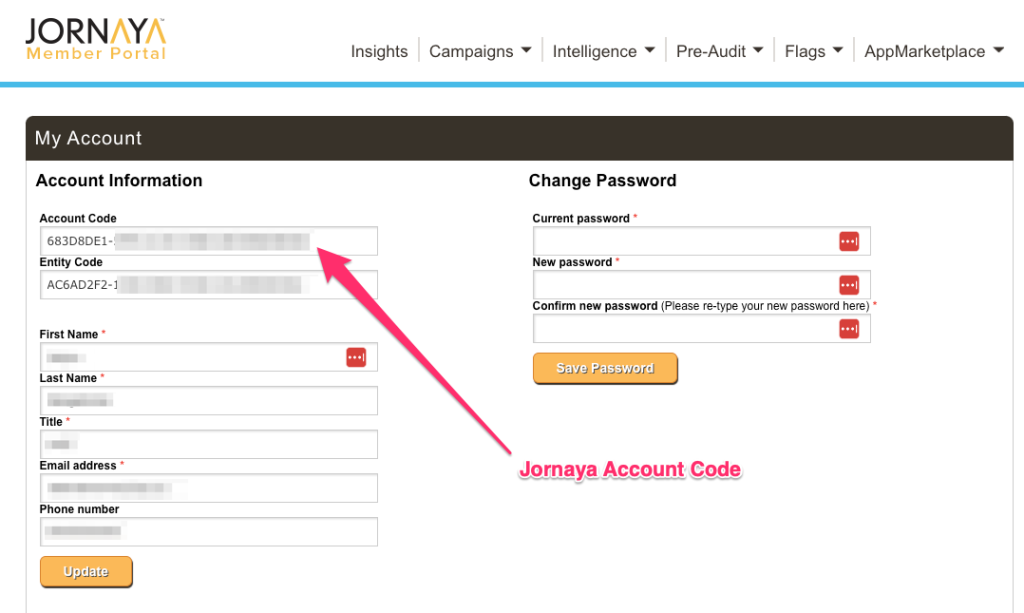
Log in to the Jornaya member portal. You can find your account code on the "My account" screen:
The campaign key belongs to a campaign, which you will find under Campaigns > My Campaigns:
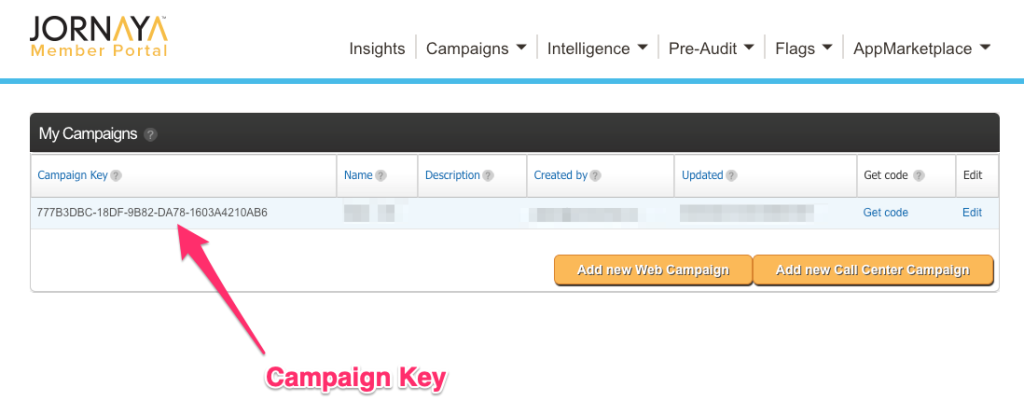
Jornaya asks lead generators to run at least one campaign for web forms, kept separate from any call center campaign, and one campaign per vertical if they work in several, such as insurance and home services. Separate campaigns also split your reporting in the portal.
3. Add the account code and campaign key to Growform
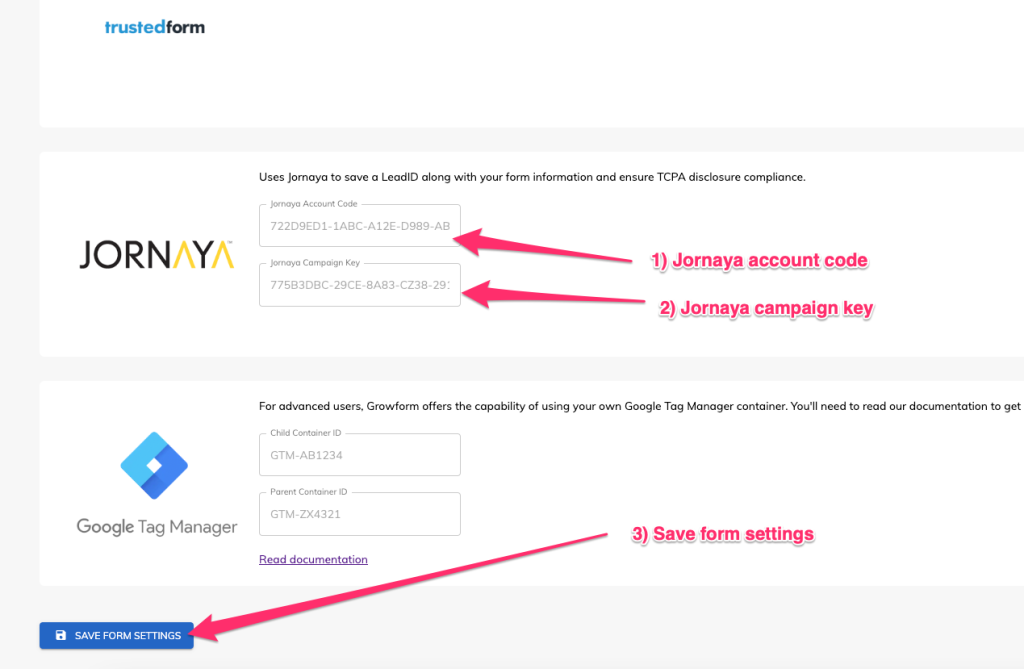
In Growform, open "Edit form settings" and select "Tracking & tagging". Find the Jornaya option, paste in your account code and campaign key, and click "Save form settings":
4. Add a TCPA disclosure (optional)
Once Jornaya is enabled, a "Jornaya TCPA Disclosure" field becomes available. Add it to the step where the lead submits, enter the wording your buyer or legal advisor has approved, and save your form:
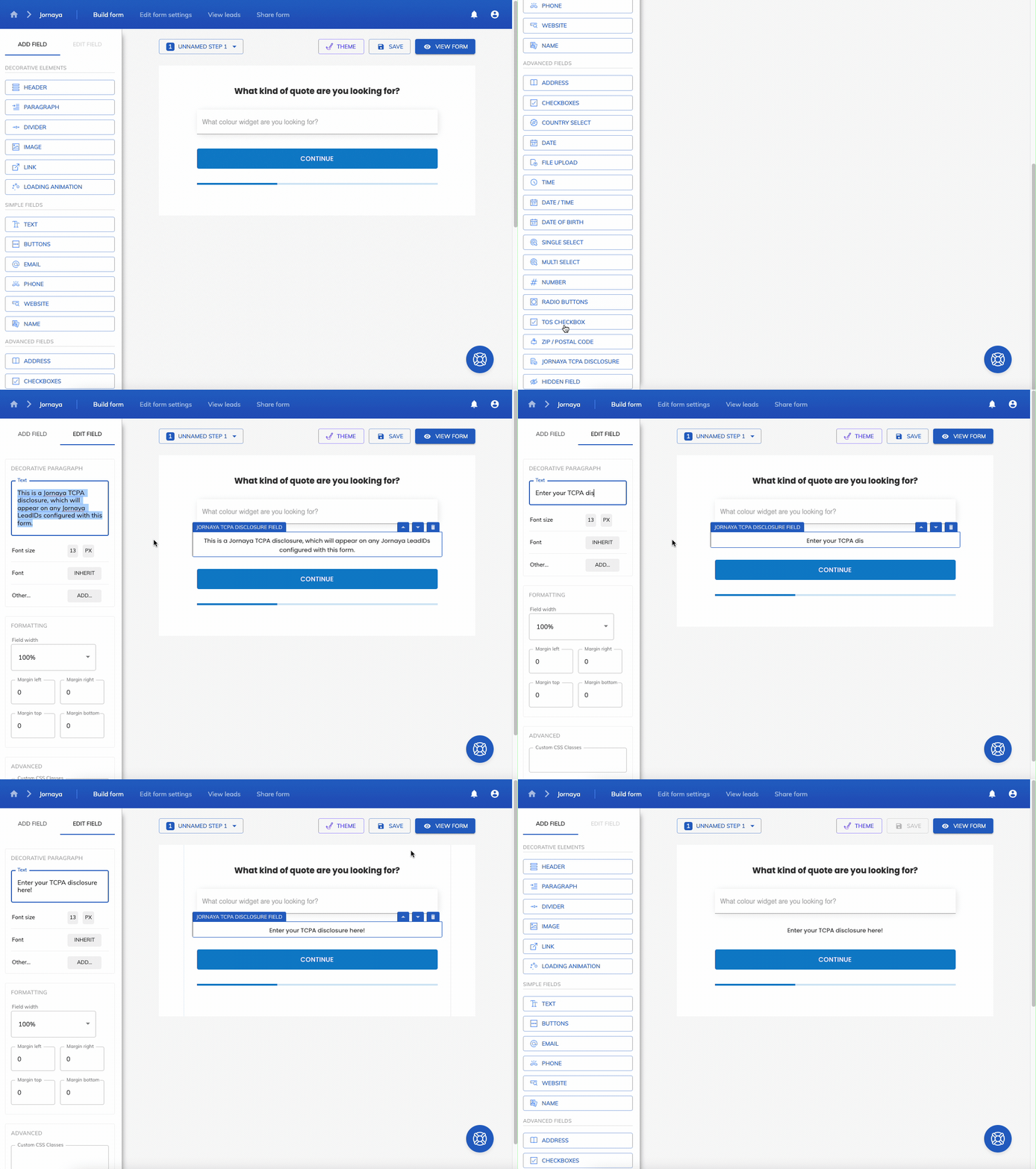
The wording is yours to choose, and buyers compare it with their own approved list, so ask each buyer which text it accepts before you launch. For the rules behind consent wording, see what lead gen operators need to know about the TCPA.
5. Send a test submission and check the LeadiD
Now that Jornaya is on your form, check that it works.
Click "View form" and complete the form as a lead would. Then, still in Growform, open "View leads". You should see the Jornaya LeadiD saved beside the answers from that submission:
Use a new private browser window for each test. Jornaya keeps the same token for as long as the browser session stays open and for 15 minutes after it closes, so two quick tests from one window can share a LeadiD.
6. Send the LeadiD to your buyer
The LeadiD leaves Growform with the rest of the lead. Send it to your lead distribution platform or buyer through webhooks, Zapier or email alerts, and map it to the field name in the buyer's posting spec. Jornaya's suggested name is universal_leadid, so start there and confirm it with each buyer.
Next steps
With Jornaya in place, every lead you sell carries the identifier buyers ask for, and you can turn your attention to the form itself: the qualifying questions, the steps and the tracking that bring the lead in. Growform is a multi-step form builder made for lead generation, and every plan starts with a 14-day free trial. Start free trial.
Frequently asked questions
Can I use Jornaya and TrustedForm at the same time?
Yes. Jornaya's documentation says its script works independently of similar scripts on the same page. In Growform, enter both the Jornaya and TrustedForm settings under "Tracking & tagging".
Why do two leads have the same Jornaya LeadiD?
Jornaya creates one LeadiD per browser session. Two submissions with the same LeadiD were made in the same session, or within 15 minutes of it closing, which is common when you test a form several times from one window.
Why is a lead missing its Jornaya LeadiD?
Jornaya lists three causes: the consumer's browser settings or connection, an ad blocker or browser extension, and a script that was not installed correctly. On a Growform form, Growform installs the script, so check the first two causes first.
Is Growform the only way to build a Jornaya form?
No. On a form you code yourself, you add a hidden field with the ID leadid_token and place your campaign script after the form and before the closing body tag, on every page of the funnel including the page after submission, as set out in Jornaya's web form instructions. In Growform, the account code and campaign key in Tracking & tagging take the place of these steps.
Who owns Jornaya now?
ActiveProspect, the company behind TrustedForm, bought Jornaya's parent business from Verisk in December 2025. Jornaya LeadiD is now sold by InfutorData, an ActiveProspect business, and the product is still called LeadiD.
Related articles

How consent proof affects lead acceptance and CPL rates
October 14, 2026

Jornaya LeadID Explained for Lead Generation Teams
September 30, 2026
Growform Solar Lead Forms With CAPI and Jornaya Proof
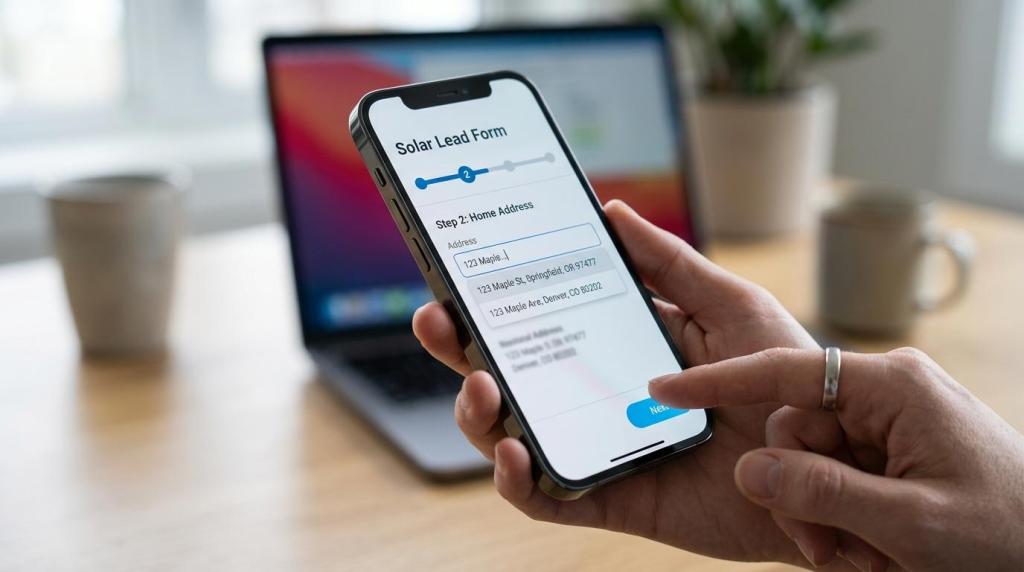
Growform builds solar lead forms for teams that buy traffic and need more than a basic contact form.
September 30, 2026