
How to Add Webflow Form Conditional Logic Without Code

Updated Published 11 min read
You've built the polished Webflow landing page, connected the form, and then a marketer asks for one sensible change: show the business-size question only when someone selects “Company,” or disqualify visitors who choose an unsupported project type. The designer looks clean, but the form builder doesn't give you an obvious branching control.
That's where Webflow form conditional logic becomes less about toggling a setting and more about choosing the right implementation. You can build a lightweight workaround with attributes, CSS, and JavaScript, or embed a dedicated form builder when the flow needs multi-step qualification, disqualification, and reliable attribution. The difficult part isn't only making fields appear. It's ensuring hidden answers, UTM values, validation states, and CRM handoffs survive every branch.
Introduction to Webflow form conditional logic
A typical request sounds simple: a visitor chooses “I'm buying for my company,” and the form reveals company size, role, and expected timeline. Someone choosing “Personal project” should see a shorter path. On a lead-generation page, those questions may also determine whether the visitor reaches the contact step at all.
Webflow gives you strong control over layout and styling, but native form branching has historically required workarounds. That creates three practical routes:
- Native workaround: Use Webflow fields, custom attributes, CSS, and JavaScript to control visibility.
- Custom implementation: Build a more involved multi-step flow with explicit transitions and validation.
- Embedded form layer: Use a dedicated builder for branching, qualification, and hidden-field handling, then place it inside Webflow.
Each route can work. They differ in maintenance, testing effort, analytics reliability, and how much logic your team can manage without a developer.
The key distinction is between conditional visibility and conditional form behavior. Hiding a field is only the interface layer. A production form must also decide whether the hidden field remains enabled, whether its value is submitted, whether validation still applies, and whether attribution data reaches the CRM. That's why a form that looks correct in the Designer can still produce incomplete or misleading submissions after publication.
Understanding native logic limitations and prerequisites
Webflow's community history explains why this problem keeps appearing. In August 2019, a community reply on the Webflow forum described conditional behavior as “not really possible natively with Webflow forms,” so users needed workarounds or external tooling. On July 30, 2020, a user asked how to reveal “Name of Child 2” only when a visitor selected more than one child, and the answer was that jQuery or JavaScript was the only way. Both threads sat on the old Webflow forum, which has since moved to a new community site.
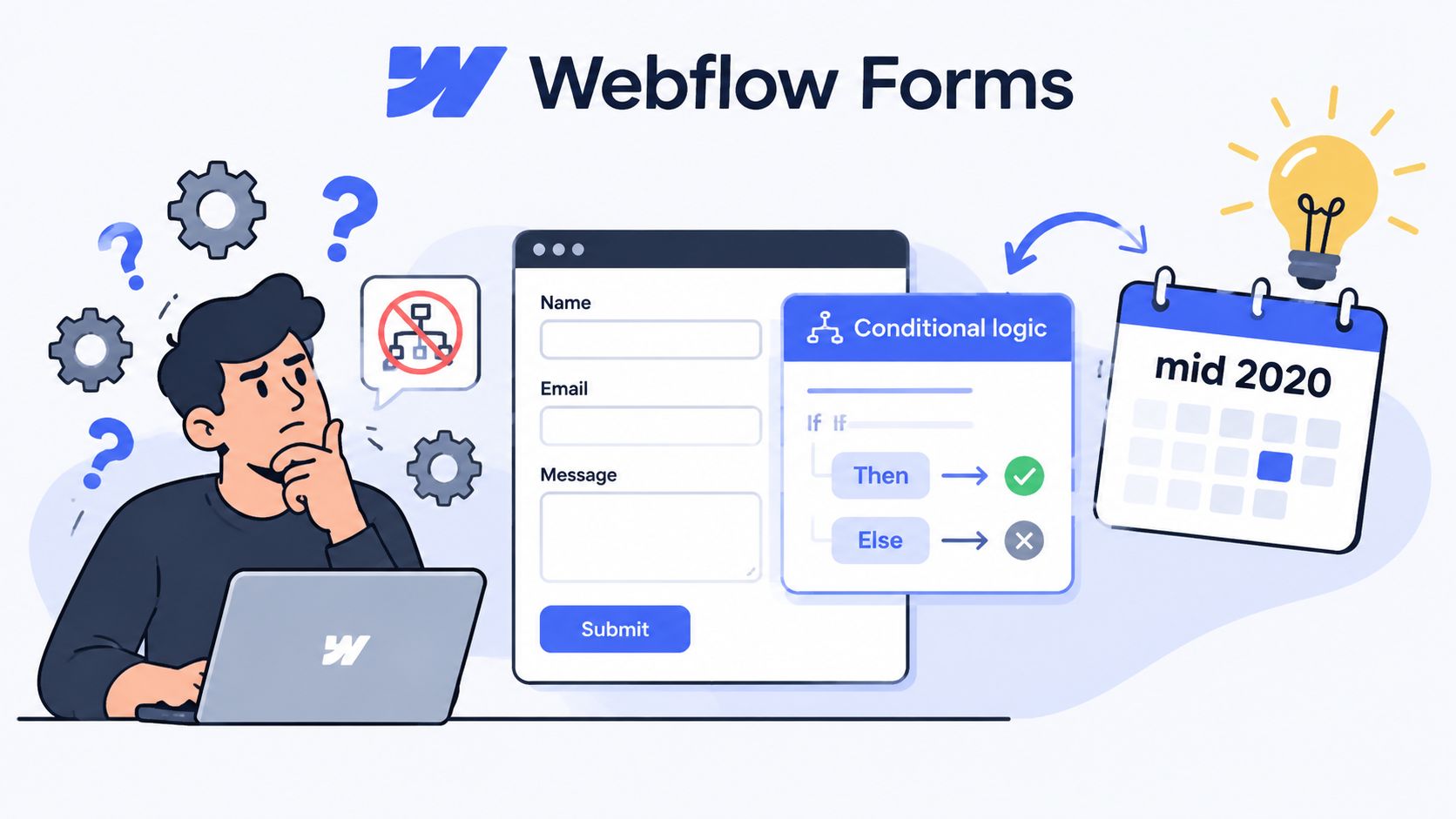
Webflow later introduced a platform-level conditional logic feature. Its official update states that the capability launched on March 5, 2026, and supports variants, text, attributes, images, and video. That release concerns content presentation, not documented form branching, so it shouldn't be treated as a native replacement for qualification paths inside a form. The distinction is clear in Webflow's conditional content update.
Prepare the project before building
Whether you use custom code or an embedded form layer, establish a predictable structure first:
- Name every field clearly: Use stable names such as
lead_type,company_size, andproject_timeline. - Add trigger identifiers: Give each dropdown, radio group, or checkbox a custom attribute or ID.
- Group dependent fields: Wrap related fields in a parent element so one rule can control the complete group.
- Hide dependent groups initially: The page should start in a valid state before the script runs.
- Decide how hidden values behave: Clear stale values or disable hidden inputs when a visitor changes direction.
- Publish before testing: Designer previews don't reproduce the live execution environment reliably.
For a form that needs advanced qualification without building the logic layer yourself, Webflow form builder documentation is a useful reference point for the embed approach.
The minimum technical setup is modest. You'll need Webflow's form elements, custom attributes or IDs, CSS for the initial hidden state, and either vanilla JavaScript or an existing project script. jQuery can work where it's already part of the project, but a small vanilla script usually creates fewer dependencies.
Implementing custom code patterns
A dependable custom build starts with the markup, not the script. Create one trigger field and place each dependent group inside its own wrapper. For example, a radio group might use the values business, personal, and agency, while the dependent groups use IDs such as business-fields and agency-fields.
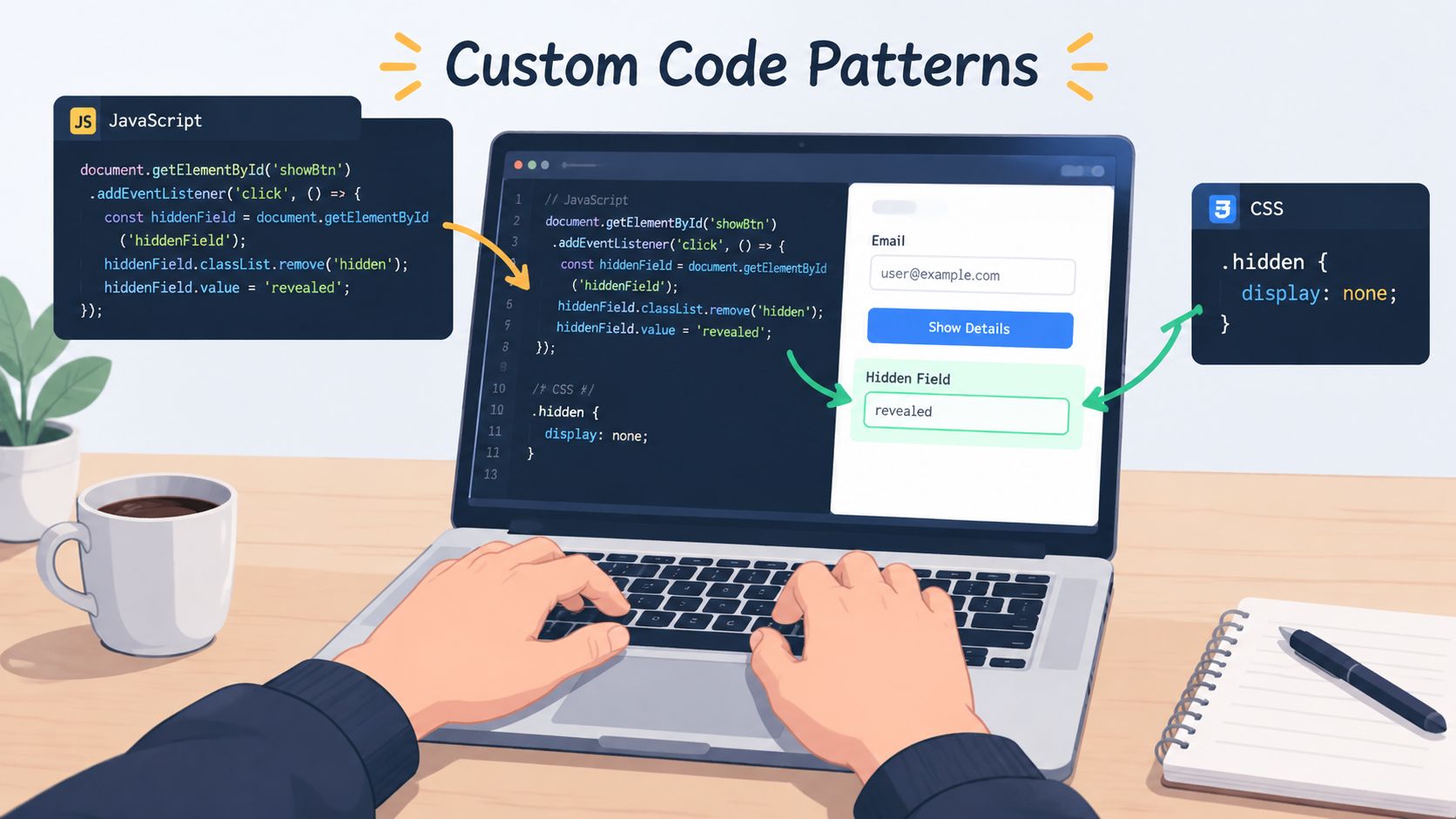
Start with a hidden state in the page CSS:
[data-conditional-group] {
 display: none;
}
[data-conditional-group].is-visible {
 display: block;
}
In Webflow, add the data-conditional-group attribute to each dependent wrapper. Give the trigger radios a shared name, such as lead_type, and assign values that describe the branch. The shared name matters because the browser treats the radios as one choice set.
Bind the trigger to the target groups
The script below reads the selected radio value, hides every conditional group, then reveals the matching group. It also disables hidden inputs, which prevents visitors from submitting stale values from a branch they previously selected.
<script>
document.addEventListener("DOMContentLoaded", function () {
 const triggers = document.querySelectorAll('input[name="lead_type"]');
 const groups = document.querySelectorAll("[data-conditional-group]");
 function updateConditionalFields() {
 const selected = document.querySelector(
 'input[name="lead_type"]:checked'
 )?.value;
 groups.forEach(function (group) {
 const shouldShow = group.dataset.conditionalGroup === selected;
 group.classList.toggle("is-visible", shouldShow);
 group.querySelectorAll("input, select, textarea").forEach(function (field) {
 field.disabled = !shouldShow;
 });
 });
 }
 triggers.forEach(function (trigger) {
 trigger.addEventListener("change", updateConditionalFields);
 });
 updateConditionalFields();
});
</script>
The value of data-conditional-group must match the radio value exactly. A group with data-conditional-group="business" appears when the visitor selects the radio whose value is business.
Don't add debouncing automatically. A radio change handler normally runs once per selection, so debouncing can make the interface feel slower. It becomes useful when your trigger drives heavier operations, such as remote validation, address lookup, or several visual transitions. Keep the first implementation small and make the state change immediate.
Connect validation and submission
Hidden fields create a validation decision. If a required input remains enabled while its group is hidden, the browser can block submission even though the visitor never saw that field. Disabling hidden inputs, as the example does, prevents that mismatch. When a group becomes visible again, its fields are re-enabled and normal validation resumes.
For multi-step forms, treat each branch as an explicit route. Don't assume Webflow will infer the next destination from the selected answer. The transition logic should define where the visitor goes after every choice, and the final submit handler should collect only active fields.
If the submission feeds another system, map stable field names rather than relying on visual labels. A webhook workflow is easier to maintain when the receiving service gets consistent keys.
A useful testing sequence is:
- Select each radio option and confirm only the intended group appears.
- Enter a value, switch branches, and verify the old value won't submit.
- Return to the original branch and confirm its fields behave correctly.
- Submit with each required field empty to inspect validation.
- Test the complete flow on the published page and on a mobile device.
You can also use this video as a visual reference for the implementation pattern:
Custom code is a good fit when the logic is short, the team owns the script, and the form's submission destination is already stable. It becomes fragile when marketing needs frequent changes, when branches span multiple steps, or when tracking and CRM delivery are more important than keeping the form entirely native.
Embedding Growform for advanced conditional forms
An embedded builder can remove much of the state management from the Webflow project, but the trade-off is a separate system to configure, style, and monitor. Compare the requirements before choosing a tool.
Embed form builders compared
| Tool | Multi-Step | Conditional Logic | UTM Pass-Through | Custom Styling |
|---|---|---|---|---|
| Growform | Yes | Advanced branching and qualification flows | Hidden-field pass-through | Branding and styling controls |
| Typeform | Yes | Logic-based question paths | Depends on configuration and integration | Strong visual customization |
| Jotform | Yes | Conditional visibility and routing | Depends on hidden fields and integration | Broad form customization |
The right choice depends on the handoff, not just the form canvas. A simple contact form may stay native. A quiz-style funnel with qualification, disqualification, and source data needs a system that treats those requirements as part of the submission model.
Growform supports multi-step lead forms, logic jumps, conditional questions, and disqualification paths. Its Webflow implementation uses an embed snippet, so the Webflow page supplies the surrounding layout while the form builder manages the interactive flow. That separation can reduce the amount of custom JavaScript you need to maintain in the site project.
Configure the flow before styling it
Start by selecting a form template close to the campaign's intent. A qualification flow normally needs an opening question, a small number of routing decisions, contact details, and a clear completion state. Define the branch map before adjusting colors or typography.
For each answer, specify the next step or the disqualification outcome. If a visitor selects an unsupported service, the flow should end with an intentional message rather than reaching a blank or inaccessible step. If a response qualifies the visitor, route them to the next relevant question instead of showing every field to everyone.
Then configure the hidden-field pass-through. Add the attribution keys your campaigns use, including UTM parameters and click IDs, and verify that the final submission contains them. An embedded builder can be more practical than a collection of Webflow field hacks in this context, provided the integration is tested with real query parameters.
Styling still matters. Match the form's font, spacing, button treatment, focus states, and error presentation to the Webflow page. Review the mobile layout separately because a multi-step form can look aligned on desktop while creating awkward scrolling or tap targets on a narrow screen.
Finally, copy the generated embed snippet and place it in a Webflow Embed element. Publish the page, submit test entries through every branch, and inspect the receiving CRM or webhook payload. For a detailed installation walkthrough, use the guide on adding a Growform multi-step form to Webflow.
The embedded route works when marketers need to own logic changes without reopening the site code. The cost is another interface, another integration boundary, and a need to keep the form's design system synchronized with Webflow.
Preserving UTMs and tracking data
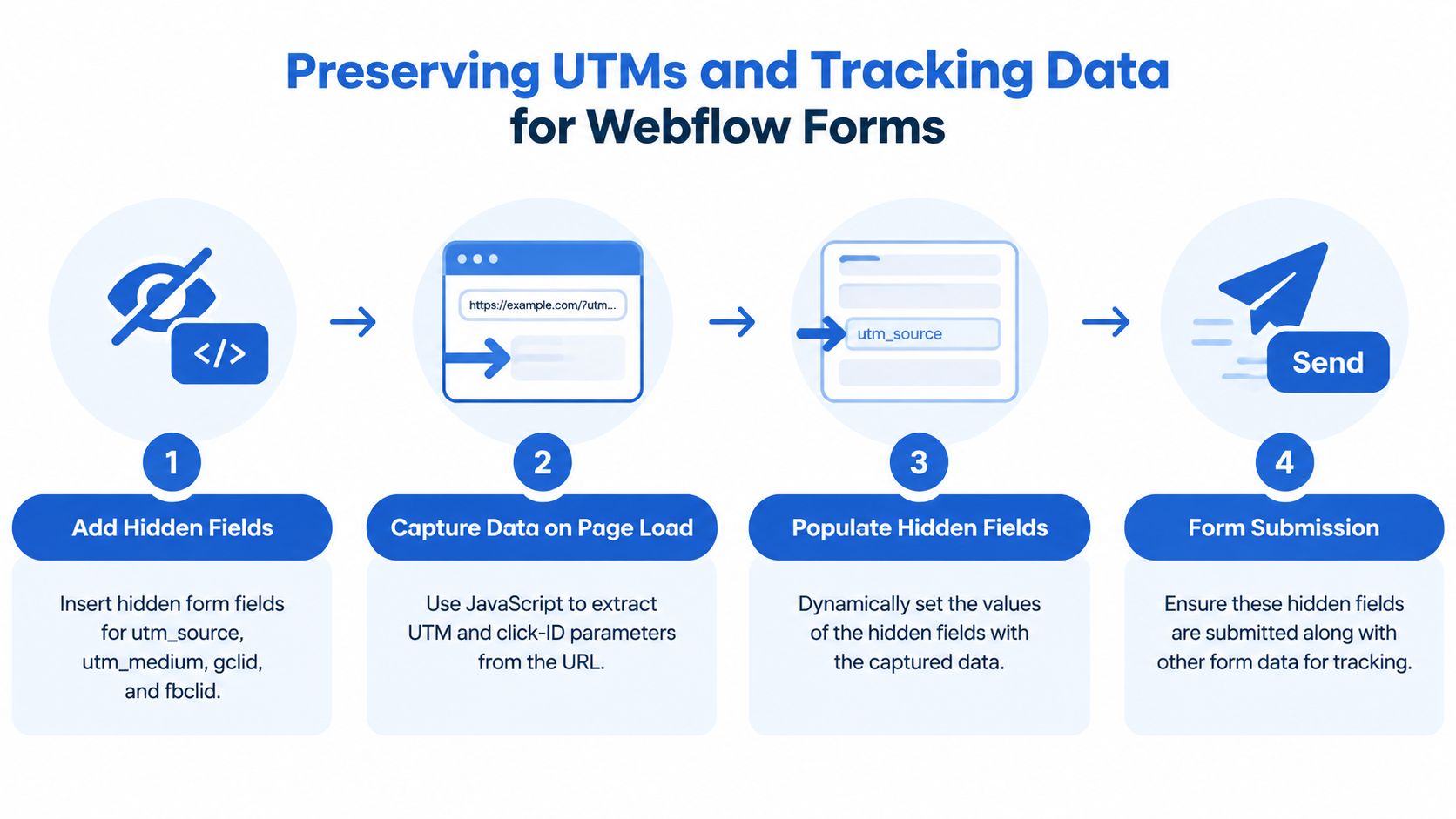
A conditional form can convert correctly and still damage campaign reporting. The common failure happens when UTM values enter on the landing page, but the form's later step or embedded layer doesn't carry them into the final payload. Embeds can sandbox hidden fields, so attribution may require explicit pass-through rather than assuming the values will survive automatically.
Capture values as soon as the page loads
Add hidden inputs named utm_source, utm_medium, gclid, and fbclid. Then read the query string immediately and store the values for the duration of the visitor's flow.
<script>
document.addEventListener("DOMContentLoaded", function () {
 const keys = ["utm_source", "utm_medium", "gclid", "fbclid"];
 const params = new URLSearchParams(window.location.search);
 keys.forEach(function (key) {
 const value = params.get(key);
 if (value) {
 sessionStorage.setItem(key, value);
 }
 const storedValue = sessionStorage.getItem(key);
 const field = document.querySelector(`[name="${key}"]`);
 if (field && storedValue) {
 field.value = storedValue;
 }
 });
});
</script>
Run the population step whenever a new form step renders. If the embedded tool exposes a hidden-field mapping interface, map each stored value to the corresponding field instead of relying on DOM access across the embed boundary.
Keep attribution separate from branch answers. The visitor's selected service or qualification result describes the lead, while the UTM and click-ID fields describe acquisition. Both need to reach the final submission.
For Growform-specific hidden-field setup, use hidden fields with Growform.
Before launch, inspect a real submission in the receiving system. Confirm the source values remain attached after a branch change, a multi-step transition, and a final submission. If any value disappears, the problem is usually field scope, embed isolation, or a missing mapping on the final payload.
Best practices and troubleshooting
The most damaging conditional-form bugs aren't visual. A field may appear correctly while its value is still submitted, validation may run against an invisible input, or a branch may lead to a step with no defined transition. Treat the flow as a state machine, not a collection of display effects.
Each multi-step path must be connected end-to-end. An unlinked branch can create a dead end, and mobile autofill or one-thumb navigation can expose hidden-field state problems that desktop testing misses. The open-source Advanced Webflow Forms library shows one way to wire those paths.
Use a path-based test plan
Test the form as a matrix of decisions:
- Branch coverage: Select every trigger value and confirm the expected next step.
- State reset: Enter data, change direction, and confirm abandoned branch values are cleared or disabled.
- Validation: Submit with visible required fields empty, then repeat with hidden fields previously populated.
- Mobile behavior: Test keyboard focus, autofill, scrolling, back navigation, and tap targets on a real phone.
- Payload integrity: Inspect the final request or receiving record for field names, active answers, and attribution values.
Browser developer tools help isolate failures. Watch the console for script errors, inspect whether hidden inputs are disabled, and examine their values immediately before submission. If an embed is involved, verify the values inside the embedded form rather than only in the parent Webflow document.
Accessibility deserves equal attention. Don't hide a group visually while leaving keyboard users able to tab into its controls. Use the actual hidden state, manage focus when a new step appears, and make disqualification messages understandable without relying on color alone.
Keep the script lightweight and explicit. A small set of named triggers and target groups is easier to audit than a generalized rule engine that nobody on the marketing team understands. When logic changes frequently, move the branching rules into a dedicated form tool rather than expanding a site-wide script until it becomes a second application.
Conclusion and next steps
There are three sensible ways to handle Webflow form conditional logic. Use a native workaround for a small visibility rule, custom code for a controlled flow your team can maintain, or an embedded form builder for multi-step qualification, disqualification, and attribution-heavy campaigns. In every case, test the live page, connect every branch, disable irrelevant fields, and verify the final payload instead of judging the interface alone.
Start by mapping the questions and outcomes, then choose the smallest implementation that can preserve both lead quality and tracking data.
Growform provides no-code multi-step forms with conditional questions, qualification paths, disqualification logic, and hidden-field pass-through for embedded lead flows. Build and test a logic-driven Webflow form without maintaining the branching script yourself. Start free trial.
Related articles
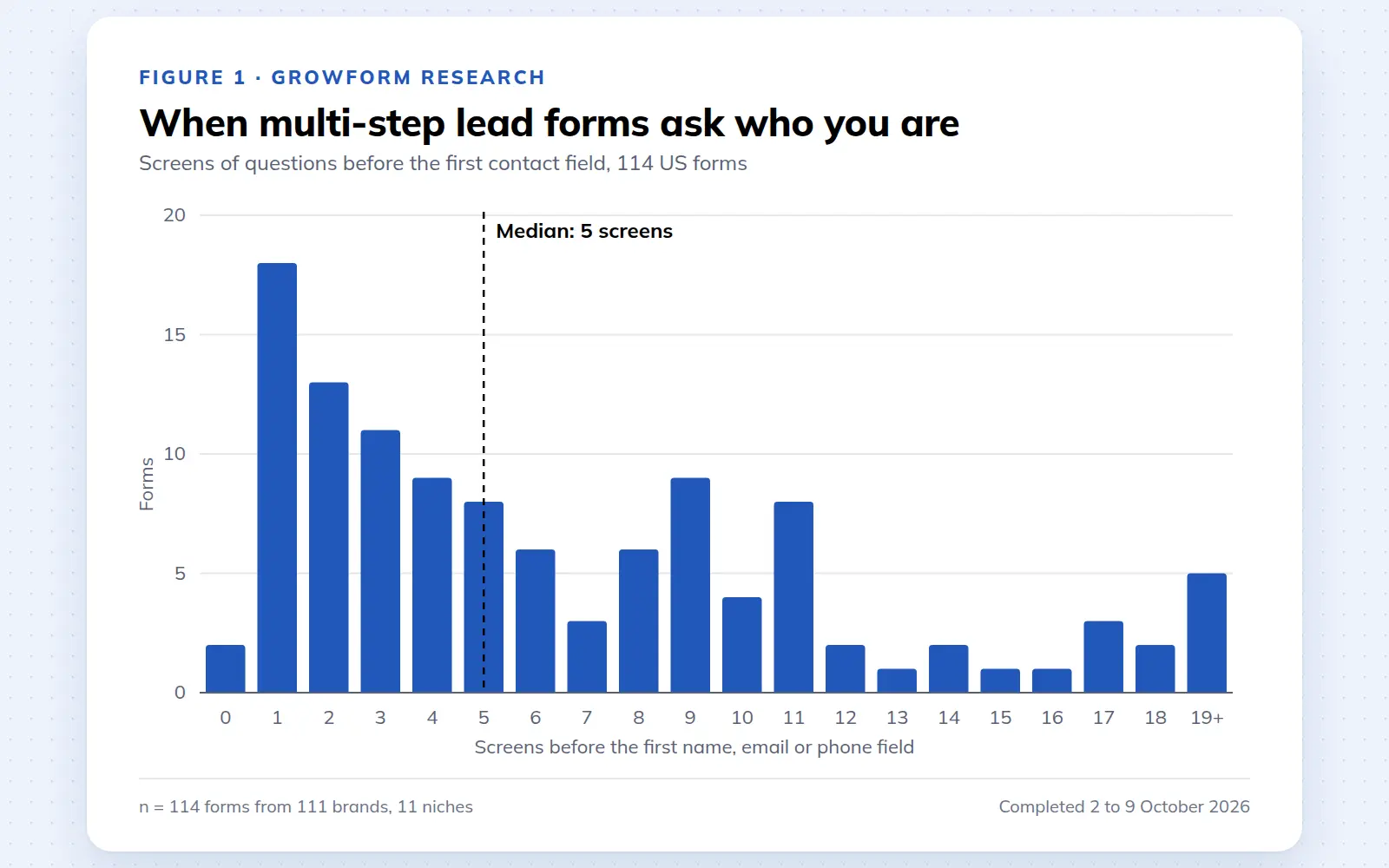
Multi-step lead forms: a 2026 study of 114 forms
We completed 114 US multi-step lead forms screen by screen in October 2026 and counted how long they are, what they ask first, how they show progress, when they ask for contact details and how they ask for consent.
October 9, 2026
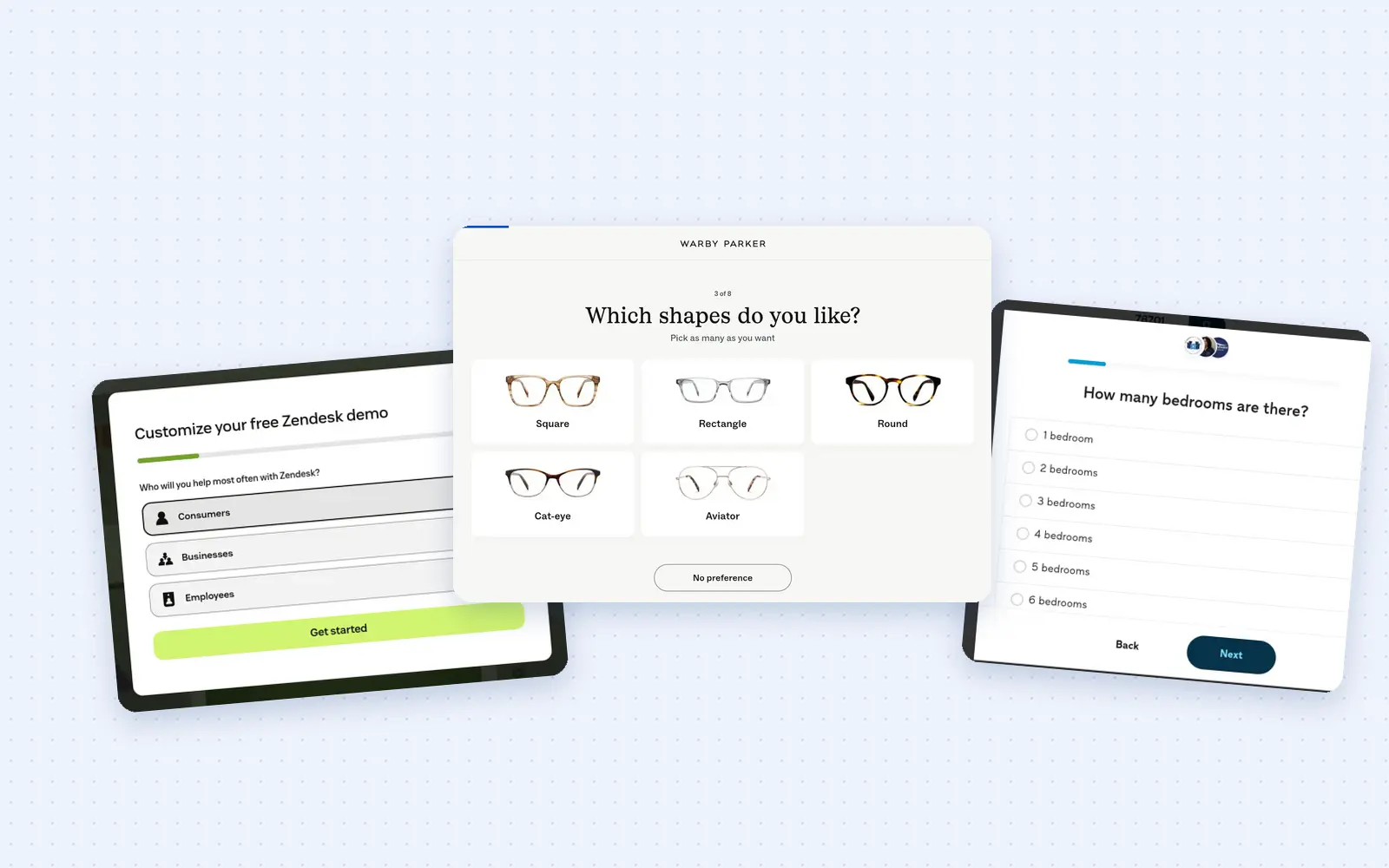
25 lead generation form examples to steal in 2026
From one-field newsletters to mortgage forms, we filled out 25 lead generation forms of every type. Here's what works in 2026, and what to learn from them.
October 9, 2026
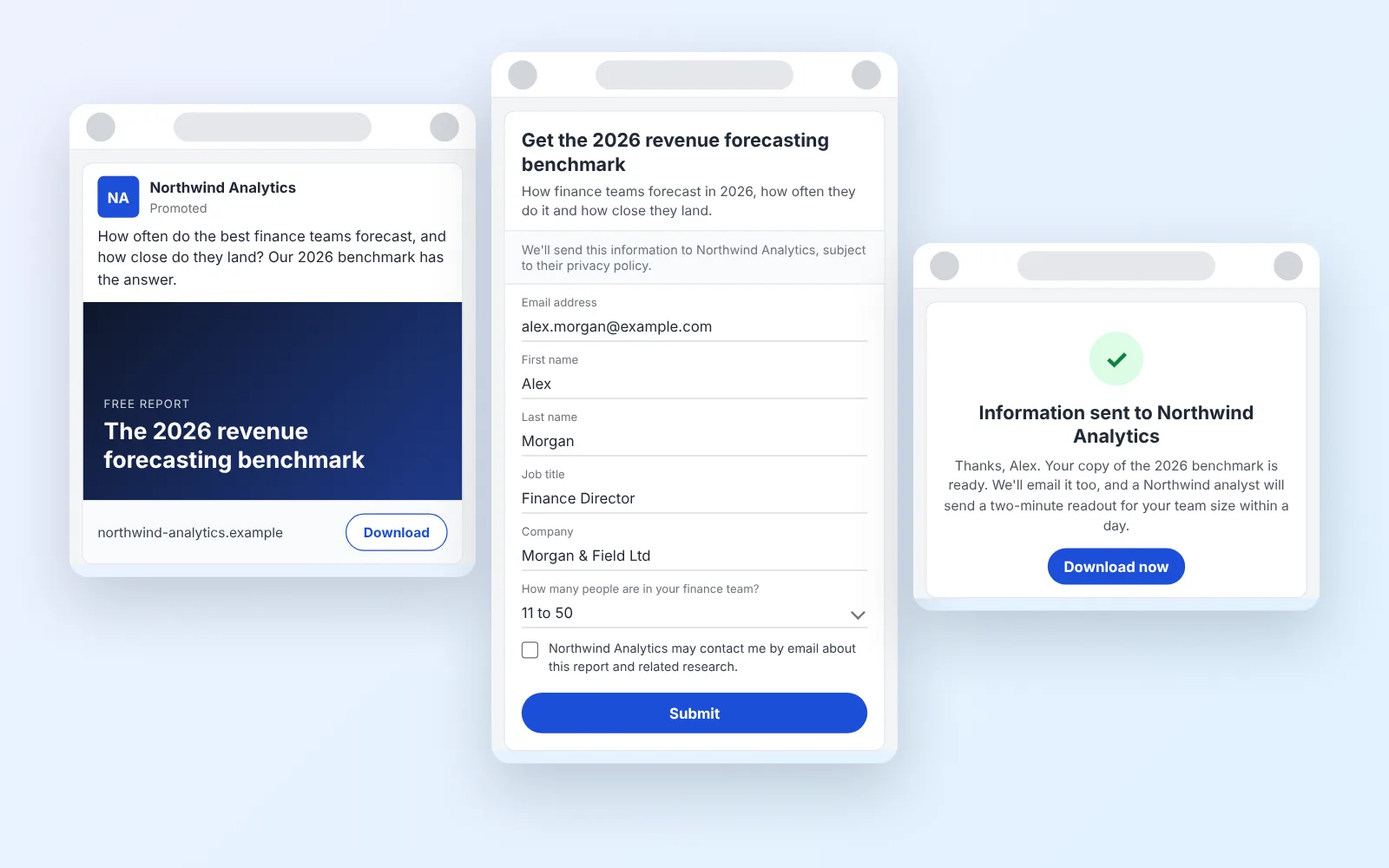
14 LinkedIn lead gen form examples worth stealing in 2026
We painstakingly searched across hundreds of LinkedIn lead gen forms, collated reams of data and worked out what's worth drawing inspiration from in 2026.
October 9, 2026