
Address Autocomplete API: Your 2026 Guide to Better Forms

You're probably looking at a lead form that already does most things right. The headline is solid. The offer is clear. Traffic is coming in. Then the form asks for an address, and the experience suddenly gets heavier: street line 1, street line 2, city, state, ZIP, maybe country, maybe validation errors after submit. That's where a lot of intent leaks out.
For lead generation, address capture isn't just an admin detail. It's often part of qualification, routing, pricing, territory checks, or fraud control. But the way most forms collect it still feels like data entry, not conversion design. An address autocomplete API fixes that. Done well, it reduces typing, improves accuracy, and makes the form feel easier at the exact moment people are deciding whether to finish.
Table of Contents
Table of Contents
- Why Manual Address Fields Are Hurting Your Conversions
- Choosing the Right Address Autocomplete API
- No-Code Integration with Growform in Under 5 Minutes
- A Developer Guide to Embedding Address Autocomplete
- UX Best Practices for Autocomplete Fields
- Final Checks Performance Privacy and Testing
Why Manual Address Fields Are Hurting Your Conversions
A user clicks your ad, lands on a form, and starts strong. Name, email, phone, all easy. Then they hit the address section and the pace changes. On desktop, it feels tedious. On mobile, it feels like work.
That hesitation matters more than is often realized. Manual address fields add cognitive load because users have to decide what goes where, correct formatting themselves, and recover from validation issues you probably didn't mean to create. If the form is tied to paid traffic, every abandoned session is wasted spend and one less lead for the sales team.
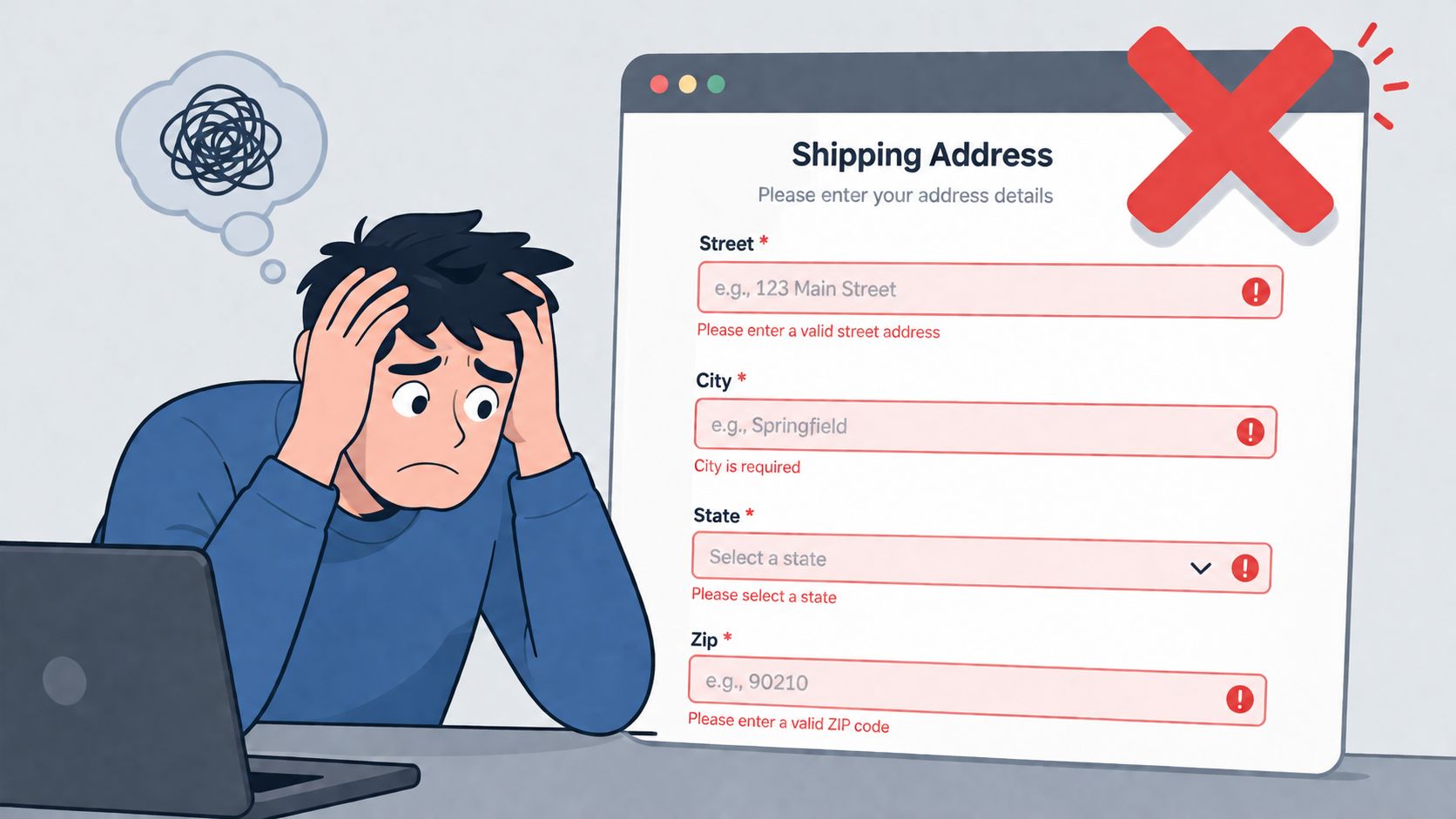
What friction looks like in a real form
The worst version is the classic multi-field block:
- Street address: One line with no hint on expected format.
- Address line 2: Present for everyone, even when it's often unnecessary.
- City, state, ZIP: Separate fields that force extra taps and context switching.
- Validation: Errors only appear after submit, so users have to scan backward and fix them.
That setup creates small interruptions that stack up. Someone on a phone has to switch keyboards for numbers, capitalize correctly, and hope the form accepts the way they entered “Apt,” “Unit,” or a newly built address.
Practical rule: If a field makes users stop and think about formatting, it's no longer just collecting data. It's adding friction.
Why this hits paid acquisition hard
Lead forms don't need to be long to underperform. They just need one annoying moment at the wrong time. Address fields often become that moment because they arrive after the user has already invested effort. If the experience suddenly feels slow, users reassess whether the lead is worth finishing.
There's also the downstream problem. Bad addresses create routing issues, broken territory logic, and poor CRM hygiene. If you're matching submissions to local reps or checking service areas, a messy address isn't just inconvenient. It can break the next step in the funnel. That's why teams working on ensuring accurate addresses for campaigns often focus on standardization as well as capture.
The strongest argument for an address autocomplete API is simple: it improves both UX and data quality at the same time. Google highlights a case where forms with address autocomplete can see a conversion uplift of up to 48% and reduce user entry time by as much as 80%, especially on mobile, in its ASDA case study on address autocomplete.
Choosing the Right Address Autocomplete API
Not every address autocomplete API is a good fit for lead generation. Some are better for broad place search. Some are stronger in verification. Some are easy for developers but awkward for marketing teams to maintain. The right choice depends less on brand recognition and more on how your form works.
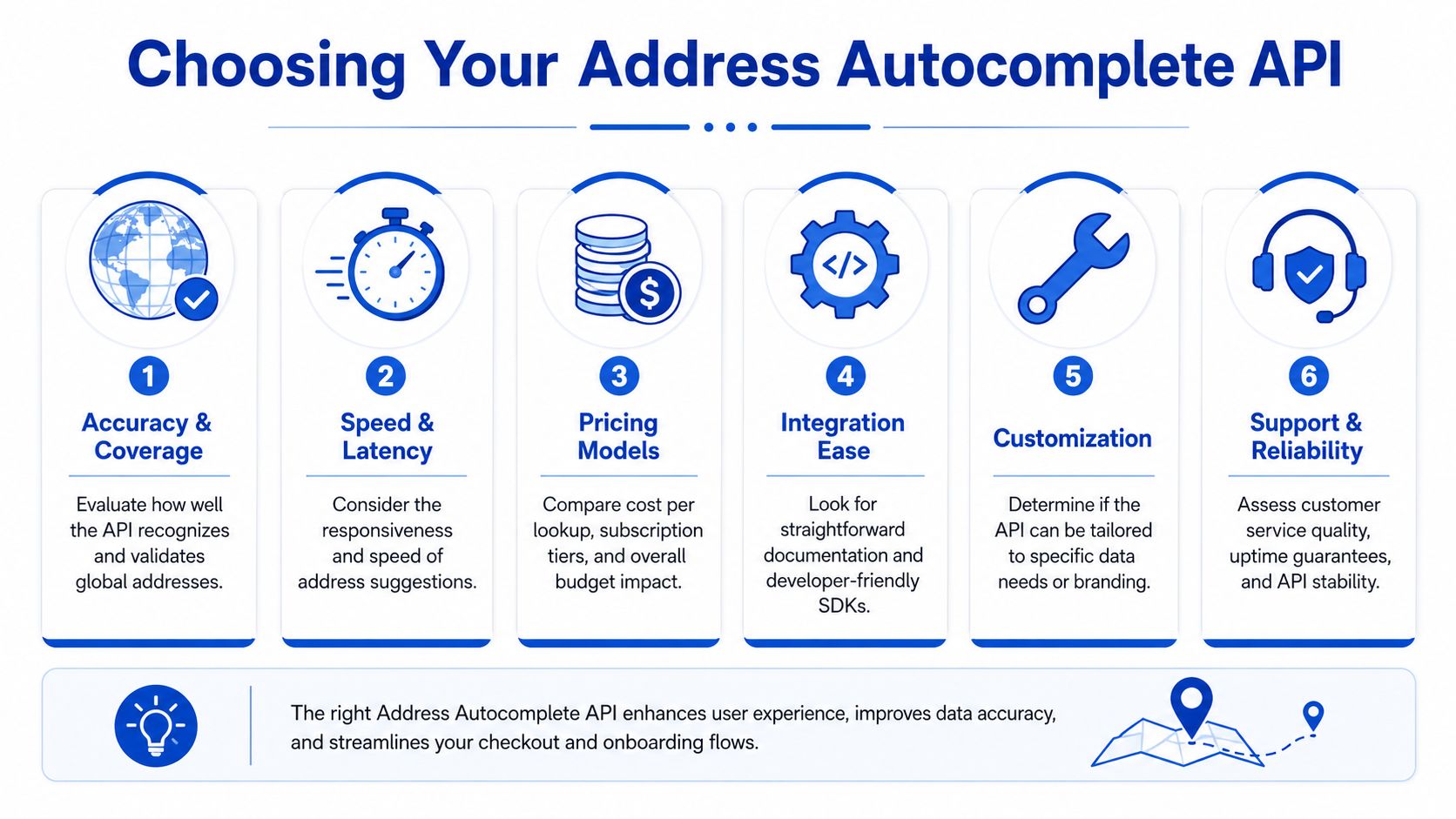
What matters when lead quality is on the line
For lead gen, four criteria matter most.
- Coverage: If you run campaigns across multiple countries, suburban service areas, or newer developments, suggestion quality matters more than slick demos.
- Pricing model: Some providers charge by lookup, others by plan or usage tier. That changes the economics fast when a single user session can trigger multiple queries.
- Implementation effort: A strong API with weak docs can still become an expensive internal project.
- Structured output: You don't just want a pretty suggestion list. You want usable components such as street, locality, region, and postal code.
A lot of buyers start with Google Places because it's familiar and broadly supported. That's reasonable. But familiarity can hide trade-offs. If your team needs strict address validation, country-specific formatting, or enterprise support, another provider may fit better.
How the main providers differ
Google Places is often the default because developers know it, front-end examples are easy to find, and the prediction UX is generally smooth. It's a strong option when you want broad coverage and a familiar implementation path. The trade-off is that teams need to watch usage and configure the integration carefully so they only request what they need.
Loqate is usually considered when address data quality is central to operations. That's common in insurance, utilities, property, and service-area businesses. It tends to appeal to teams that care about international coverage and more formal address handling, but the buying process and implementation can feel heavier than a lightweight web form project.
Algolia Places used to get attention because developers liked how simple it felt in front-end projects. The downside is that many teams need something more current and better aligned with long-term production support. If reliability and roadmap matter, it's usually not the first option I'd evaluate now.
SmartyStreets stands out when the conversation shifts from autocomplete alone to deliverability, validation, and U.S.-focused address quality. For domestic lead flows, that can be a practical fit. If your campaigns are international, you'll want to check whether its strengths match your actual footprint.
The best provider isn't the one with the longest feature list. It's the one that fits your traffic volume, geography, and handoff requirements without adding maintenance debt.
Address Autocomplete API Comparison
| Provider | Typical Pricing Model | Key Strength | Best For |
|---|---|---|---|
| Google Places | Usage-based | Familiar ecosystem and broad developer support | Teams that want a common starting point and flexible front-end integration |
| Loqate | Contract or plan-based | Strong address handling and international focus | Businesses where address quality is tightly tied to operations |
| Algolia Places | Historically developer-friendly usage model | Lightweight front-end experience | Older implementations or teams evaluating simple prototypes |
| SmartyStreets | Usage-based or plan-based | Address validation focus, especially for U.S. workflows | U.S.-centric forms where clean address data matters downstream |
A useful decision shortcut is to ask what happens after the address is selected.
- If the form just needs a fast, smooth lookup: Google Places is often enough.
- If the address controls eligibility or fulfillment: Look harder at validation-oriented providers.
- If the team has no developer support: The provider matters less than whether your form platform makes setup easy.
- If your buyers reject bad lead data: Favor structured outputs and predictable formatting over front-end convenience alone.
No-Code Integration with Growform in Under 5 Minutes
A lot of marketing teams don't need a custom build. They need the feature live, tested, and not sitting in a dev backlog for two weeks. For that scenario, no-code setup is usually the right answer.
When no-code is the right choice
Use a no-code route when your address field belongs inside a lead form, not a custom web app. That includes quote funnels, qualification forms, service-area checks, and appointment requests. In those cases, the main job isn't building location infrastructure from scratch. It's reducing friction without breaking the rest of the funnel.
This approach also helps when marketers own iteration. If the media buyer, CRO lead, or demand-gen manager needs to change field order, copy, or conditional logic, a no-code setup keeps the form shippable. That matters because the address field rarely changes in isolation. It usually interacts with routing questions, hidden fields, and qualification logic.
How to set it up
The clean setup is straightforward:
- Open the form builder and choose the step where you want the address to appear. In lead forms, that's often after basic contact details but before any service-specific qualifying questions.
- Add the Address Lookup field instead of building separate address inputs manually. This is the key shift. You want one search-led interaction first, then structured data behind the scenes.
- Paste in your Google Maps API key in the form settings or field settings, depending on the builder configuration.
- Adjust field behavior so the selected address flows into the right destination fields or hidden values.
- Preview on mobile before publishing. On mobile, the improvement is easiest to spot.
If you're already building multi-step funnels, this no-code guide to creating a multi-step form in 5 minutes is a useful reference for the overall setup flow.
A few implementation choices make the field perform better:
- Put it in a single full-width row: Suggestions are easier to read and tap.
- Label it clearly: “Start typing your address” works better than a generic “Address.”
- Keep apartment details separate if needed: Let the primary lookup solve the main address first.
- Check the submission output: Make sure your CRM or webhook receives the components you need.
Field note: If a marketer can launch the autocomplete field without waiting on engineering, it usually gets tested properly. That alone can improve form performance because iteration happens faster.
The no-code route also reduces one common failure mode. Teams often ask developers to “add address autocomplete,” get a basic implementation, and then discover they can't easily change placement, validation, or routing. In practice, the highest-converting setup is the one your team can keep refining without turning every small adjustment into a ticket.
A Developer Guide to Embedding Address Autocomplete
If you're adding an address autocomplete API to a custom form, keep the implementation boring. Don't start with a heavily abstracted component unless your design system already supports it. A plain input field wired cleanly to Google Places is easier to debug and less likely to create hidden UX issues.

Start with a secure API setup
Create your API key in Google Cloud Console and restrict it before putting it on a live site. At minimum, limit where the key can be used and enable only the services your form needs. A loose key is one of the fastest ways to create avoidable billing and security problems.
If you also need flexible deployment options for the finished form, this guide on three ways to embed your form is useful for thinking through how the form will be placed across landing pages and sites.
Load the Places library in your page template:
<script
  src="https://maps.googleapis.com/maps/api/js?key=YOUR_API_KEY&libraries=places"
  async
  defer
></script>
Then add a simple input plus the structured fields you want to populate:
<input id="address-search" type="text" placeholder="Start typing your address" />

<input id="street-address" type="text" name="street_address" />
<input id="city" type="text" name="city" />
<input id="state" type="text" name="state" />
<input id="postal-code" type="text" name="postal_code" />
<input id="country" type="text" name="country" />
Attach autocomplete to a single input
Initialize the autocomplete instance against one visible search field. That keeps the user experience simple and lets the API do the heavy lifting.
<script>
  function initAddressAutocomplete() {
    const input = document.getElementById("address-search");

    const autocomplete = new google.maps.places.Autocomplete(input, {
      types: ["address"],
      fields: ["address_components", "formatted_address"]
    });

    autocomplete.addListener("place_changed", function () {
      const place = autocomplete.getPlace();
      fillAddressFields(place.address_components);
    });
  }

  window.addEventListener("load", initAddressAutocomplete);
</script>
A few practical notes:
- Use one visible search field first: Don't ask the user to type into separate street, city, and ZIP boxes before autocomplete has a chance to help.
- Request only the fields you need: That keeps the integration leaner.
- Bind after the script is available: Race conditions here create flaky forms that seem “randomly broken.”
Map one selection into structured fields
Google returns address components as an array, so the main task is translating those into your form fields.
<script>
  function fillAddressFields(components) {
    const fieldMap = {
      street_number: "",
      route: "",
      locality: "",
      administrative_area_level_1: "",
      postal_code: "",
      country: ""
    };

    components.forEach(component => {
      const type = component.types[0];
      if (fieldMap.hasOwnProperty(type)) {
        fieldMap[type] = component.long_name;
      }
    });

    document.getElementById("street-address").value =
      [fieldMap.street_number, fieldMap.route].filter(Boolean).join(" ");

    document.getElementById("city").value = fieldMap.locality;
    document.getElementById("state").value = fieldMap.administrative_area_level_1;
    document.getElementById("postal-code").value = fieldMap.postal_code;
    document.getElementById("country").value = fieldMap.country;
  }
</script>
This is the point where many integrations frequently falter. The autocomplete appears to work, but the selected address never gets mapped consistently into submission fields. That creates messy records and frustrates operations teams later.
Don't judge the implementation by whether suggestions appear. Judge it by whether your CRM receives clean, predictable fields from real user selections.
For production, add a few safeguards:
- Manual fallback: If no suggestion fits, let users enter the address manually.
- Apartment handling: Keep unit or suite data in a separate optional field.
- Blur and submit checks: Don't overwrite user edits if they correct a field after selection.
- Region logic: If you only serve specific countries or markets, restrict predictions where appropriate.
A final front-end detail matters more than teams expect. Store the raw selected address only if you need it, but always preserve your structured fields. Sales teams, routing logic, and downstream systems usually work better with normalized components than with one long formatted string.
UX Best Practices for Autocomplete Fields
Autocomplete can still hurt conversions if the surrounding UX is clumsy. I've seen forms where the API was technically working, but the field confused users enough that the gains disappeared. The problem usually isn't the service. It's the way the form presents it.
Design the field for selection, not typing
Treat the field as a guided search, not a standard text box. That means your label, placeholder, width, and spacing should all hint that suggestions will appear as the user types.
A few patterns consistently work better:
- Use a clear prompt: “Start typing your address” sets the expectation that the field will help.
- Keep the input wide: Truncated suggestions are harder to scan and easier to mis-tap.
- Show responsive suggestion states: The dropdown should feel attached to the field and easy to tap on mobile.
- Avoid duplicate visible fields too early: If city, state, and ZIP are already shown before selection, users often start filling them manually.
If you're designing longer lead flows, these multi-step form UX best practices line up well with autocomplete too. The same CRO rule applies: reduce decisions, don't multiply them.
Handle the awkward cases cleanly
Autocomplete is strongest on common addresses. Friction returns in the exceptions, and your form needs to be ready for them.
- Address not found: Offer a clear “Enter address manually” path instead of trapping users.
- Apartment or unit numbers: Don't force users to search the full unit string. Let them choose the main address first, then add unit details in a separate field.
- New builds or edge-case locations: Some users won't find an exact match. Your form should fail gracefully, not accuse them of entering invalid data.
- Edited selections: If someone chooses a suggestion and then fixes a small detail, don't wipe out their changes on submit.
A good autocomplete field feels invisible when it works and forgiving when it doesn't.
One more mistake is common in lead gen: teams make the address field look optional in the UI, then punish users later because routing or pricing depends on it. If the address is required for qualification, say so clearly. Hidden requirements create avoidable drop-off because the form feels inconsistent.
Final Checks Performance Privacy and Testing
Before launch, check the parts commonly overlooked. The feature may work in preview and still create problems in production if you skip performance, privacy, or real-world testing.
Performance
External scripts can slow down the form if they load badly. Keep the autocomplete library scoped to pages that need it, load it asynchronously, and avoid stacking unnecessary third-party tools around the same step. If your landing pages already carry analytics, chat widgets, session recording, and ad scripts, one more dependency can tip the experience from acceptable to sluggish.
Privacy
Address lookup usually involves sending user input to a third-party provider while they type. That has compliance implications. Review your privacy policy, consent language, and regional requirements so legal and marketing agree on how the data is handled. If you work under GDPR or CCPA expectations, don't treat this as a front-end-only decision.
Testing before launch
Run through addresses that reflect the traffic you buy, not just your office location.
- Common addresses: Make sure standard residential entries work fast.
- Hard cases: Test rural routes, apartments, service-area edge locations, and PO boxes if your business allows them.
- Manual fallback: Confirm users can still submit when autocomplete doesn't return the right result.
- Mobile behavior: Check tap targets, keyboard overlap, and dropdown visibility.
A broader pre-launch process helps too. This comprehensive website audit checklist is a good companion if you want to verify the form in the context of the full landing page, not just the field itself.
If your team wants to ship high-converting lead forms without turning every UX improvement into a dev project, Growform is built for exactly that. It gives marketers a no-code way to launch multi-step lead funnels with conversion-focused components, including address lookup, so you can reduce friction, qualify leads, and get cleaner submissions into the rest of your stack.