
Zapier Webhook to Google Sheet How to Connect Fast

Updated Published 11 min read
You've paid for the click, a prospect has completed a multi-step form, and the sales team is waiting for the lead. Then someone asks where the submission went. The answer shouldn't be “I'll export the CSV later.”
A Zapier webhook to Google Sheet workflow gives you a practical event-driven path from form submission to a shared operational record. It can capture the incoming request, map the payload into spreadsheet columns, and make the lead visible without manual copying. The setup is quick, but the details matter. Hidden attribution fields, inconsistent payloads, duplicate rows, and growing search complexity are where otherwise useful automations start to fail.
Why use a Zapier webhook to send data to Google Sheets
A paid-traffic funnel often has several people depending on the same lead record. The marketer needs campaign and click data, the salesperson needs contact details, and the operations team needs a simple status queue. A Google Sheet can give all of them immediate visibility, provided the incoming data is structured before it arrives.
The core pattern is straightforward. A form sends an event to a unique Zapier URL, Webhooks by Zapier receives it through a Catch Hook trigger, and the Zap writes the selected values into a new Google Sheets row with the Create Spreadsheet Row action. Zapier documents this as a 5-step setup in its Google Sheets and webhook integration guide.
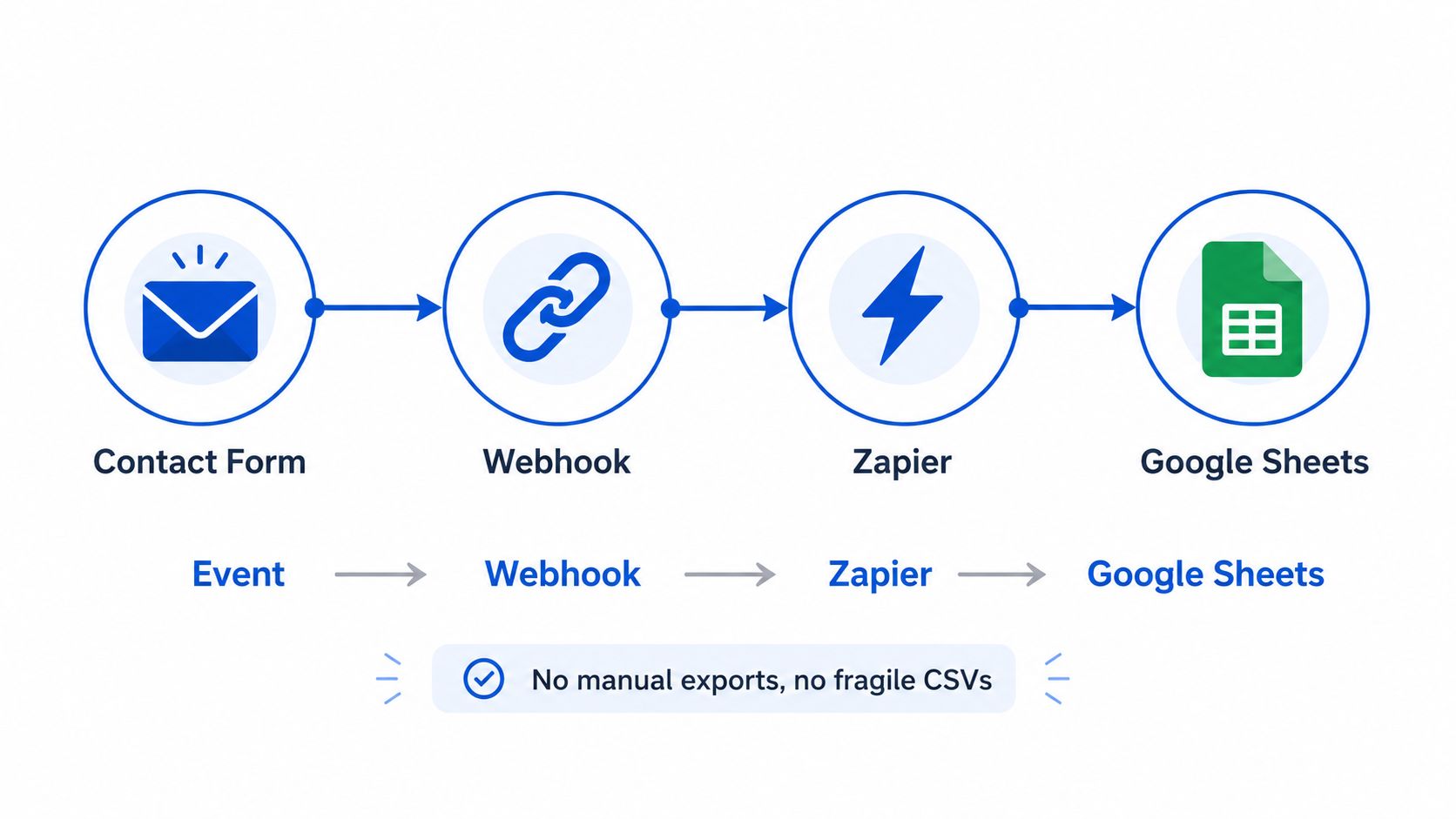
Where the workflow earns its place
Sheets works well as a lightweight log, QA view, or operations queue. A growth marketer can inspect whether submissions contain the expected fields. A client can review lead status without needing access to the entire marketing stack. A sales manager can filter new records and assign follow-up tasks.
The arrangement also supports two-way patterns. Zapier's app documentation lists Google Sheets for receiving data from a webhook and sending a webhook when a row is created or updated. That makes the spreadsheet useful as a visible coordination layer, not just a final destination.
The trade-off appears when the sheet becomes responsible for high-volume intake, deduplication, enrichment, or time-sensitive routing. Spreadsheet searches have practical ceilings, and webhook payloads have size limits. For a modest queue, that may never matter. For fast lead flows, a CRM, database, or lead distribution platform is usually a more durable system of record.
What you need before you build the Zap
Start with the data contract, not the Zap editor. Decide which values the source will send, which values must be retained, and which columns the receiving sheet will use. If you add columns after mapping, you may need to revisit the action and test the row again.
Prepare these pieces first:
- A Zapier account with Webhooks by Zapier available: You'll need permission to create a Catch Hook trigger and inspect incoming samples.
- A Google Sheet owned or shared with the right account: The Zapier connection must be able to access the target spreadsheet and worksheet.
- A header row: Use stable, readable names such as
first_name,email,phone,utm_source, andlead_status. Avoid changing these labels after launch. - A source that can send structured requests: Growform, a custom form, or another lead capture tool should be able to POST JSON or send equivalent request data to the Zapier endpoint.
- A real test submission: A browser test lets you confirm that the source sends the values you think it sends, rather than relying on assumptions from the form builder.
Keep the first sheet operationally clean. Put one field in one column, avoid merged cells, and reserve a small group of columns for internal values such as owner, follow-up status, and notes. Don't mix formulas, manually pasted records, and automated rows in a way that makes it unclear which system controls each column.
Before you build, decide whether Sheets is appropriate. It's a sensible destination for a shared log or a small ops queue. It's a weaker choice when the workflow must perform complex lookups, deduplicate aggressively, enrich records in real time, or distribute leads according to buyer rules. In those cases, connect the webhook to a CRM, database, or distribution platform first, then send a reporting copy to Sheets.
If your source is Growform, its documentation covers integrating Growform with many destinations through Zapier.
Creating your Catch Hook and testing the payload
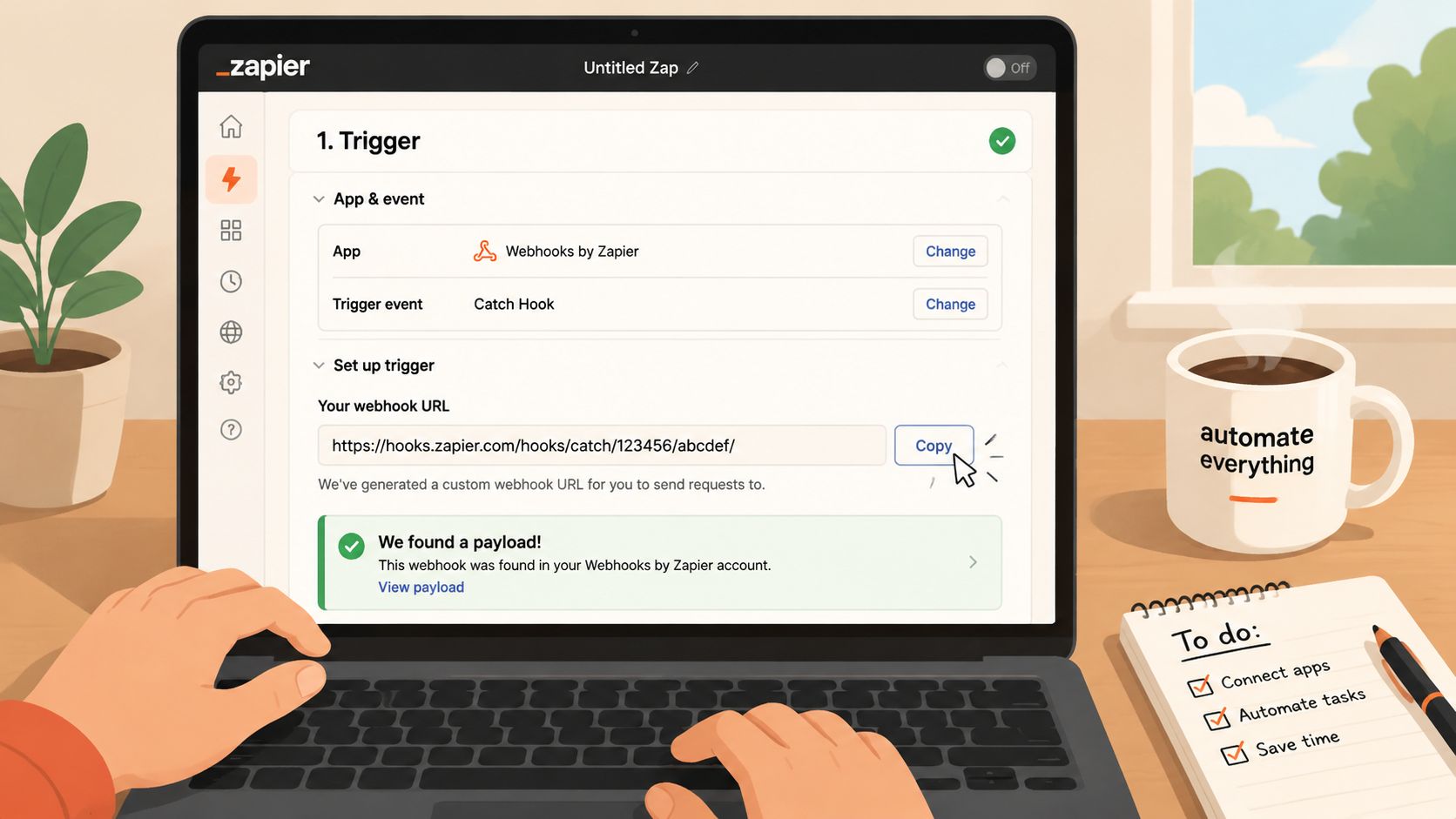
Open Zapier and create a new Zap. For the trigger app, choose Webhooks by Zapier. Select Catch Hook, leave the optional child key empty unless your payload structure specifically requires it, and continue.
Zapier will generate a unique webhook URL. Copy it into the form or source system that will send the submission. Treat that address like a workflow endpoint. Anyone who can send requests to it may be able to trigger the Zap, so don't publish it casually or place it in client-facing documentation.
Send a controlled test
Create a test submission with recognizable values. Use a clearly artificial name, a test email address, and obvious attribution values such as test_google, test_campaign, and test_click_id. This makes it easy to identify the sample in Zapier and prevents confusion with a real lead.
Submit the form once, then return to the trigger step and choose the option to find or retrieve new data. Zapier should display the captured request and expose the keys and values it received. Inspect the sample carefully. The field may arrive as phone, phone_number, or a nested object. The label shown on the form isn't necessarily the key sent in the webhook.
The documented pattern supports a webhook triggering a Zap and then writing the payload into a Google Sheet. The source request can use POST, PUT, or GET, but the exact parsing behavior depends on how the source formats its data. JSON is generally easier to map because related values arrive as named fields rather than as an opaque string.
Use this inspection pass to answer four questions:
- Did the request reach Zapier? If no sample appears, check that the source is using the current URL and that the submission fires the webhook.
- Are the expected keys present? A form can collect a value without including it in the outbound request.
- Are values in the expected format? Phone numbers, arrays, booleans, and nested fields may need a transformation step.
- Did the test contain every important branch? Conditional forms may send different fields depending on the answers selected.
If nothing appears, send a new test after replacing the endpoint in the source. Check whether the source requires an explicit save or publish action after adding the URL. Review the Zap history once the workflow is live, because a successful form submission and a successful downstream action are separate events.
Custom headers and query strings can be useful for authentication or source identification, but don't add them before the basic request works. First prove that the endpoint receives a clean sample. Then add only the headers or parameters the destination requires, and retest the full payload.
The trigger is ready when Zapier shows a representative submission with every field you plan to map. Don't move forward with a partial sample and assume missing keys will appear later. That shortcut often produces blank columns at the exact point where attribution or qualification data matters.
Mapping fields and preserving hidden attribution data
The Google Sheets action is where a working webhook becomes a useful lead record. Add Google Sheets as the action app, choose Create Spreadsheet Row, connect the correct account, and select the spreadsheet and worksheet prepared earlier.
Zapier will display the sheet's columns as fields. Map each column to the corresponding value from the webhook sample. Basic contact fields are easy. The fragile part is the metadata that users never see, including UTMs, gclid, fbclid, publisher identifiers, and sub-IDs.
A multi-step form can collect those values on the landing page and carry them through later questions, but only if the hidden fields persist through the complete flow and remain in the final submission payload. For a Growform implementation, review the guidance on using hidden fields with Growform before testing the Zap.
Build the attribution map deliberately
Use consistent source names and avoid mapping several different payload fields into one ambiguous column. A practical structure might look like this:
| Webhook Payload Field | Google Sheets Column | Mapping Tip |
|---|---|---|
first_name | First Name | Map the direct value and preserve the original spelling. |
email | Keep the raw email available for validation and follow-up. | |
phone | Phone | Don't rely on display formatting to standardize the value. |
utm_source | UTM Source | Keep the acquisition source separate from campaign naming. |
utm_campaign | UTM Campaign | Map the submitted value, not a manually inferred label. |
gclid | Google Click ID | Leave the cell blank when the lead didn't come from Google Ads. |
fbclid | Facebook Click ID | Preserve the full value for downstream attribution checks. |
source_id | Source ID | Keep publisher or partner identifiers in their own column. |
submission_id | Submission ID | Use this as a reference for troubleshooting duplicates. |
The key is to map the payload field, not the visible question text. A question labeled “Where did you hear about us?” may be unrelated to utm_source. The former is self-reported intent. The latter is acquisition metadata. Keep both if they serve different reporting purposes.
Test the fields that disappear from the screen
Run a test from an ad-like URL containing attribution parameters, then complete every step of the form. Inspect the webhook sample before testing the Google Sheets action. Confirm that the hidden values arrive in Zapier, then confirm that the same values appear in the new row.
Empty values aren't always errors. A gclid should be blank for a lead that came from another channel. The problem is a field that's blank when the test definitely included it. That usually points to a persistence issue in the form, a naming mismatch, or a mapping selection based on the wrong sample.
Watch for formatting changes as well. A spreadsheet may display long identifiers in an unexpected format, trim leading characters, or interpret a value as a date. Set the relevant columns to plain text when identifiers must remain exact, and keep the original raw value wherever later reconciliation matters.
Test one complete lead through the production-like path, not just the form preview. Attribution failures often occur between the initial page load and the final submission, especially when a visitor changes steps, returns to an earlier answer, or enters through a different campaign URL.
Troubleshooting rate limits, headers and batching issues
A form can appear to submit successfully while the expected Google Sheets row never arrives. Separate the failure into three checkpoints: the incoming request, the Zap trigger, and the spreadsheet action. That sequence identifies the fault faster than rebuilding the workflow from scratch.

Match the symptom to the cause
- No trigger sample: The form may still post to an old URL, the webhook may be disabled, or the submission may stop before the outbound step. Replace the endpoint, send a fresh test, and check the source delivery log if one is available.
- Trigger succeeds but the row fails: Check Google account access, worksheet names, column structure, and mapped value formats. Reconnect the account, then retest with the original sample.
- A row arrives with blank attribution: The source may not have sent the hidden field, its key may have changed, or the action may use an incomplete sample. Inspect the trigger payload before editing the sheet. Hidden UTMs and click IDs need to survive every form step, not just the first page.
- Duplicate rows appear: The source may have retried the request, or the Zap may have run again after a delayed response. Store a submission identifier and deduplicate downstream instead of relying on visual checks.
- The request is rejected: Review the response status and headers. A 429 status means the rate limit was reached. Reduce request frequency or add retry behavior where the source supports it.
- Large requests fail: Zapier caps webhook trigger payloads at 10MB (2MB for Catch Raw Hook) and rejects anything larger with a 413 status. Remove unnecessary fields, split oversized data, or store large content elsewhere and send a reference instead.
Google Sheets searches also become difficult at scale. Zapier's Lookup Spreadsheet Rows (Advanced) action retrieves up to 500 rows, which matters when a Zap checks for existing leads before creating a row. Avoid lookup-heavy logic unless the sheet remains small and the search requirement is simple.
For delivery patterns beyond a basic webhook, review Growform's API integration examples. If batching is required, confirm whether the source sends one lead per request or groups multiple records. Batching lowers request overhead, but retries become harder to control. A failed batch may require replaying the entire group, creating duplicate rows unless every record carries a stable identifier. That identifier also helps reconcile attribution fields when a multi-step form sends partial data or a batch is replayed.
Real-world use cases and when to move beyond Sheets
A Sheets destination makes sense when the team needs a transparent working view rather than a full lead database. A quiz funnel can send each qualified submission into a row for immediate sales follow-up. A marketing agency can maintain a client-facing delivery log with campaign fields, timestamps, and disposition. An operations team can use the sheet as a temporary queue while buyers or sales representatives process new records.
The decision changes when the sheet becomes part of the transaction itself. If a lead must be deduplicated before delivery, enriched against multiple records, routed by buyer rules, or processed with strict latency requirements, use a CRM, database, or lead distribution platform such as Boberdoo or Phonexa as the primary destination. Sheets can still receive a reporting copy, but it shouldn't be the only place where the lead exists.
Use this maintenance checklist:
- Inspect a recent Zap run: Confirm the trigger and Google Sheets action both succeeded.
- Sample attribution regularly: Verify that UTMs and click IDs still survive the complete form journey.
- Protect column structure: Don't rename or reorder automated columns without retesting the action.
- Track stable identifiers: Keep a submission or source ID for duplicate investigation.
- Review search logic: Replace spreadsheet lookups when the queue grows complex or operationally important.
- Choose the next system early: Move routing and deduplication into a CRM or distribution platform before the sheet becomes a single point of failure.
A Zapier webhook to Google Sheet setup is valuable because it's fast, visible, and easy to inspect. It stops being the right architecture when convenience matters less than delivery guarantees, attribution integrity, and controlled lead processing.
Growform lets performance teams build multi-step and quiz-style lead forms, preserve hidden attribution fields, and send submissions through webhooks or Zapier into tools such as Google Sheets, CRMs, and lead distribution platforms. Start free trial to build a form that captures the lead and the marketing context your downstream workflow needs.
Related articles

7 Form Builders With Hidden Fields for Attribution
September 30, 2026

8 API Integration Examples for Lead Capture
A lead stack can lose more value after the form is completed than before it.
September 30, 2026
Campaign Attribution: A Complete Guide
Your Meta Ads dashboard says 150 conversions. Google Ads claims another 80. Then the CRM reports only 90 qualified leads for the same period.
September 30, 2026