

A prospect taps your paid ad on a phone, reaches the address field, and sees a blank box asking for a full street address. They're standing in a queue, using one hand, or switching between apps. Typing every detail takes effort, and one typo can create problems later for sales, delivery, eligibility, or lead routing.
Google address autocomplete reduces that interruption by offering relevant predictions as the user types. The conversion benefit comes from pairing a shorter, faster mobile experience with structured address data, persistent attribution, compliance evidence, and a CRM handoff that doesn't turn a selected address into one unreliable text string.
Why Address Friction Kills Your Lead Volume
A mobile lead form can feel smooth until the address step. The visitor has already answered qualification questions, but the final field asks them to enter a street number, street name, city, region, and postal code manually. A small keyboard makes corrections awkward, and autofill often produces inconsistent formats.
That friction creates two separate risks. Some prospects abandon before submitting, while others submit an incomplete or misspelled address that sales or operations must repair later. In paid acquisition, both outcomes matter. The first wastes the opportunity to capture the lead, and the second can lower acceptance or slow the next action.
The practical fix is to make the address field behave like a guided selection rather than a memory test. A user should be able to enter a small part of the address, recognize the correct suggestion, and confirm it. The form still needs a fallback for people whose address isn't returned, but the default path should remove unnecessary typing.
The conversion and quality trade-off
Autocomplete isn't a replacement for form design. A dropdown that opens too late, covers the keyboard, or displays vague place names can create new friction. On mobile, the input needs a clear label, a comfortable touch target, and enough room for the prediction list to remain readable.
Teams optimizing the full experience should also review mobile conversion optimization alongside the address field. The important question is whether qualified visitors can complete the form quickly while the business receives an address that downstream systems can use.
Setting Up the Google Places Platform
Start in Google Cloud with a project dedicated to the application or form environment. Enable the Places product capabilities your implementation uses, then create an API key for the web or mobile surface where autocomplete will run. Google's modern address flow uses the Places API autocomplete endpoint, https://places.googleapis.com/v1/places:autocomplete, which accepts an HTTP POST request and returns place and query predictions. The official Places Autocomplete documentation describes the request and response model.
A safer configuration sequence
-
Create the project and billing profile. Google Maps Platform services require billing configuration. Set budgets, alerts, quotas, and usage monitoring before traffic reaches the form. These controls won't replace application security, but they can expose unusual usage early.
-
Restrict the key by application. For a browser form, limit the key to the domains that should load the widget. Don't place an unrestricted key in publicly accessible code. Separate development and production credentials so a test page can't become an unnoticed production dependency.
-
Request only what the form needs. Configure address-oriented predictions rather than broad place discovery when the input represents a residence or business address. Google's JavaScript guidance recommends restricting matches to full street addresses and extracting structured components from the selected place.
-
Use session tokens. A typing session should be associated with the correct token so requests can be attributed coherently. Google advises session tokens in autocomplete flows to improve request attribution and billing efficiency.
What a session costs
Google bills Autocomplete (New) by the session, and how the session ends decides the price. When it ends in a Place Details (Essentials) call, only the first 12 autocomplete requests are charged and the rest are free. When it ends in Address Validation or a richer Place Details call, the autocomplete requests are free. A session that is abandoned without either reverts to per-request pricing, so every keystroke that triggered a request is billed (Google's session pricing documentation, checked 30 September 2026).
That session model is the hidden cost axis many teams miss. A form that sends requests before the visitor has typed enough to narrow the list, or keeps querying after a selection, pays for requests that do nothing for the lead. Paid traffic with a high bounce rate on the address step produces exactly the abandoned sessions that cost the most.
Why the modern release matters
Google launched its next-generation address autocomplete in Preview on February 21, 2024, then made it generally available on May 28, 2024 across Places API, Maps JavaScript API, and Places SDK for Android and iOS (Places API release notes). Google says its model receives over 50 million daily updates and covers more than 250 countries and territories (Google's preview announcement).
That coverage is useful for businesses running campaigns across regions, but it doesn't eliminate local testing. Address conventions, apartment details, postal formats, and user expectations vary by market. Configure the experience for the countries you serve, then verify the returned fields against your CRM schema before launch.
Integrating Lookup Into Multi-Step Forms
In a multi-step funnel, the address field is part of a state machine. The user may enter an address on one screen, move through qualification logic, and submit on a later screen. If the selected place exists only in the browser widget's temporary state, the final payload can lose the structured values.
Place the autocomplete input on the step where the address is requested, then store the selection in explicit form fields. Keep the visible input useful for the user, but also maintain separate values for street address, city, region, postal code, country, place identifier, and any internal address-status flag your routing logic needs. The form should advance only after a valid selection or a deliberate fallback path.
Graceful fallbacks when the lookup misses
A lookup service will sometimes return no result, several plausible results, or a result whose postal code doesn't match the street the visitor intended. The form shouldn't turn any of those states into a silent failure. Use four fallback tiers:
- No suggestions: Keep the plain text input open and allow submission. Fire a lookup-failed event, but don't block a legitimate lead merely because the provider lacks a match.
- Ambiguous result: Show the alternatives in an inline picker or a follow-up step. Never choose the first result when multiple locations are plausible.
- Postal-code mismatch: Display the conflict before submission. US ZIP and ZIP+4, UK alphanumeric postcodes, and Canadian
A1A 1A1formatting should not be treated as interchangeable strings. - Timeout or network failure: Degrade to manual entry and run server-side address validation when the lead submits.
Auto-suggest vs auto-fill
Zero-keystroke completion sounds like the obvious winner. It isn't always. A system that fills every field after one tap may reduce effort while increasing the chance that the visitor accepts the wrong saved profile, an incomplete unit number, or a location that resembles the intended address. Smarty's address autocomplete best practices put it as "always auto-suggest, never auto-fill", because a suggestion list gives the user a chance to confirm the location before the form commits structured data.
There are three useful interaction states:
- Dropdown only keeps the address input visible and presents matching suggestions without populating other fields until the user chooses one. This is the safest default for paid social traffic on mobile, where targeting can be broad and users may be moving quickly.
- Dropdown plus structured fill lets the user select an address, then fills city, region, postal code, and country while leaving the result editable. This usually offers the best balance for lead forms because it reduces typing without pretending that the prediction is a final verification.
- Full address fill uses browser or platform data to populate several fields at once. It can suit returning users, but it needs careful field labeling, visible confirmation, and a clear correction path.
Browser autofill is worth protecting when it works. Chrome's 2024 autofill field study found that users who autofilled abandoned forms 75% less often and spent about 35% less time filling them than users who typed everything. Zuko's autofill analysis adds a qualification: 23% of users in its dataset triggered autofill and completed at 71% against 59% for everyone else, yet 24 of the 215 forms studied showed autofill users converting worse. Prefilled values that clash with masks or validation rules are one way that happens. Test the address step rather than assuming either behavior wins.
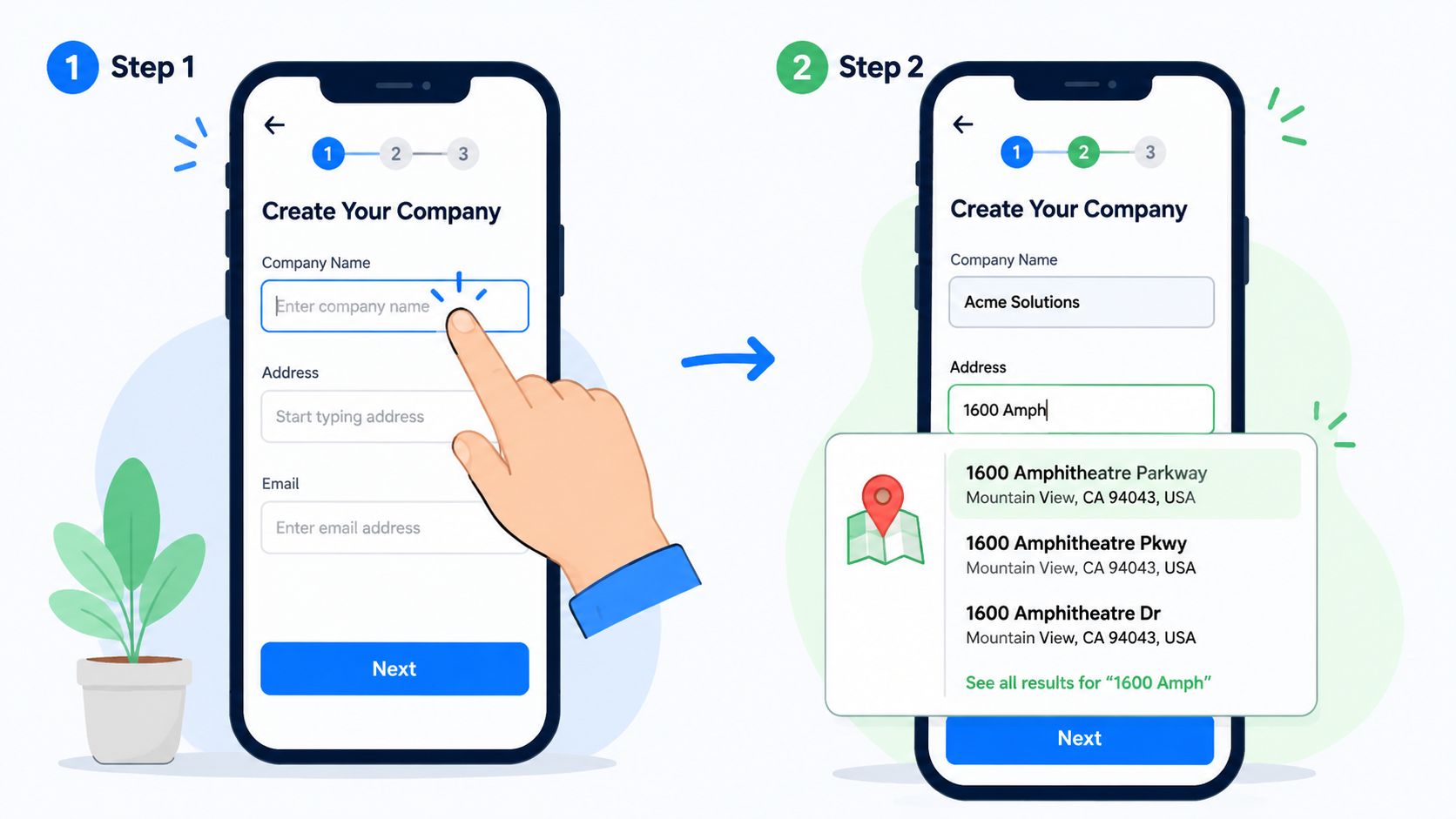
A platform such as Growform can host the multi-step capture experience, while the integration layer handles the selected address and the rest of the submission payload. The design patterns in multi-step form UI patterns that reduce mobile drop-off are relevant here because the address interaction must feel like a natural continuation of the funnel, not a separate application embedded inside it.
Preserve the fields that marketers actually need
Address selection shouldn't reset campaign context. Persist hidden fields from the first page through the final submission, including:
- UTM parameters: Keep source, medium, campaign, content, and term values attached to the lead.
- Click identifiers: Preserve values such as
gclidandfbclidwhen they arrive with the session. - Partner and sub-ID values: Retain buyer, publisher, creative, and placement identifiers used for routing or reconciliation.
- Compliance references: Store the TrustedForm certificate URL or token and Jornaya evidence with the same lead record, rather than treating consent as a separate event.
- Address selection state: Distinguish between a confirmed prediction and a manually entered fallback.
TrustedForm and Jornaya workflows need to be tested across every transition. Confirm that the consent disclosure appears at the required point, that the evidence is created during the user's actual interaction, and that the identifier survives validation, disqualification logic, retries, and webhook delivery. An address lookup must never cause the compliance payload to disappear.
The embedded experience should also support keyboard entry, screen readers, and a clear manual alternative. Some users won't find a precise prediction, and forcing them to choose an approximate place can be worse than requesting a carefully formatted address.
The video below provides a visual reference for the type of interaction teams can validate during implementation.
Mapping Structured Data to Your CRM
A selected prediction is not the same thing as a CRM-ready address. The autocomplete response can contain structured components, and the integration must translate those components into the fields expected by Salesforce, HubSpot, GoHighLevel, a lead buyer, or a custom webhook.
Google's address guidance recommends restricting the input to full street addresses and then extracting address components from the selected place. That distinction matters because a broad place result can represent a neighborhood, landmark, or business name instead of a deliverable street address. The user may see a plausible suggestion, but the receiving system needs a predictable schema.
Build the mapping deliberately
A typical mapping layer should identify the following concepts:
- Street number and route: Combine them into the primary street address when the CRM expects one line, or preserve them separately if your database supports granular fields.
- Locality: Map the returned city or town component to the CRM city field.
- Administrative area: Convert the returned region into the state, province, or equivalent field expected by the destination.
- Postal code: Keep the postal value separate from the formatted display address so validation and routing rules can use it.
- Country: Store a normalized country value or code that matches the CRM and buyer schema.
- Secondary details: Preserve apartment, unit, subpremise, or other applicable components instead of dropping them.
- Display address: Keep the formatted selection for human review, but don't use it as the only machine-readable value.
Before connecting the webhook, create a field dictionary. Write down the source component, destination field, normalization rule, fallback behavior, and whether the field is required. Then submit test records for domestic, international, apartment, rural, and incomplete-address scenarios. A clean-looking result in one market doesn't prove that the mapping works everywhere.
For Salesforce workflows, map the address before lead assignment rules run. Otherwise, a missing region or postal code can send the record to the wrong territory, buyer, or campaign. The Growform Salesforce forms resource is useful context for thinking about the capture-to-CRM handoff as one connected process rather than a form followed by an unrelated integration.
Testing, Debugging, and Optimization
Treat autocomplete as part of the conversion path, not merely an API response. A developer may see predictions render while mobile leads still drop because a sticky footer covers the list, the keyboard hides the selected option, or the next button advances before structured fields finish populating.
Build the test matrix around real traffic. Include iOS and Android devices, common mobile browsers, slow connections, rotated screens, and varied address formats. Test slow typing, pasted addresses, prediction selection, taps outside the list, edits after selection, back-button use, and returning to the step. Confirm that the form preserves the selected place, field values, TrustedForm or Jornaya identifiers, and attribution through every transition.
Measure the right failure modes
Completion rate and interaction with the tool are the obvious measures. For lead forms, pair those measures with delivery success, address changes, and residential versus commercial accuracy when those distinctions affect buyer routing or compliance review.
A useful test review asks:
- Did the user select a prediction? Track selection separately from form completion.
- Did structured fields populate? Inspect the final webhook payload, not only the visible address input.
- Did the user edit the result? Manual changes can reveal missing unit details or a poor prediction.
- Did the CRM accept the record? Check field types, required values, assignment rules, and downstream buyer responses.
- Did compliance evidence remain attached? Verify TrustedForm or Jornaya identifiers in the exact payload sent to the destination.
- Did attribution survive? Compare first-page hidden fields with the final webhook and CRM record.
Use session tokens consistently in testing and production. Confirm that each typing session receives the appropriate token, selection completes the expected request flow, and abandoned sessions cannot attach stale state to a later visitor. Inspect browser console errors, blocked scripts, key restrictions, quota responses, and duplicate library loading as well.
Run tests through the full Growform handoff, including CRM field mapping and compliance storage. A correct suggestion that enters the wrong field can create more cost than a slightly slower interaction. Review conversion, address quality, compliance evidence, attribution, and delivery together before selecting the winning implementation.
Evaluating Alternatives to Google
A mobile prospect may select an address quickly, yet the lead can still fail later if the CRM receives one combined string, the unit number is lost, or TrustedForm and Jornaya identifiers are separated from the submission. Choosing an alternative to Google should therefore begin with the handoff, not only the suggestion list.
Specialized providers may offer stronger postal validation, deliverability checks, deduplication, international normalization, or industry-specific workflows. A direct database service can also fit a business operating in a narrow geography with authoritative address records.
Autocomplete and validation solve different parts of the process. Autocomplete helps a person find and select an address while completing the form. Validation services check, correct, standardize, or enrich the address after entry. They can work together, but one should not be treated as a replacement for the other.
| Provider | Coverage | Pricing model | Validation depth | Lead-gen fit |
|---|---|---|---|---|
| Google Places | Broad international place and address coverage | Session-based autocomplete, with the price set by how the session ends | Strong prediction experience, with validation through Google's separate Address Validation API | International funnels and campaigns already using Google Maps infrastructure |
| Smarty | Strongest in the US, with international products | Lookup or verification usage, depending on the product | Strong US street-level normalization and validation | US paid lead funnels where clean routing matters |
| Loqate | International address coverage | Usage and verification pricing | International address capture and validation | Mixed-geography acquisition where one global provider is simpler to run |
| USPS services | US postal addresses | Service-specific access and usage rules | Useful for USPS standardization, not a global autocomplete layer | A US validation or enrichment step |
| Pelias and similar open-source geocoders | Depends on the underlying map dataset and deployment | Free software, but hosting, maintenance and limits still cost money | Geocoding is not certified postal validation | Controlled, budget-sensitive builds that add a separate validation layer |
Broad coverage does not guarantee a perfect result. Unit numbers, new developments, rural locations, and local formatting still require review, particularly for mortgage, insurance, logistics, and other workflows where an incorrect address has material consequences. A form should preserve the original selection, normalized fields, and any validation result separately.
A layered setup usually gives lead teams better control. Use autocomplete to reduce mobile typing, then run a specialized validation check before CRM delivery or buyer routing. In Growform, map street, city, region, postal code, and country into separate CRM fields rather than sending only the display address. Keep hidden attribution fields, TrustedForm or Jornaya identifiers, and the validation response in their intended destinations.
For high-volume lead forms already using Google Maps Platform, Google is often a practical default because its prediction experience and web and mobile ecosystem fit the capture task. Add another provider when it addresses a defined validation, routing, or regional coverage problem. Test the complete path in Growform, from mobile selection through CRM mapping and compliance storage, before judging a provider by its autocomplete interface alone.
Growform provides a no-code multi-step form builder with an address lookup field powered by Google Autocomplete, conditional logic, hidden-field pass-through, real-time integrations, and native TrustedForm and Jornaya support. The lookup is built in, so there is no Google Cloud project, API key or session billing to manage, and each part of the address arrives as its own value in your webhook or Zap. Start free trial to build and test a capture flow around actual buyer and CRM requirements.
Related articles

7 Form Builders With Hidden Fields for Attribution
September 30, 2026

Zapier Webhook to Google Sheet How to Connect Fast
You've paid for the click, a prospect has completed a multi-step form, and the sales team is waiting for the lead.
September 30, 2026

8 API Integration Examples for Lead Capture
A lead stack can lose more value after the form is completed than before it.
September 30, 2026